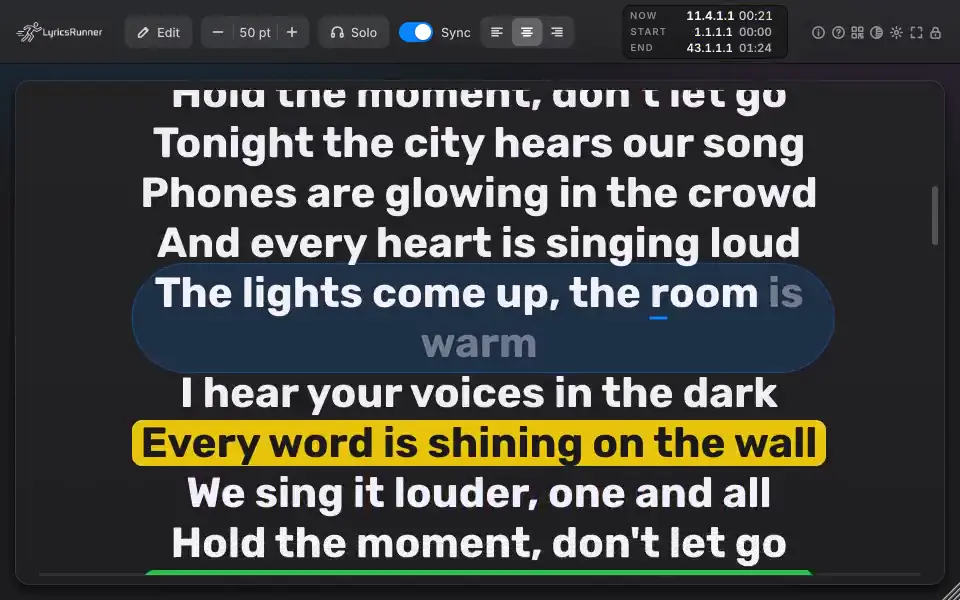
Prepare a multi-song set in Show mode: soundcheck, locking and recovery
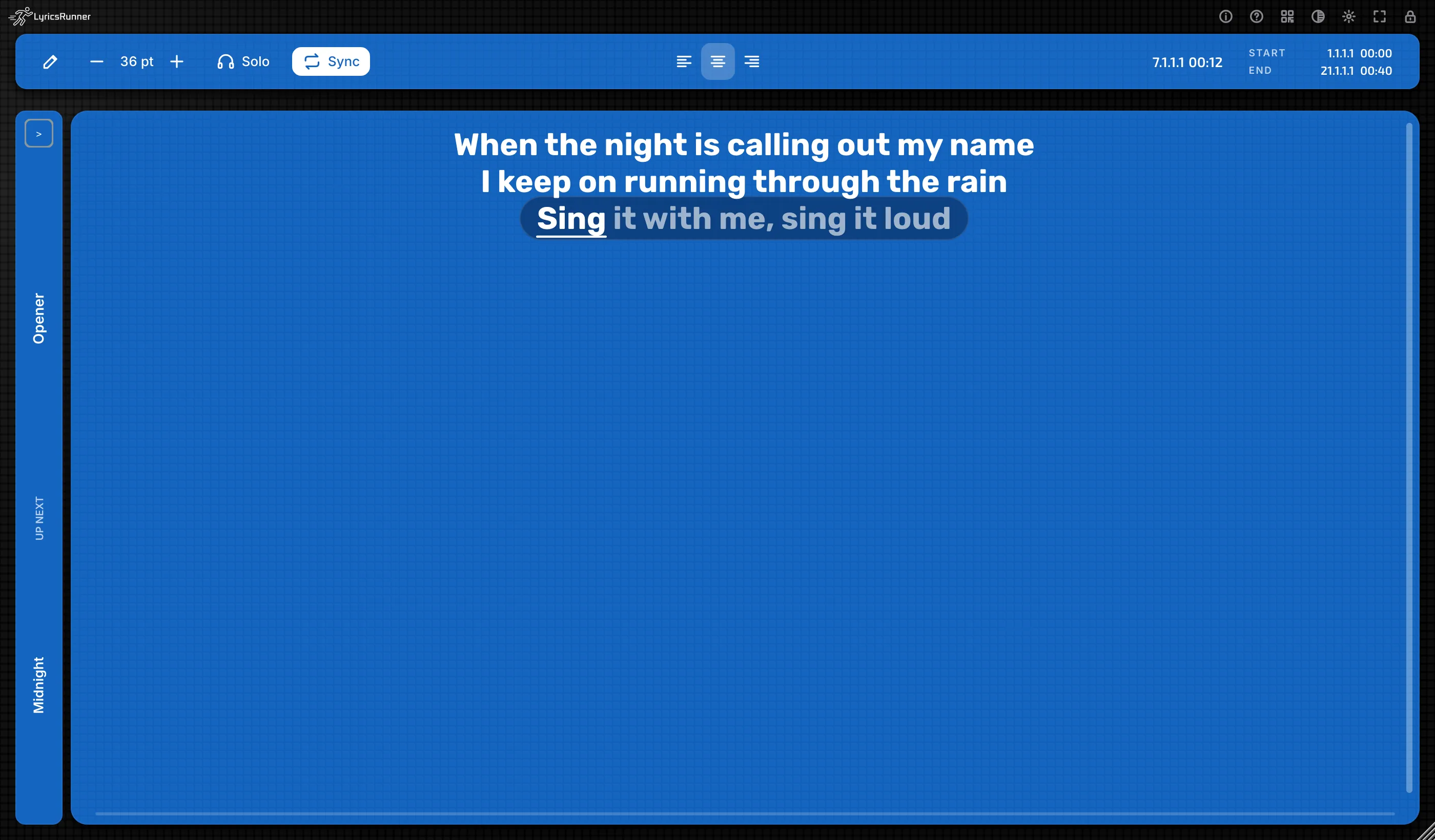
Plan the set against the audio timeline
Live setlist preparation starts with a clear relationship between the planned running order and the DAW timeline. Consider a hypothetical four-song set: an opener, a ballad, a song with a guitar break and a closing number. This is a preparation example, not a report about an actual customer or a claim about a real performance.
For each song, identify the audio start and the point where the singer needs the first words. These may differ when an instrumental introduction comes first. Decide who operates the DAW and who confirms the lyric view. Clear responsibilities help separate a navigation error from incorrect words or an unsuitable backing-track start position.
Enable Show mode in the intended window
Open the gear menu, choose Live show and enable Show mode. The setlist allows multiple songs to be prepared in that window. Lyrics already present become the first song, so review them before continuing. Do not assume that enabling the mode replaces previous work with unrelated fresh content or removes the need to verify the opening title.
Give the first song a title that singer and operator recognise quickly. If a shortened version or medley has a rehearsal nickname, agree which name will be used for instructions. The goal is not elaborate administration. It is an unambiguous association between a title, its lyric content and its intended place in the DAW sequence.
Create boundaries with deliberate clicks
Move the playhead to the intended next song boundary and click New song here once. The position rounds to the nearest second. Inspect the result, especially when working close to an audio entrance: a fractional DAW position does not become an equally precise fractional song boundary. Make boundary verification part of preparation rather than relying on the impression of the click.
A second click at the same second does not create another song. If a repeated click adds nothing, do not continue clicking in the hope of accumulating entries. Check the location, move to the intended different boundary and click once. Repeat for the remaining songs, using the written four-song plan rather than memory alone.
Verify the active song before entering content
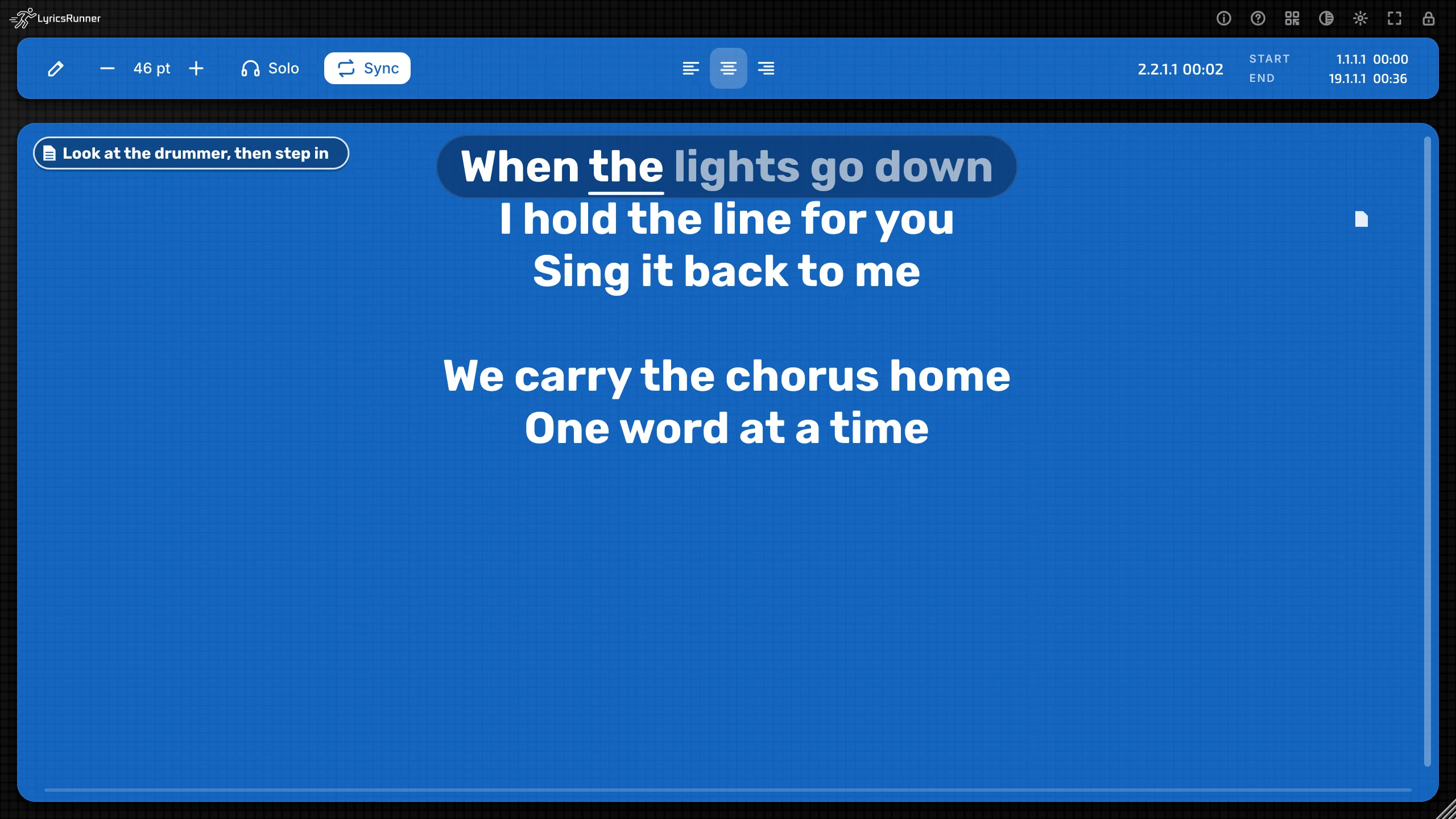
The playhead chooses the active song. Position it inside the song you intend to edit, confirm the title and then use Edit to paste one phrase per line. This matters particularly when adjacent songs have similar opening words or when a last-minute request interrupts your preparation and you return to the window after a conversation.
For each song, compare the first and last lyric phrases with the intended arrangement. Check the third song's guitar break separately and use a Solo rest marker where appropriate. Save progress at sensible points. Lyrics and timing are saved with the DAW project, so a completed window that has not been saved is not yet the final preserved preparation.
Choose a shared look for the whole set
Theme and background are shared across songs in the same window. Choose them using the most demanding passages in the set, not only short lines in the opener. A background that seems unobtrusive behind a simple phrase may be less comfortable when another song presents much denser lyric content. One attractive view cannot establish readability across every arrangement.
From the singer's position, check contrast, text recognition and reflections. Route cables safely and keep the display out of normal walking paths and access to stands. After changing a shared appearance choice, revisit representative passages in several songs. This avoids approving a setting for the ballad only to discover that it makes another song's busy verse harder to scan.
Rehearse the edges between songs
With Sync enabled, play through each transition and confirm the active title and words. Include the approach to the boundary rather than starting only well inside the next song. Because selection depends on playhead position, the boundary area may reveal a placement problem even when the individual lyric sheets are all correct and familiar.
In the four-song example, test opener to ballad, ballad to the guitar-break song, and the approach to the closer. Then choose one planned rehearsal start inside each song and confirm selection again. Show mode prepares a lyric setlist; do not infer that backing audio will automatically be reordered when the intended running order changes or when you navigate between titles.
Make soundcheck focused and observable
At soundcheck, first confirm the intended DAW project and the expected titles. Test a short opening passage, one transition, the vocal return after the guitar break and the closer's final line. These points cover different risks without turning the check into an unfocused exploration of every setting. Use the actual singer position when evaluating what can be read.
Ask for specific observations: small words, glare, an unexpected active title or an entrance needing another timing check. The operator should repeat the request before making a change. Replay the affected passage and save once approved. Soundcheck tests preparation under current conditions; it does not guarantee that every later difficulty has disappeared.
Lock a known performance state
When content and appearance are approved, save the DAW project and click Lock. The control toggles with a click; unlocking is another click, not a press-and-hold action. Agree who may unlock during the performance and which signal requests a correction. This reduces the chance of two people independently attempting to change the same view at the same time.
Write down the agreed starting position for the set. Before playback, verify that the playhead selects the intended first song and that Sync is enabled for timeline following. A locked view is not an audio repair tool or a guarantee of successful operation. It belongs within a human preparation routine with checked content and clear responsibilities.
Prepare recovery and a separate reading fallback
Agree on a short recovery exchange: the singer names the song and next usable entrance; the operator confirms the intended DAW position before restarting. Practise this after a deliberate stop. Avoid changing text, timing and audio arrangement simultaneously while trying to restore a known state. First identify the problem, then make the smallest necessary correction.
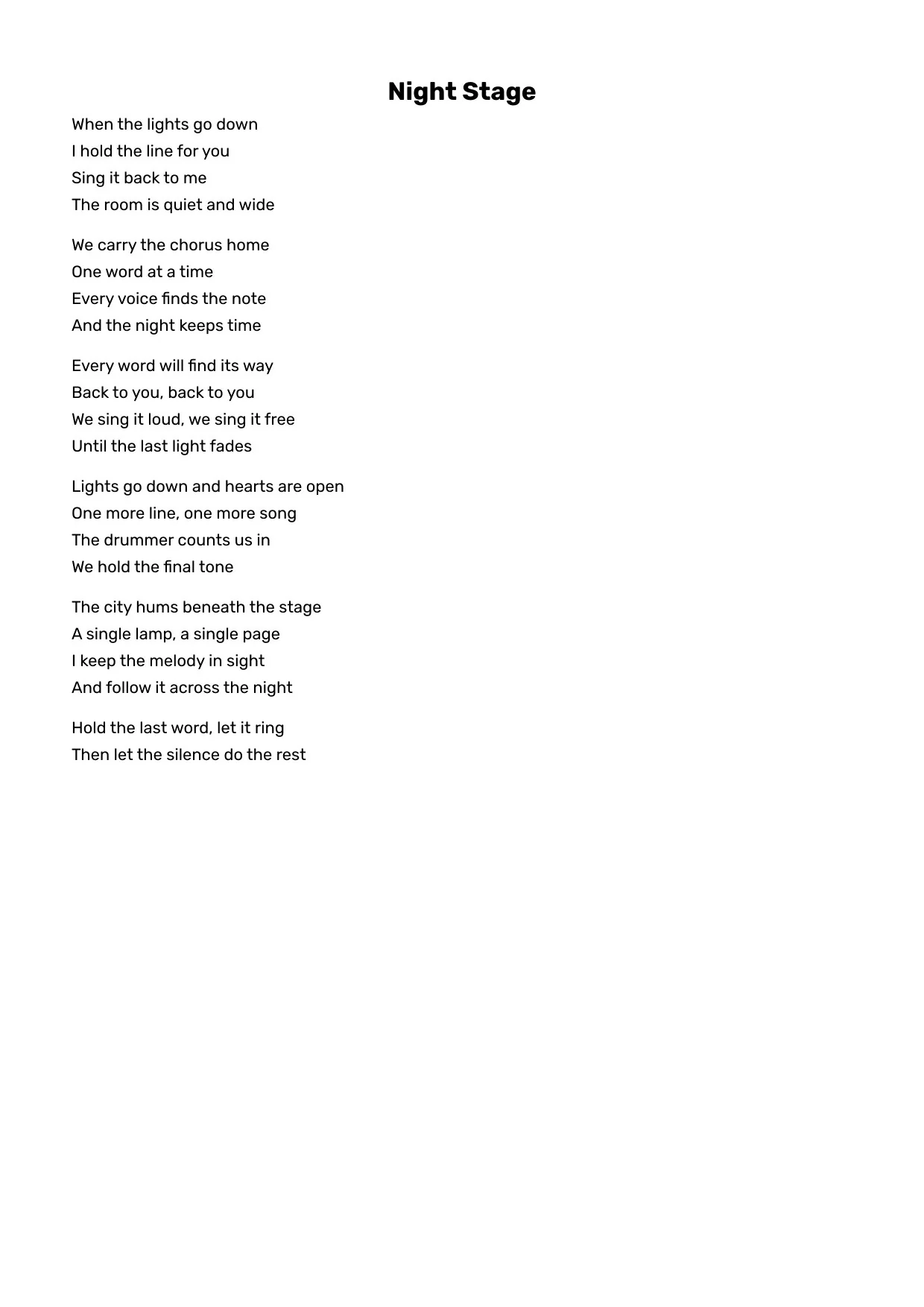
Print lyrics through the gear or right-click menu. The system print dialog preserves the title, lines and blank lines. Review the pages and arrange the four songs in performance order. A printed lyrics backup provides another reading method; it does not restore unavailable backing audio or replace the need to address a problem in the audio itself.
Finish with a clear handover
Before leaving rehearsal, confirm the four titles, boundaries, active-song behaviour, shared appearance and final saved project. Check that the operator understands the Lock toggle and the singer knows where the printed pages are kept. Keep that fallback accessible without crossing unsafe cable routes or moving equipment during a song. Practical access matters as much as having printed the words.
If the running order changes, review the backing timeline and lyric setlist together before calling the new version ready. Do not assume that navigating titles rearranges audio. Rehearse the first entrance and one recovery instruction. Preparation ends usefully when both people know who starts playback, which words should appear and how to request a clear, agreed restart.
Next article
Prepare your show checklist — Map songs, verify every boundary and agree on a locked performance state with an accessible printed fallback.
Related guides
Readable stage lyrics: prepare a singer screen for quick, confident glances
Sync lyrics to backing tracks: rehearse starts, gaps and arrangement changes
Frequently asked questions
Where is the setlist enabled?
Open Gear > Live show > Show mode. The lyrics already in the window become the first song.
Why do two clicks on New song here add only one song?
Positions round to the nearest second. A duplicate click at the same second does not add another song.
How is the active song selected?
The DAW playhead selects the active song. Check its position before editing lyrics or rehearsing an entrance.
Does the setlist automatically rearrange backing audio?
Do not assume that it does. Prepare and verify the backing timeline separately, then rehearse it with the lyric setlist.
Map songs, verify every boundary and agree on a locked performance state with an accessible printed fallback.
Prepare your show checklist