How to Open, Edit and Convert LRC Files (Synced Lyrics Guide)
An .lrc file looks mysterious until you open it once. It is a plain text file: each lyric line starts with a timestamp like [01:23.45] that tells a compatible player exactly when to show that line. Because it is plain text, you do not need special software to open, edit, or convert it — and once you understand the format, fixing a mistimed lyric file takes minutes.
How to open an .lrc file
Double-clicking an .lrc file often fails because no program claims the extension by default. Instead, open it with any text editor: Notepad on Windows, TextEdit on Mac (in plain-text mode), or free editors like Notepad++ or VS Code. You will see the raw format immediately — timestamps in square brackets followed by the lyric text.
If you just want to read the lyrics, that is all you need. If you want to see them highlighted in sync, open the file in a music player that supports .lrc, or use a browser-based tool like our free lyrics sync tool at /tools/lyrics-sync.
How to edit timing and text
Every line follows the same pattern: [mm:ss.xx] followed by the words. To shift a single line, change its timestamp. To shift the whole file — for example when your audio has a longer intro than the version the lyrics were synced to — add or adjust the [offset:] tag in the header. A positive offset in milliseconds makes every line appear later; a negative one makes them earlier.
- Keep one sung phrase per line — long paragraphs are hard to follow on screen.
- Save as UTF-8 so accented characters and non-English lyrics survive.
- Name the file exactly like the audio file (song.lrc next to song.mp3) so players find it automatically.
Converting .lrc to SRT or plain text
SRT is the subtitle format video editors understand. Converting by hand means reformatting each timestamp into the SRT range style (00:01:23,450 --> 00:01:26,000) and adding sequence numbers — tedious for a whole song. Free online converters do this in one step; search for 'lrc to srt converter' and check the output before using it in a video project. To get plain lyrics without timestamps, delete the bracketed tags — a find-and-replace with a regular expression like \[.*?\] does it in seconds.
Using synced lyrics when recording vocals
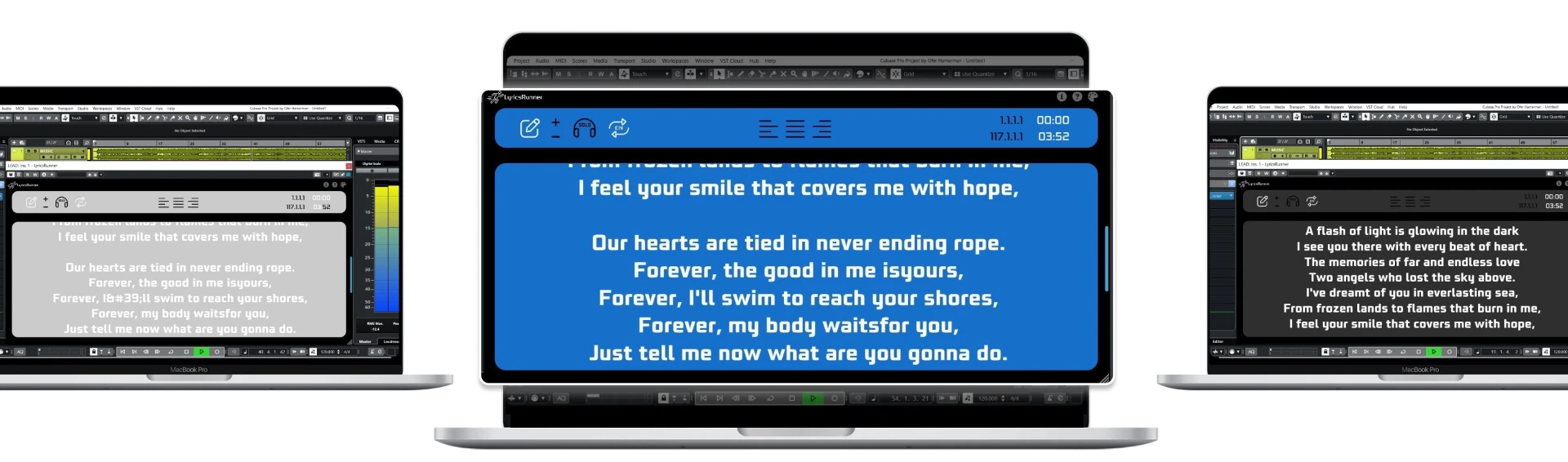
In the studio, the reference that matters is your session timeline, not a music player. LyricsRunnerVST is a lyrics teleprompter plugin (VST3, AU and AAX) that scrolls the text in sync with your DAW's playhead — so when you loop a section or punch in, the right line is already on screen. Paste the lyrics once, set the start and end points, and the settings are saved with your project.
You can try it free for 14 days with no credit card; the lifetime license is a one-time $79. Check the compatibility page at /compatibility for your DAW, or read our guide to what an .lrc file is at /glossary/lrc-file for the format basics.
Try it yourself
Ready to transform your sessions?
Drop your email — we'll send the 14-day trial download link to your inbox. No credit card.
- 30-day money-back guarantee
- Instant download
- Works in every major DAW