How to Display Scrolling Lyrics in Your DAW (Cubase, Logic, Ableton, Reaper)
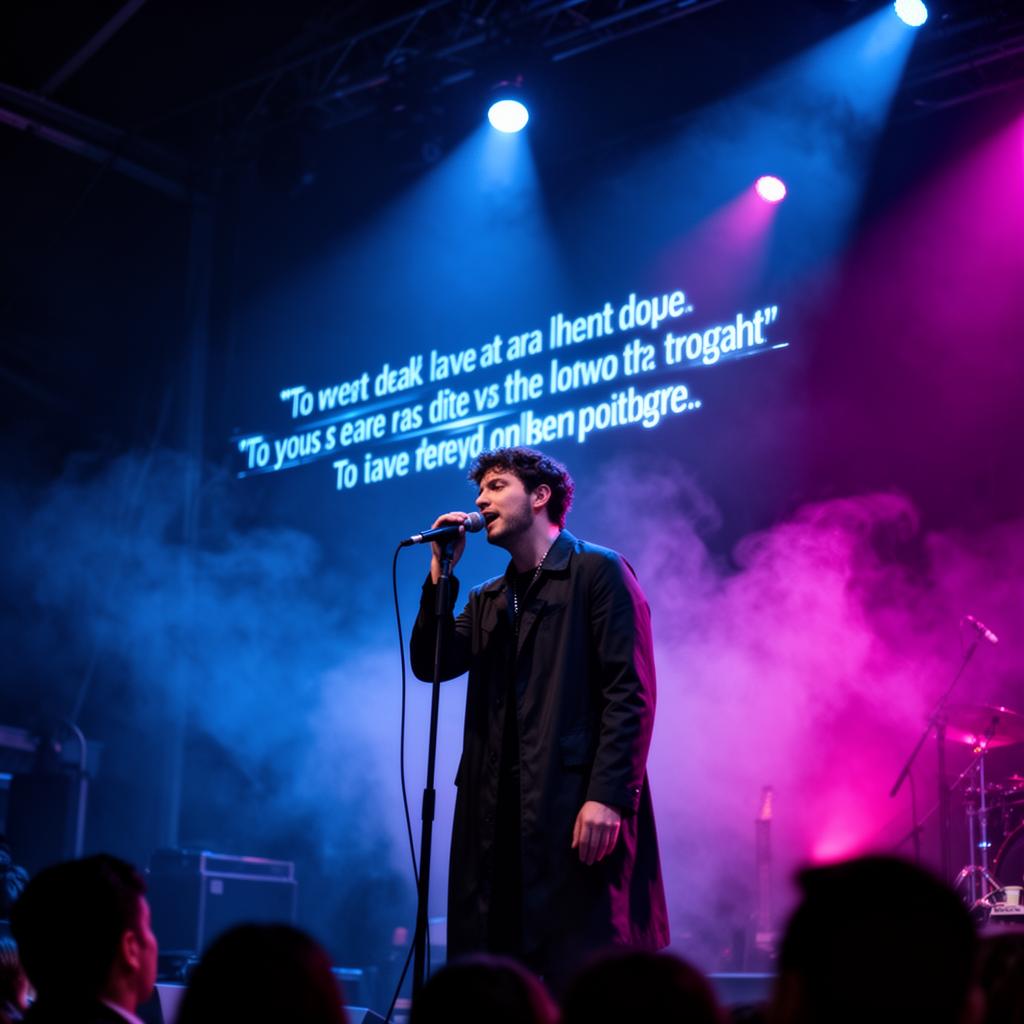
The goal is specific: lyrics that are large, readable from the booth, and moving in time with the song without anyone touching a mouse. Here is what each DAW can and can't do natively, and the one approach that works identically in all of them.
Cubase
Cubase has a marker track and a Lyrics function tied to score editing. Markers follow the playhead but display at fixed small size; the Score Editor's lyric layer is for notation, not performance prompting. Usable for the engineer, not for the vocalist.
Logic Pro
Logic can add lyrics as text events in the Score Editor and show a marker text window. The marker text window is closest to a prompt, but it doesn't scroll continuously — it jumps between markers, and it isn't formatted for distance reading.
Ableton Live
Locators plus clip names. Live has no text display surface designed for reading prose, so this maps poorly onto a lyric sheet.
your DAW
Memory locations and the Markers window. Excellent for structural navigation in tracking sessions, again not built for a singer to read from.
Reaper
Reaper is the most flexible: region names, a large "Big Clock"-style window, and community scripts that can display text. If you're comfortable with ReaScript you can build something. Most people don't want to maintain a script mid-session.
The approach that works in every DAW
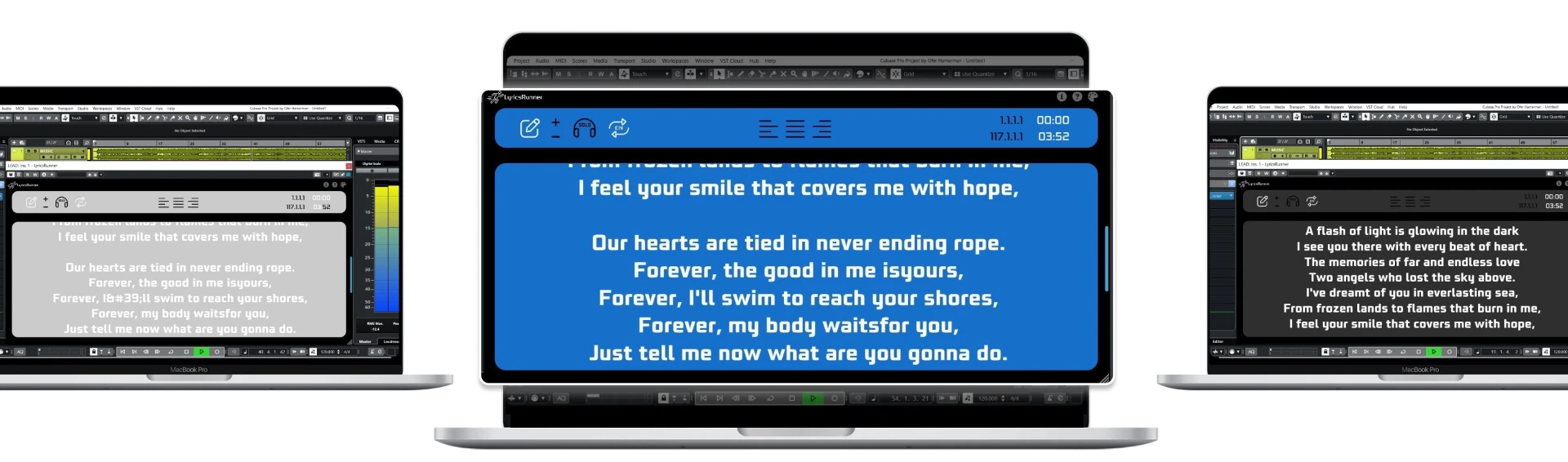
Because every one of these hosts supports VST3, the portable answer is a teleprompter plugin. LyricsRunnerVST loads like any other VST3, reads the transport position and scrolls the lyrics continuously and in time — through loops, rewinds and punch-ins.
- Resizable window with auto-rescaling text, so it's legible on a studio TV or second monitor.
- Adjustable font, colour and background for low-light booths.
- Start and end markers so the scroll matches the arrangement, not a guessed speed.
- Lyrics and settings saved inside the project file — reopen tomorrow, nothing to set up.
Practical setup in the booth
- Put the display where the singer's eyeline already is — slightly above the mic, not off to one side, or you'll hear the head turn.
- Light text on a dark background, one or two lines of lead-in visible.
- Set the font big enough to read at the actual distance, then go one step bigger.
Do that once and "can we stop, I lost the words" mostly stops being part of your sessions.
Try it yourself
Ready to transform your sessions?
Drop your email — we'll send the 14-day trial download link to your inbox. No credit card.
- 30-day money-back guarantee
- Instant download
- VST3 / AU / CLAP on Mac & Windows