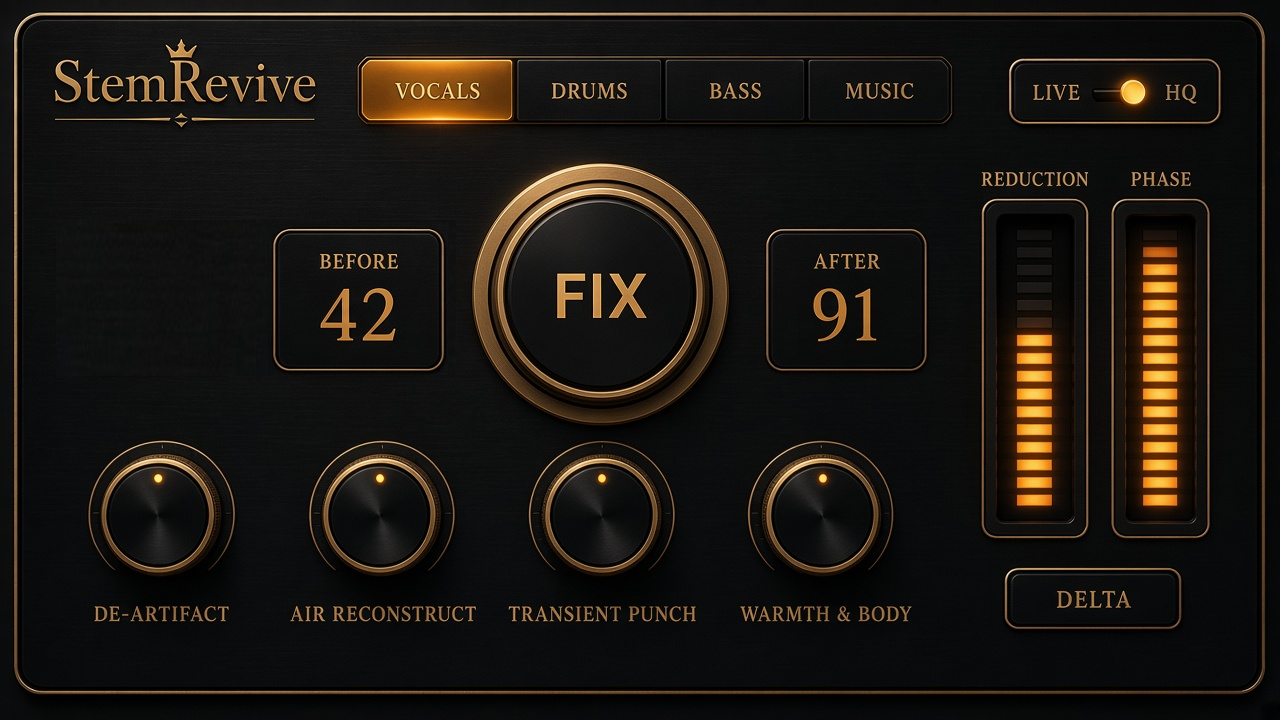
StemRevive: Restoring Suno Stems, Not Separating a Song Into Stems
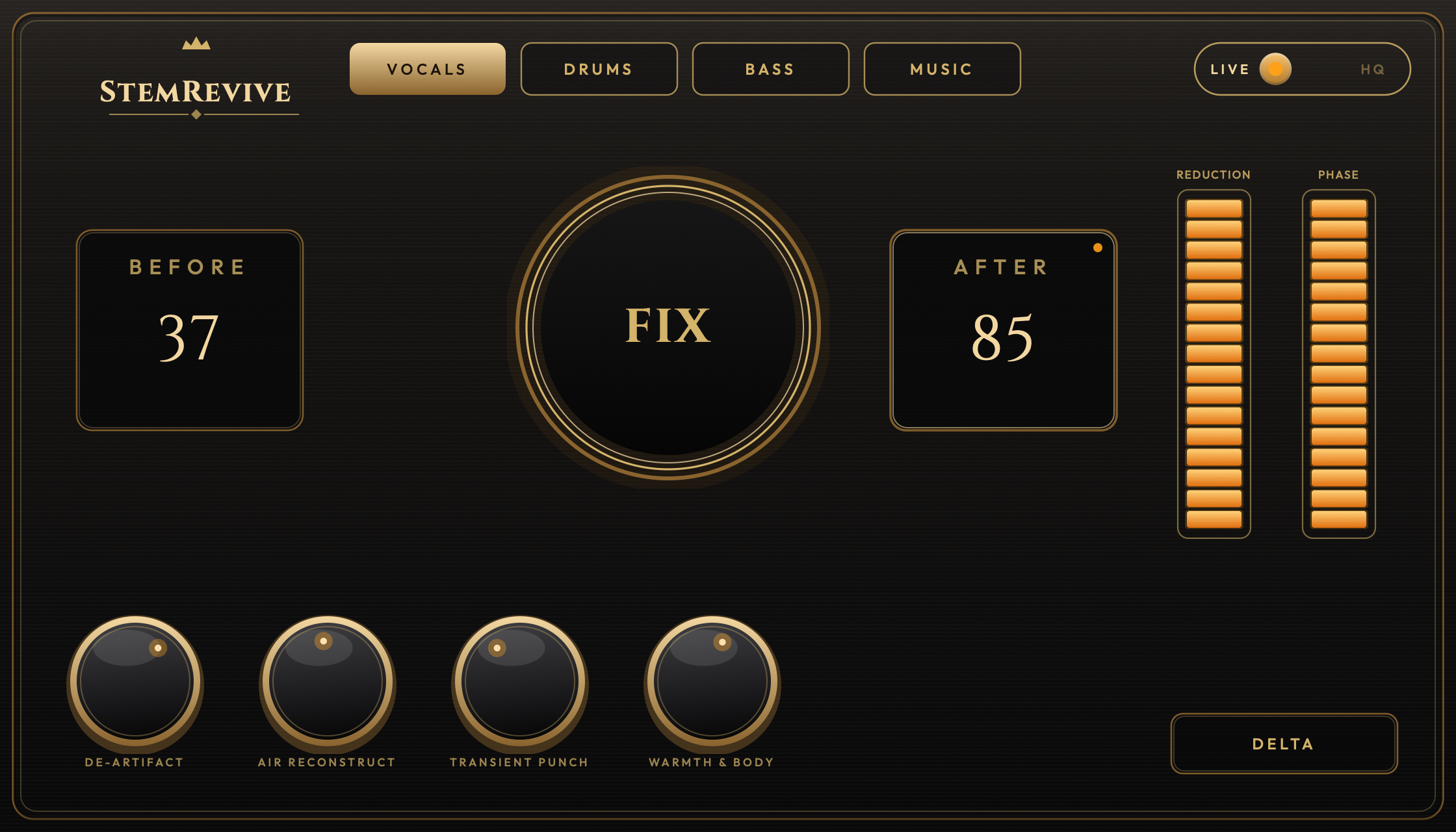
StemRevive is an available plugin and standalone app focused on improving stems exported from Suno after separation. The important distinction is restoration, not separation: begin with isolated vocal, drum or instrument files. It is not a stem splitter or an official Suno integration.
The problems it aims to address
The stated targets are metallic or watery artifacts, lost air and highs, weak drum punch and plastic-sounding mids. Those descriptions identify possible listening problems, not guarantees that every source can be repaired. AI-generated or separated stems can vary considerably, so first identify what bothers you in the particular file.
How to make Suno stems sound better after separation
Save an untouched copy and import stems at their original start positions. First listen in the arrangement, then solo a short problem section. Identify whether the issue is another instrument bleeding through, a metallic or watery texture on the intended sound, or a dull transient. These are different problems: lowering a fader changes balance, while restoration aims to change the individual stem. The product lists FIX, a before/after score, LIVE mode and standalone batch export; this guide provides no independent measurements of the improvement or total system latency.
Who it may suit
- A Suno creator who already has exported stems and wants to evaluate their sound before mixing.
- A producer who needs to compare restoration against manual processing on an existing stem.
- Someone who expects to process many stems and wants to evaluate the standalone batch workflow.
Who should choose something else
If you need to extract stems from a full song, investigate a stem-separation tool first. If the file is badly damaged, comparing a different export or separation may be more useful than applying stronger processing. Restoration does not transfer rights to a generated track or remove the need to check the terms of the service that produced it.
A fair before-and-after test
Keep the original file. Compare processed and original versions at similar loudness and listen both solo and in the recombined mix. For Suno vocal stem cleanup, check long vowels, consonants and gaps between phrases. For drums, compare the attack and cymbal tail. If cleaner audio also loses words, groove or useful brightness, use a gentler setting or keep the original. A score is not a replacement for listening. Check batch output alignment and file behavior on representative stems before processing a whole project.
Stem cleanup before mixing: a short checklist
- Bleed: is an unwanted instrument audible in the gaps, or only when the intended part plays? Do not mistake intentional reverb for another instrument.
- Metallic vocals: compare a sustained vowel with the original song. Avoid removing natural brightness just to make the solo stem darker.
- Mixing Suno stems: return all processed parts to the arrangement at unchanged start positions and compare at similar loudness before adding normal mix processing.
Current status
StemRevive is available. macOS Universal Intel and Apple Silicon has VST3, AU and Standalone; Windows has VST3 and Standalone. Results depend on the source: no guaranteed removal of every artifact or perfect reconstruction is claimed. Visit StemRevive for current availability and purchase details.
Try it yourself
Ready to transform your sessions?
Drop your email — we'll send the 14-day trial download link to your inbox. No credit card.
- 30-day money-back guarantee
- Instant download
- VST3 / AU / CLAP on Mac & Windows