Lyrics Monitor: Make the Words Readable from the Microphone
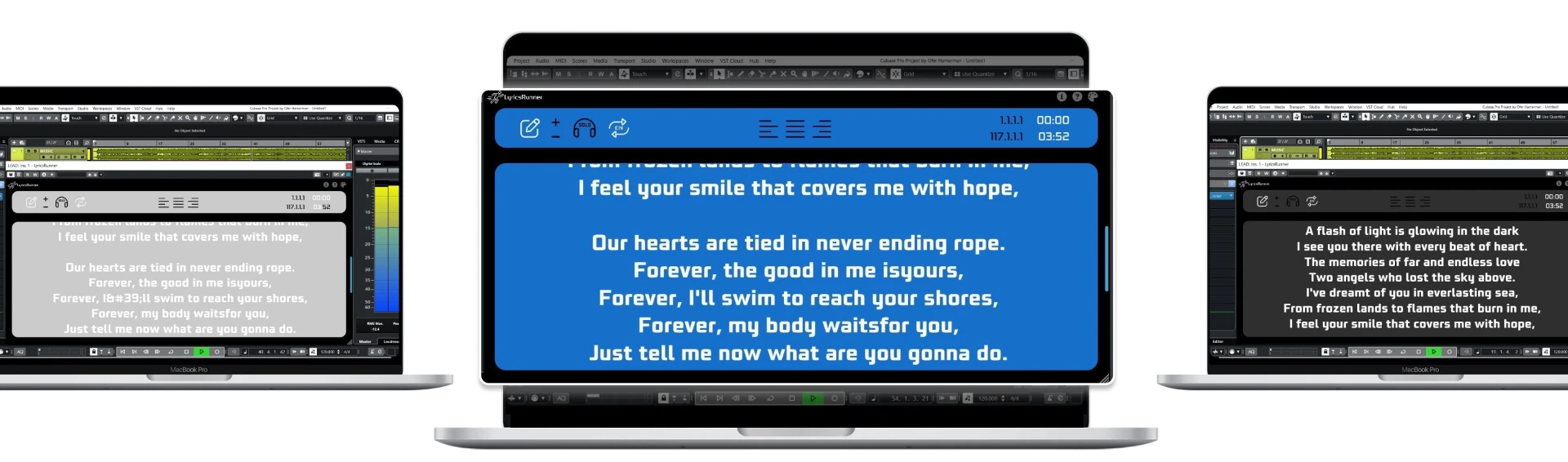
A lyrics monitor is useful only when the singer can read it from the performance position. Before buying a larger screen, test distance, contrast, line length and how much of the next phrase is visible. LyricsRunnerVST provides the computer-based lyric display; the monitor and its physical connection are separate equipment choices.
Start at the microphone, not at the desk
Stand where the singer will record or rehearse. Read a verse aloud while keeping a normal microphone position, then try singing it with headphones. A display that looks sharp at an engineer's desk can become difficult to read across a room. Ask the performer where a quick glance feels comfortable and adjust the screen position accordingly.
Check sightlines around the microphone stand, pop filter and any music stand. Do not solve a blocked view by making the singer move out of a consistent recording position. If the display is connected to a computer in another room, test the complete connection and layout before the performer arrives rather than assuming the computer will detect it correctly on the day.
Choose contrast before decoration
Start with a plain background and clearly separated text. LyricsRunnerVST offers visual settings, but using every option is not a requirement. A busy image, subtle color difference or thin typeface can make the singer work harder. Test both a quiet verse and the fastest, most densely written section; the difficult passage is the better readability benchmark.
Try the available appearance settings under the room's actual lighting. A screen used in a bright rehearsal space may need different choices from one in a dark booth. There is no trustworthy single font size for all singers and distances. Increase the size until the performer can identify the next phrase without squinting, then verify that the line still fits within the window.
Make line breaks follow the phrasing
Put breaths and meaningful phrase boundaries ahead of symmetrical text layout. If a long sentence wraps at an unhelpful word, edit the source line breaks and check it again in the display. Separate the verse and chorus with a clear section label. Remove production notes that are not intended to be read or sung by the performer.
Use the approved lyrics for every repeated section instead of instructions such as “same as before.” During a later chorus the singer may be concentrating on expression, harmony or microphone technique. A prompt should make retrieval easier, not send the performer back to a previous screen. For ad-libs, agree whether the text is exact or simply a cue before recording starts.
Show preparation time as well as current words
A lyric display that reveals a line only when it must be sung can feel late even if it appears synchronized. During setup, ask the singer how much of the following phrase they need to see. Run the count-in and first entrance, then locate to the last verse and repeat the test. Check the lyric timing separately from the screen's physical readability.
When the DAW drives the prompt, its transport is the reference. The software does not infer an improvised song structure from the microphone. An extended introduction or new break requires another timing pass. When troubleshooting, first decide whether the problem is unreadable text or the wrong phrase appearing; changing brightness will not fix an arrangement mismatch.
Keep the display useful when the session resumes
Save the project, reopen it and confirm the lyric content and visual settings. Verify the window is on the intended connected display, not hidden behind the DAW or left on a monitor that is no longer present. Make a plain-text backup of the approved lyric sheet and identify who should update it after changes.
For a software-first trial, check LyricsRunnerVST compatibility. Its 14-day trial needs no credit card, and the lifetime license is $49 with one payment; no monitor is included. If your next step is a performance setup rather than a booth display, use the stage rehearsal checklist to test the full workflow.
Try it yourself
Ready to transform your sessions?
Drop your email — we'll send the 14-day trial download link to your inbox. No credit card.
- 30-day money-back guarantee
- Instant download
- VST3 / AU / CLAP on Mac & Windows