Autocue for Singers: Set Up the First Vocal Session
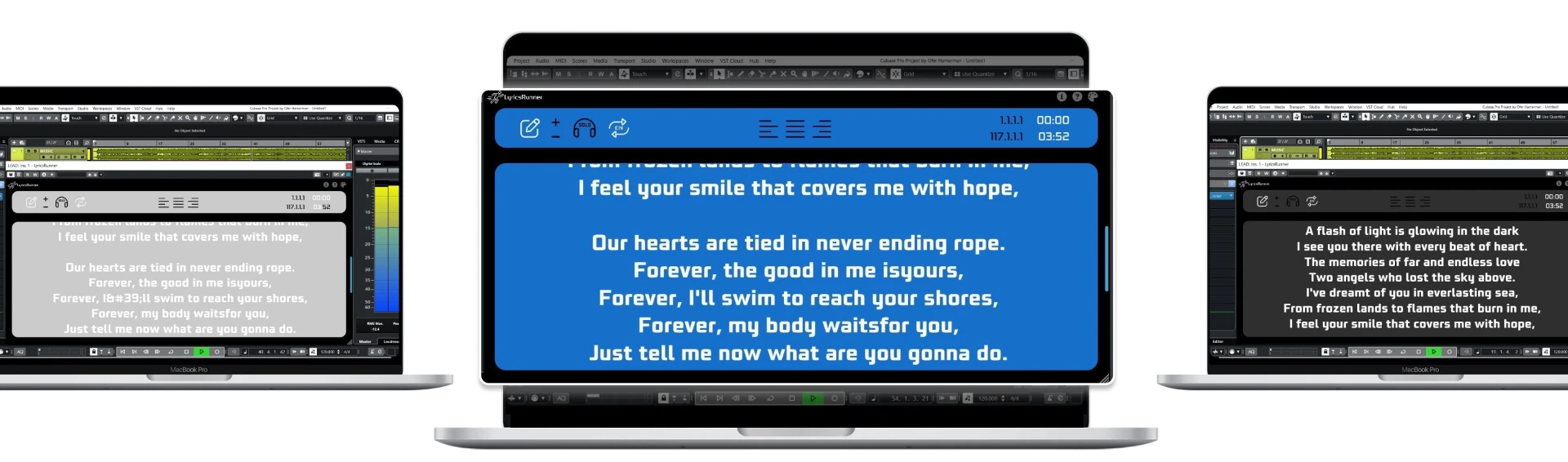
An autocue for singers is a lyric display that supports the performance without asking the singer to operate it. For a vocal session, start with a clean lyric sheet, a readable screen and a timing check against the DAW. The aim is to reduce searching for words, not to replace rehearsal or guarantee a better take.
Prepare text for singing, not for reading silently
A page of lyrics that works in an email can be awkward on a recording screen. Split dense verses into short visual phrases and keep punctuation that helps the performer breathe or understand the line. Remove editorial comments from the main lyric stream. Place section names where they clarify the arrangement, and distinguish a sung ad-lib from an engineer's reminder.
Do not insert automatic line breaks solely to make every line the same length. Preserve phrases that belong together, then adjust the display width and font size until the singer can scan them. For a repeated chorus, show the complete words each time. A singer recording under headphones should not have to scroll backwards to remember what “repeat chorus” means.
Give the singer a comfortable sightline
Ask the performer to stand in the normal recording position before you choose a screen location. The words should be readable with a small glance rather than a head turn that changes microphone position. If the control-room screen is too distant, a connected second monitor may be more useful than increasing the operator's laptop brightness.
Choose contrast and size from the singer's viewpoint. A decorative background can look impressive but compete with thin text. Start with a simple background and a clear font, then test with the longest line in the song. Different eyesight, glasses and room lighting make a universal font-size recommendation unreliable; the actual reading test is the deciding factor.
Match the prompt to the recording reference
In a compatible DAW, LyricsRunnerVST displays scrolling lyrics against the playhead. Load the plugin, paste the approved text and adjust its timing and display controls for the current song. Play the count-in and first verse without recording. Ask whether the next phrase becomes visible early enough for the singer to prepare.
Do not describe this as voice recognition: the plugin is not transcribing the microphone or listening for the next lyric. When you press play, the transport provides the timing reference. A changed introduction, a slower rehearsal or a moved verse still needs a fresh check. Setup is complete only when the performer and operator agree the prompt follows the intended session.
Run three short checks before the first take
First, play from the beginning through the opening verse. Next, locate to a later chorus and confirm that the prompt is useful after the jump. Finally, stop, rewind and play again from the count-in. These checks reveal whether the workflow is comfortable during the operations an engineer will repeat throughout the session.
Save the project and reopen it before relying on session recall. Keep a separate approved text copy so edits are recoverable and name the project clearly enough to identify the song version. When a singer changes a word during recording, update that copy and the prompt together; two competing versions quickly become a source of interruptions.
Evaluate the result without promising a miracle
After a few takes, ask whether the singer is looking at the screen less often, not more. If the display encourages constant reading, simplify the text or practice the passage without it. An autocue is most useful as a reference the performer can trust and occasionally glance at, rather than a new task to manage while singing.
Read the compatibility checklist before installing. LyricsRunnerVST has a 14-day trial without a credit card and a $49 lifetime license with one payment. If you only need to test text layout first, use the free browser teleprompter; browser scrolling is not the same as DAW playhead synchronization.
Try it yourself
Ready to transform your sessions?
Drop your email — we'll send the 14-day trial download link to your inbox. No credit card.
- 30-day money-back guarantee
- Instant download
- VST3 / AU / CLAP on Mac & Windows