Start here
This is the short version. The full reference, with every menu, starts after it.
Install
The installers are not signed yet. Your computer asks once. That is normal. Restart the DAW afterwards, or rescan plug-ins.
Mac. Double-click the zip. Right-click LyricsRunner-v2-beta-mac.pkg, choose Open, then Open again. If macOS says it cannot be opened: System Settings, Privacy & Security, Open Anyway, then open the installer again. The plug-ins land in /Library/Audio/Plug-Ins (VST3, AU, and CLAP). The app lands in /Applications.
Windows. Right-click the zip, choose Extract All, then double-click LyricsRunner-v2-beta-win.exe. If a blue window says "Windows protected your PC", click More info, then Run anyway.
Pro Tools. LyricsRunner 2 has no AAX version, so it does not load in Pro Tools directly. Load the VST3 inside a free VST host plug-in such as Plugin Buddy or Waves StudioRack.
Tip. Right-click, then Open, is the Mac step that says you trust the file. On Windows, More info is the small text on the blue SmartScreen window. Run anyway sits under it. The long Mac fallback command is in Install and open, below.
Quick start
- Load LyricsRunner 2 on a track, or open the LyricsRunner 2 app.
- Click Edit and paste the lyrics. One line is one phrase. A blank line is a small rest.
- Leave Sync on. Set Start where the singing begins, and End where it stops.
- Right-click the first chorus line. Choose Section starts here, then Chorus.
- Click the phone icon. Scan the QR with an iPhone on the same Wi-Fi, and sing.
The singer's phone over Wi-Fi currently works with a Mac and an iPhone. Put them on the same Wi-Fi. Windows support is coming.
Tip. For a first rehearsal, steps 1 to 3 are enough. Add the chorus marker and the phone when the words already scroll with the song.
Ten buttons
| Button | One-line tip |
|---|---|
| Edit | Click to type. Click again when you are done, so a stray click cannot change a word. |
| − and + | The number between them is the text size. 100 reads from the room. Drop toward 60 while you edit. |
| Solo | Puts a rest in the lyric, so the words wait while the band plays alone. |
| Sync | Leave it on. The words follow the DAW. Off freezes them, and the time boxes rest. |
| Align | Centre is the easy read from the stage. Right suits a singer who wants a Hebrew edge. |
| Phone | Shows the QR. Same Wi-Fi. The link is new each time you turn the page on, so scan it once and leave it on. |
| Theme | Each click is the next look. Stop on the one the back row can read. |
| Gear | Settings. The same menus are on a right-click, plus Cut, Copy, and Paste. |
| Full screen | The projector view. Esc leaves it. |
| Lock | The last click before the mic. Click it again to unlock. You do not hold it. |

Show mode in 5 steps
Use this for a night of about 20 songs or more. One LyricsRunner 2 holds the whole set. The playhead picks the song.
- Open the gear. Choose Live show, then tick Show mode. A Setlist appears. The words already in the window become song 1.
- Leave Sync on and press play.
- At the next song's downbeat, click New song here once.
- Type the title, and paste that song's lyrics while the playhead is inside it.
- Repeat down the set. Then click the lock.
Times are whole seconds. New song here rounds the playhead to the nearest second. The theme and the background picture belong to this window, so every song shares them. Pictures of the Setlist, the UP NEXT card, and the button are in the Show mode chapter.
Tip. A second click on the same second does not add another song. Move the playhead, then click once.
Full reference
Everything in Start here, plus every menu item, with a tip for each. Pictures are real screens. A new window opens on the blue carbon look. Some pictures were taken on later looks in the same cycle. The buttons match. Click the theme icon and you walk through every look, including the ones in the pictures.
What you can open
LyricsRunner 2 sits next to LyricsRunner 1. Old sessions keep opening version 1. Version 2 is its own plug-in, with its own window.
| Computer | What you get |
|---|---|
| Mac | The app, plus VST3, AU, and CLAP |
| Windows | The app, plus VST3 and CLAP |
| Linux | The app, plus VST3, CLAP, and LV2 |
Pro Tools. LyricsRunner 2 has no AAX version, so it does not load in Pro Tools directly. You can load the VST3 inside a free VST host plug-in such as Plugin Buddy or Waves StudioRack.
Tip. After you install, restart the DAW, or rescan plug-ins, so it can find LyricsRunner 2.
Install and open
The installers are not signed yet. Your computer asks once. That is normal.
Mac
- Double-click the zip file. Then right-click (or Control-click)
LyricsRunner-v2-beta-mac.pkgand choose Open, then Open again. - If macOS says it cannot be opened, go to System Settings, then Privacy & Security. Scroll down and click Open Anyway next to LyricsRunner. Enter your Mac password, then open the installer again.
- Follow the installer. The plug-ins go to
/Library/Audio/Plug-Ins(VST3, Components for AU, and CLAP). The app goes to/Applications. - Restart your DAW.
If the DAW still blocks the plug-in, open Terminal (Applications, then Utilities), paste this line, and press Enter:
sudo xattr -dr com.apple.quarantine \
  "/Library/Audio/Plug-Ins/VST3/LyricsRunner 2.vst3" \
  "/Library/Audio/Plug-Ins/Components/LyricsRunner 2.component" \
  "/Library/Audio/Plug-Ins/CLAP/LyricsRunner 2.clap" \
  "/Applications/LyricsRunner 2.app"
Type your Mac password. Nothing shows while you type. Press Enter, then restart the DAW.
Tip. Right-click, then Open, is the step that tells the Mac you trust this file. A normal double-click is the one that gets blocked.
Windows
- Right-click the zip file and choose Extract All. Then double-click
LyricsRunner-v2-beta-win.exe. - If a blue window says "Windows protected your PC" (SmartScreen), click More info, then Run anyway.
- Allow the installer to make changes (Yes) and follow it. The VST3 goes to
C:\Program Files\Common Files\VST3. The CLAP goes toC:\Program Files\Common Files\CLAP. The app goes toC:\Program Files\LyricsRunner 2. - Restart your DAW, or rescan plug-ins.
Tip. More info is easy to miss. It is the small text on that blue SmartScreen window. Run anyway is the button under it.
Linux
Open the package that came with your download and run its installer. You get a standalone app, plus VST3, CLAP, and LV2, for hosts such as Bitwig, REAPER, and Ardour. Then rescan plug-ins.
Tip. You can install it just for your user, with no password, or for everyone on the computer. The notes in the Linux package say which command does which.
The window
The five-step start is at the top of this guide. Here is the same window, and what each part is for.
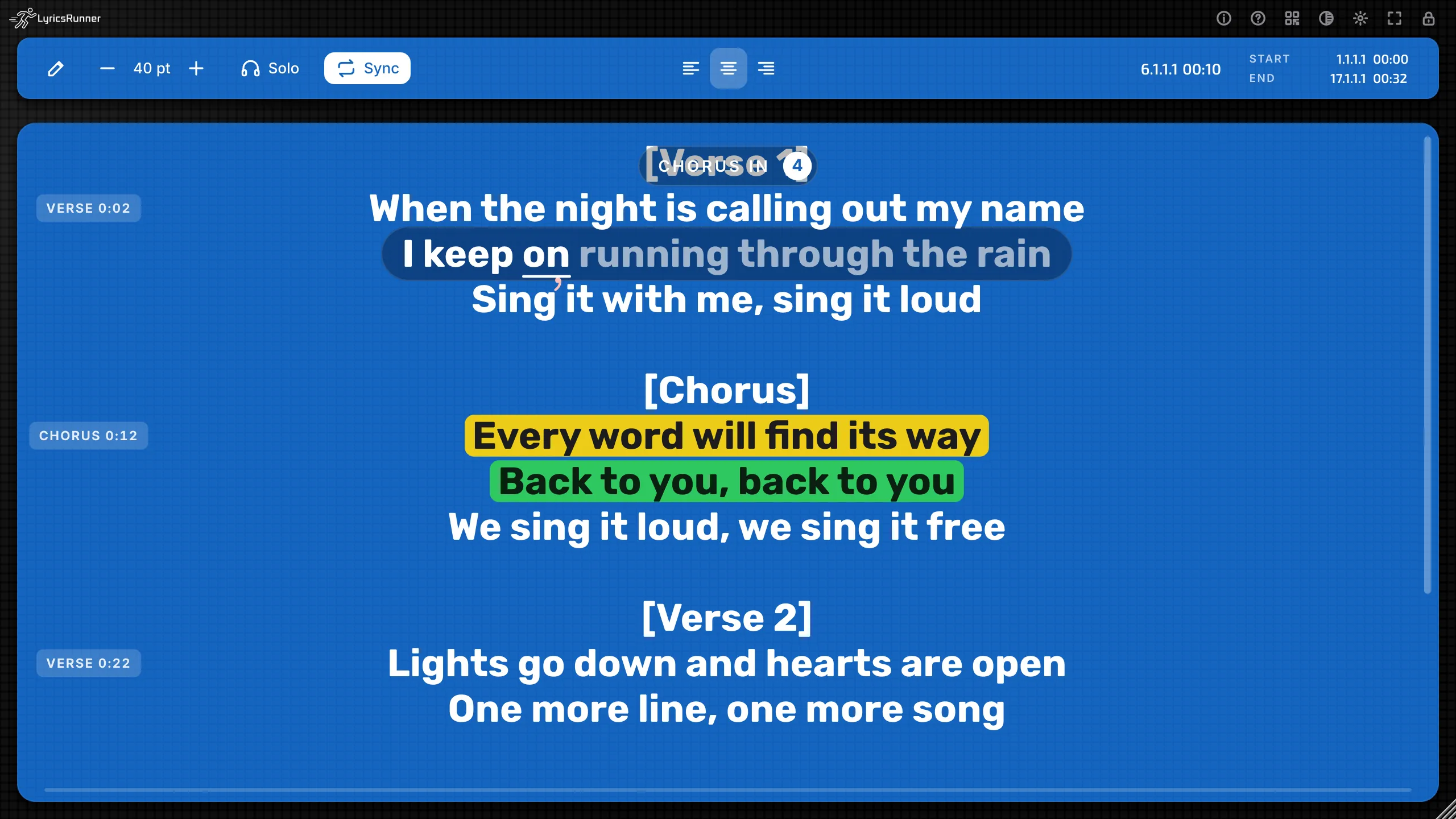
The big area is the lyrics. A thin line under them fills from Start to End, so you can see where you are without reading the clock.
The toolbar holds the everyday buttons. On some looks they sit on top. On the light lavender look they sit in a dock along the bottom. The carbon looks also show the logo. The jobs are the same.
Hover a button for a tooltip. The ? button turns tooltips on and off. They start on.
Tip. Leave tooltips on for the first week. They use the same words as this guide.
The gear and the right-click
The gear (tooltip: Settings) opens the big menu. Right-click the lyrics and you get that same menu, plus the usual text commands: Undo, Cut, Copy, Paste, and Select All.
The gear is the place to go when you are not typing. The right-click is the place to go when your cursor is already on a line.
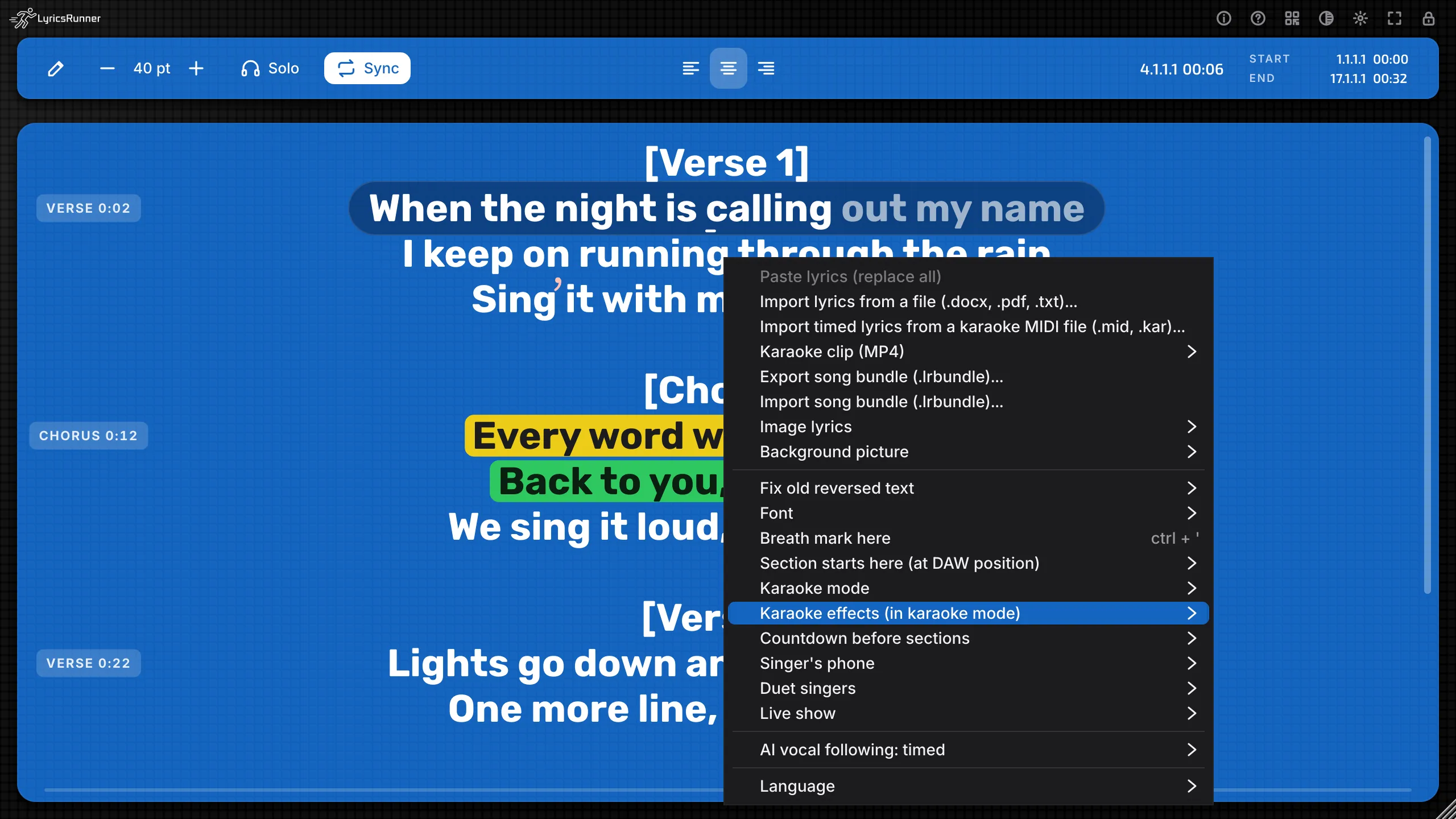
Tip. Click the gear once and read the menu from top to bottom before a show day. You will know where everything lives.
The toolbar
From the left, after the logo on the looks that show one:
Edit
Click Edit to type. Click it again when you are done, and the words are safe from a stray click.

In image mode (a photo of a lyric sheet), Edit means "draw the boxes". That is later in this guide.
Tip. Finish typing, then click Edit so it turns off, before you hand the mouse to someone else.
Text size
− makes the words smaller. + makes them bigger. The number in the middle is the size. It moves in steps of 5, from 20 up to 140. Some looks add "pt" after the number. A new song starts at 100.
Tip. Size 100 is a strong stage size. Drop it toward 60 when you are editing a long song on a laptop, then bring it back up for the show.
Solo
Solo drops a gap into the lyrics at the cursor, with the line === SOLO/SILENCE ====. The scroll shares its time across every line, so a gap makes the words wait while the band plays.
Tip. Click into the lyric just before a guitar solo, then click Solo. The singer sees a clear rest, and the next line arrives when the singing comes back.
Sync
Sync lets the lyrics follow the DAW. The tooltip says "Allow sync with your DAW". It starts on.
Turn Sync off and the words freeze where they are. The time boxes turn yellow and rest, so they cannot be edited until Sync is on again. Playback on the phone, the countdown, and karaoke follow the same switch.
Tip. Leave Sync on whenever the song is playing. Turn it off only when you want the words to sit still, for example while you talk through a line with the singer.
Align left, centre, right
Three buttons set the alignment of every line. Centre is the start. Left and right line the words up on that side.

Hebrew and Arabic still read in their own direction inside the line. Alignment only chooses which edge the line sits on.
Tip. Centre is the easiest read from a stage. Use right for a Hebrew song if the singer is used to a right edge. Use the same choice for the whole song so the eye does not jump.
NOW, START, and END
These live on the right of the toolbar. The next chapter is all about them.
The icons on the right
From left to right:

| Icon | Tooltip | What it does |
|---|---|---|
| i | Show information about the plugin | Opens About: version, website, support, and License |
| ? | Enable or disable tooltips | Tooltips on or off |
| Phone | Singer's phone: show the QR code (same Wi-Fi) | Turns on the phone page and shows the QR |
| Theme | Change theme | Cycles to the next look |
| Gear | Settings | Opens the settings menu |
| Full screen | Full screen (Esc to leave) | Fills the screen. Esc leaves it |
| Lock | Lock the screen | Covers the controls for the gig. Click again to unlock |
Tip. The lock is the last thing you touch before you walk to the mic. A tap will not change a lyric by accident.
Timing, Start, End, and Sync
LyricsRunner spreads your lines across the time from Start to End. A three-minute lyric in a three-minute window feels like the song. The same lyric squeezed into thirty seconds races. The same lyric stretched over six minutes crawls.
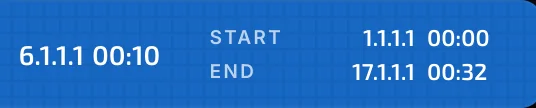
NOW is the playhead. It shows the bar and the clock. You cannot type there. It moves when the DAW plays and Sync is on.
Note. NOW follows the song position as you play or scroll. It is no longer stuck on 1.1.1.1.
START and END each have two boxes. The left box is the bar, such as 1.1.1.1. That box shows the bar the DAW is using. You set the time in the clock box beside it, as 03:00. A new song starts at 00:00 and ends at 03:00.
You can type those clocks only while Sync is on. With Sync off they are yellow and resting.
The bar numbers follow the song's tempo and time signature from the DAW. In the standalone app they follow the app's own clock.
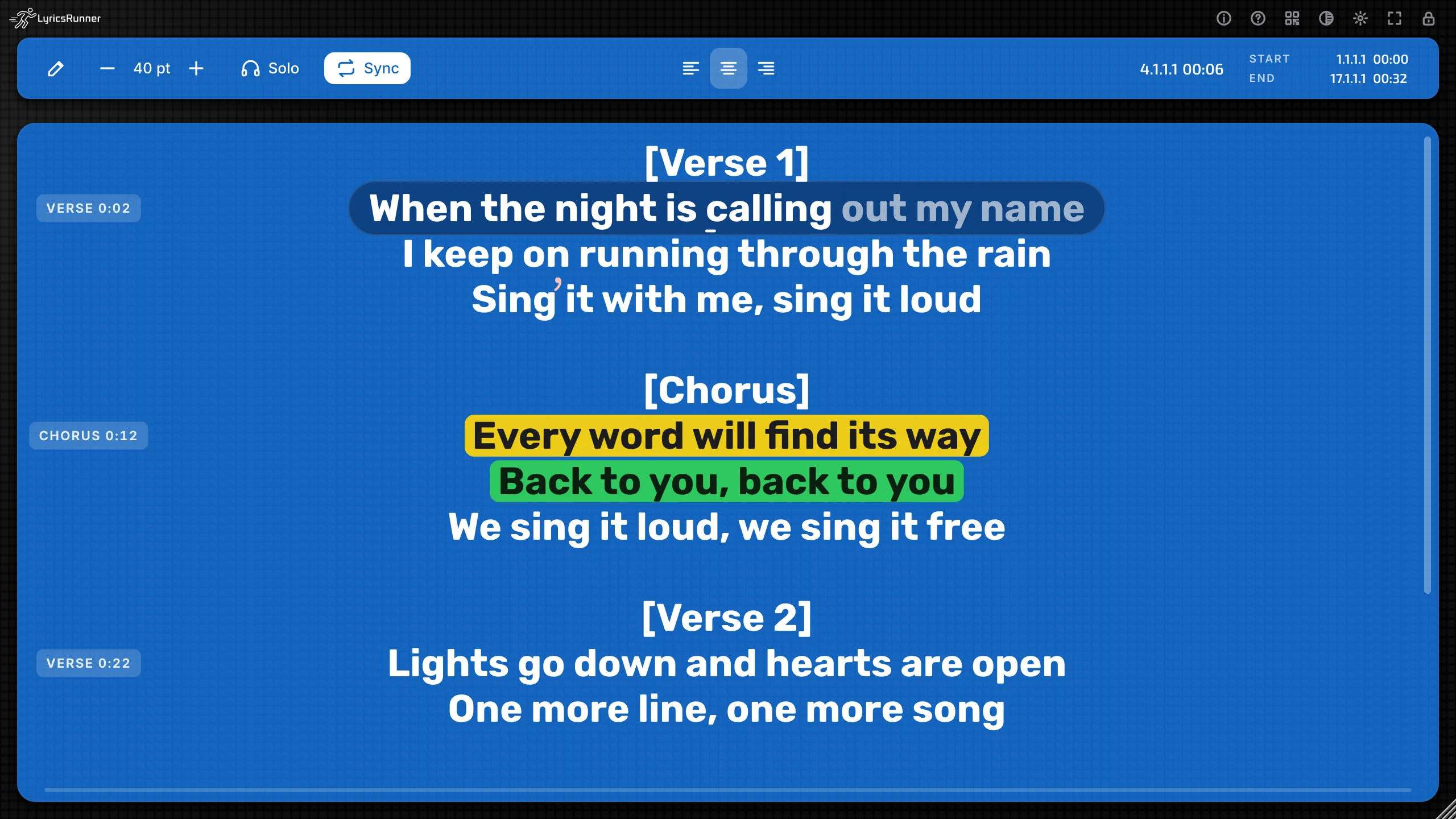
Tip. Play the track, watch NOW, and pause where the first word is sung. Type that clock into Start. Pause on the last word and type that clock into End. The scroll then belongs to the vocal, and the intro can be as long as it likes.
A thin line under the lyrics fills from left to right between Start and End. It is a glance, so you know where you are without reading the clock.
In Show mode, Start and End belong to the song the playhead is inside. The clocks in the setlist are the same times. That chapter explains the whole-second rule.
Typing the words
Click Edit, then click in the lyrics and type. Enter starts a new line. The words are saved as you type.
A right-click on the lyrics also offers:
- Paste lyrics (replace all). The clipboard replaces the whole song. Highlights, breath marks, section starts, and stage notes on those lines start fresh.
- Import lyrics from a file (.docx, .pdf, .txt)... The text from the file replaces the song, the same way.
- Cut, Copy, Paste, Undo, and Select All, on the right-click menu.
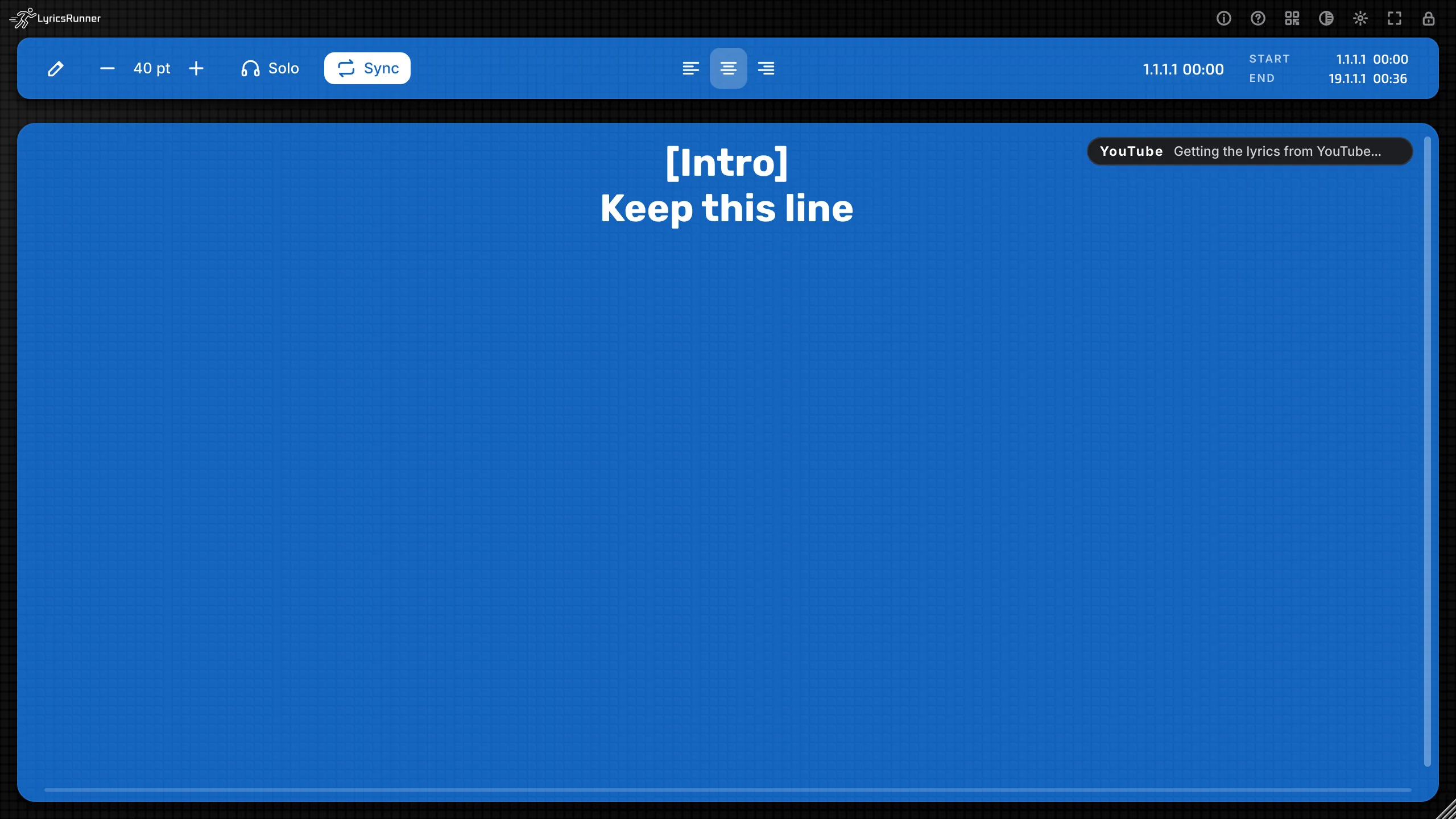
Paste a YouTube link on its own, with nothing else on the clipboard. LyricsRunner fetches the lyrics and inserts them at the cursor. Your other lines stay. It looks in the video description first, then in the captions. You need the internet for that moment. If it cannot find lyrics, nothing is inserted, and a short message says why.
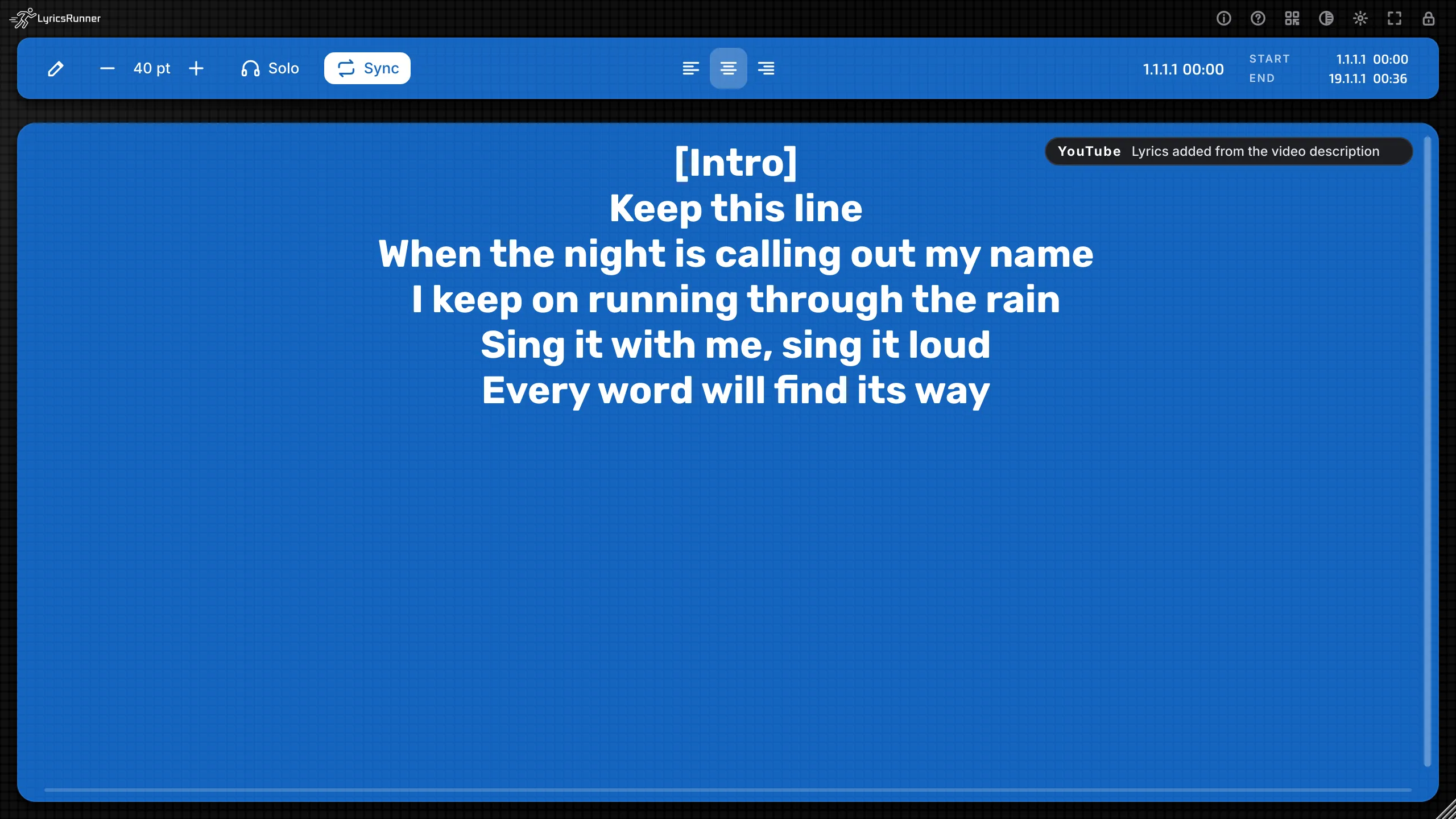
Tip. Keep one idea per line. A line that is a whole verse makes a heavy page in karaoke. A line that is a phrase is easy to sing.
Font
Right-click, or use the gear, and open Font.
- Bold. Starts on. A quick heavier or lighter look.
- Line spacing. A slider from 1.00× to 2.00×. More space helps a big room.
- Font weight. A slider from light to heavy. Rubik follows it smoothly. The other faces use Bold as their main switch.
- Default spacing and weight. Puts both sliders back.
- The face itself. Each row is drawn in that face, with a short Hebrew sample so you can see the letters:
Alef, Noto Sans Hebrew, Heebo, Rubik, Varela Round, Karantina, Secular One, Suez One, Frank Ruhl Libre, David Libre, Playpen Sans Hebrew.
A new song uses Rubik, bold, size 100.
Tip. Rubik or Heebo read well at the back of a club. Frank Ruhl Libre and David Libre feel like a ballad. Playpen Sans Hebrew feels handwritten. Pick the face with the singer standing where the audience stands.
Themes and look
The theme icon (tooltip: Change theme) steps through 17 looks, then back to the first. A new window opens on the blue carbon look.
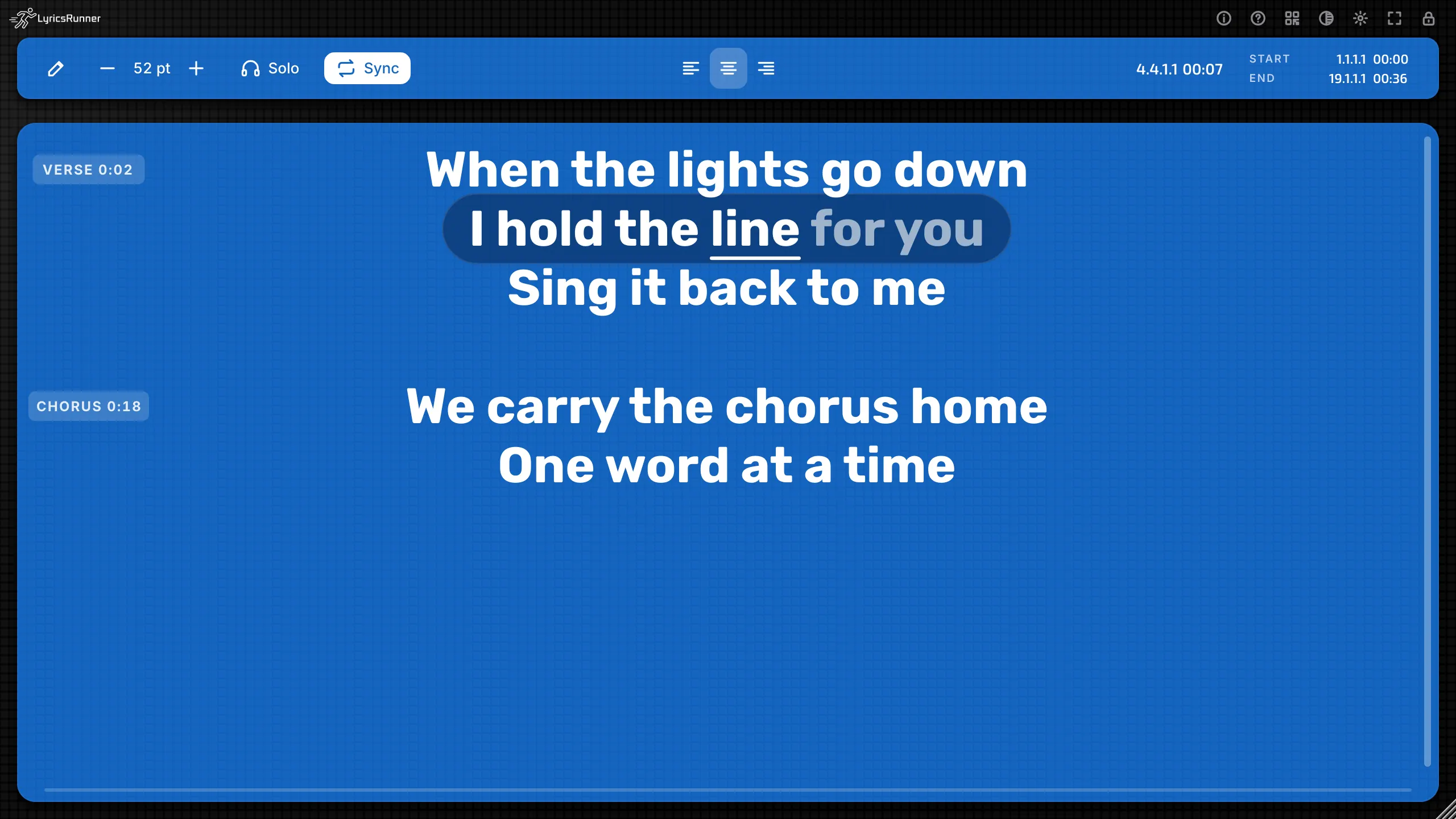
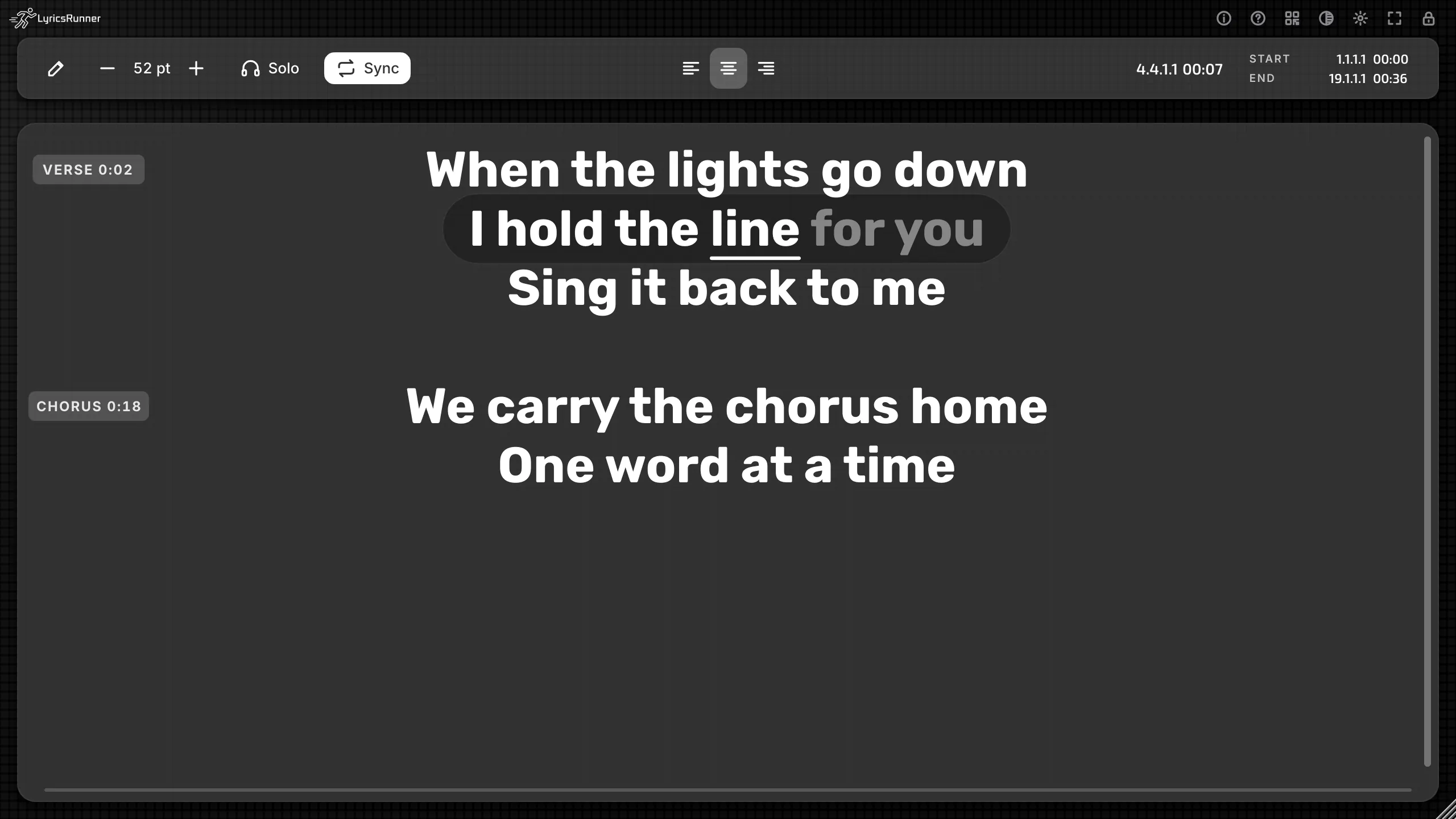
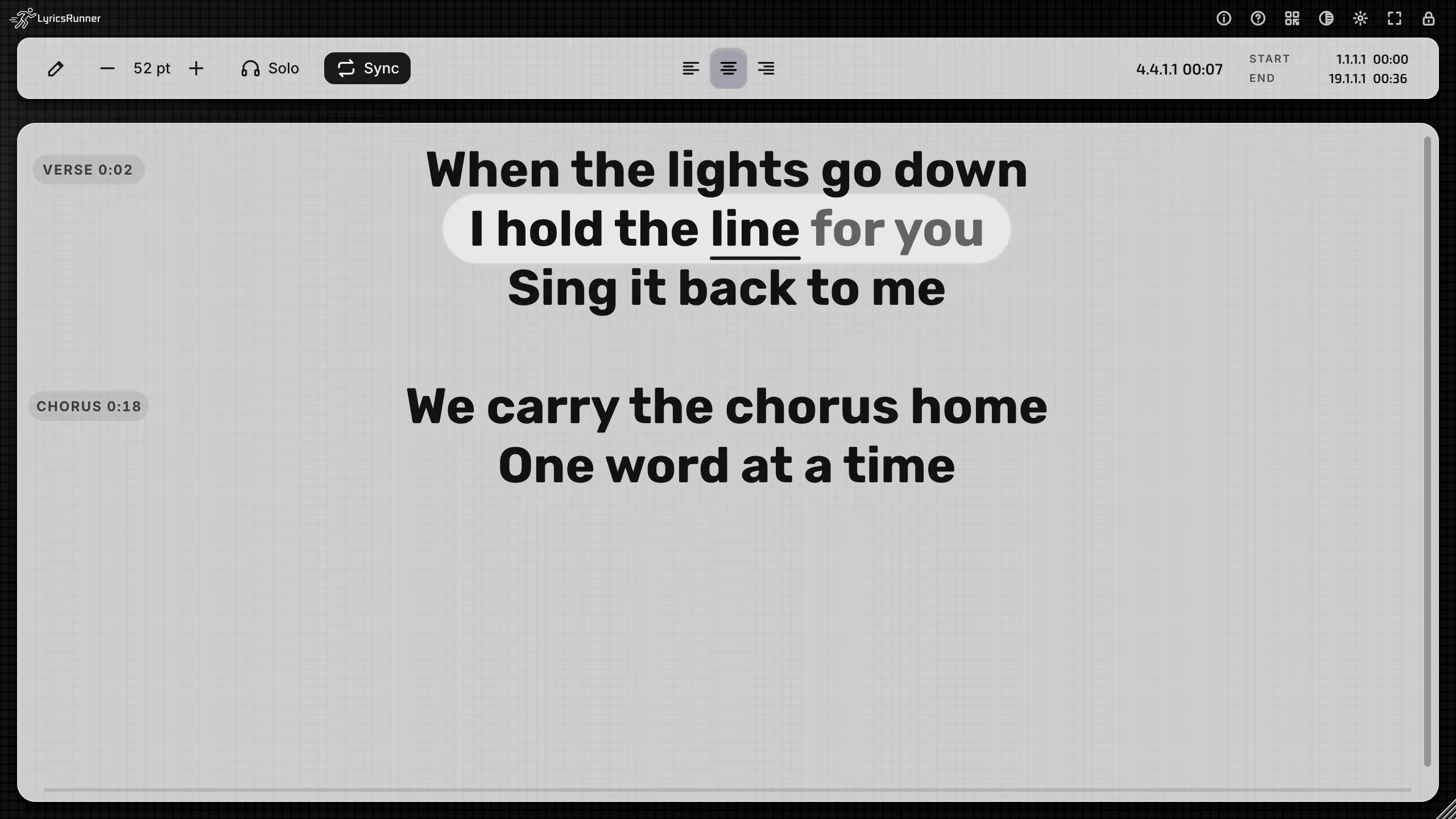
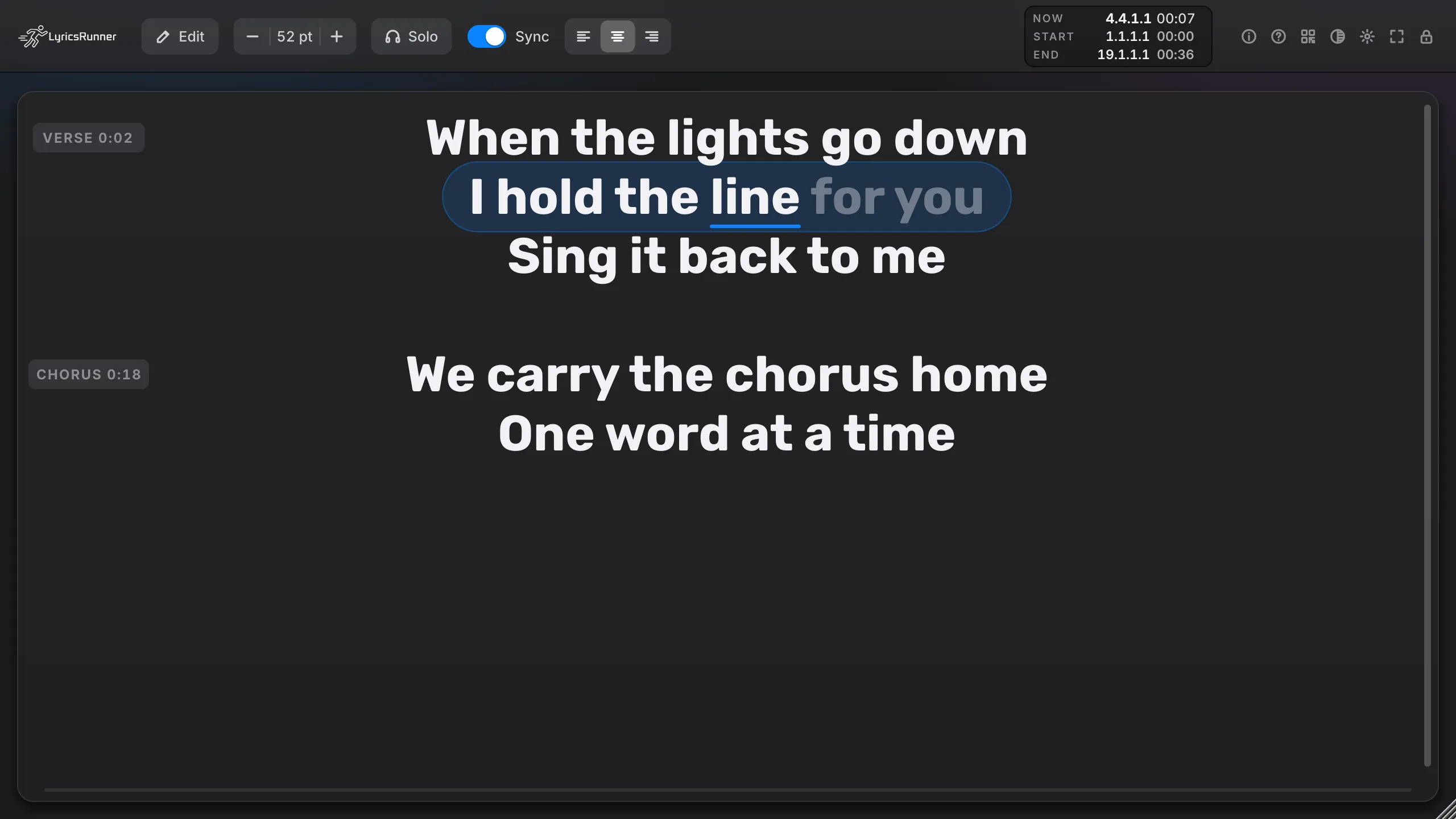
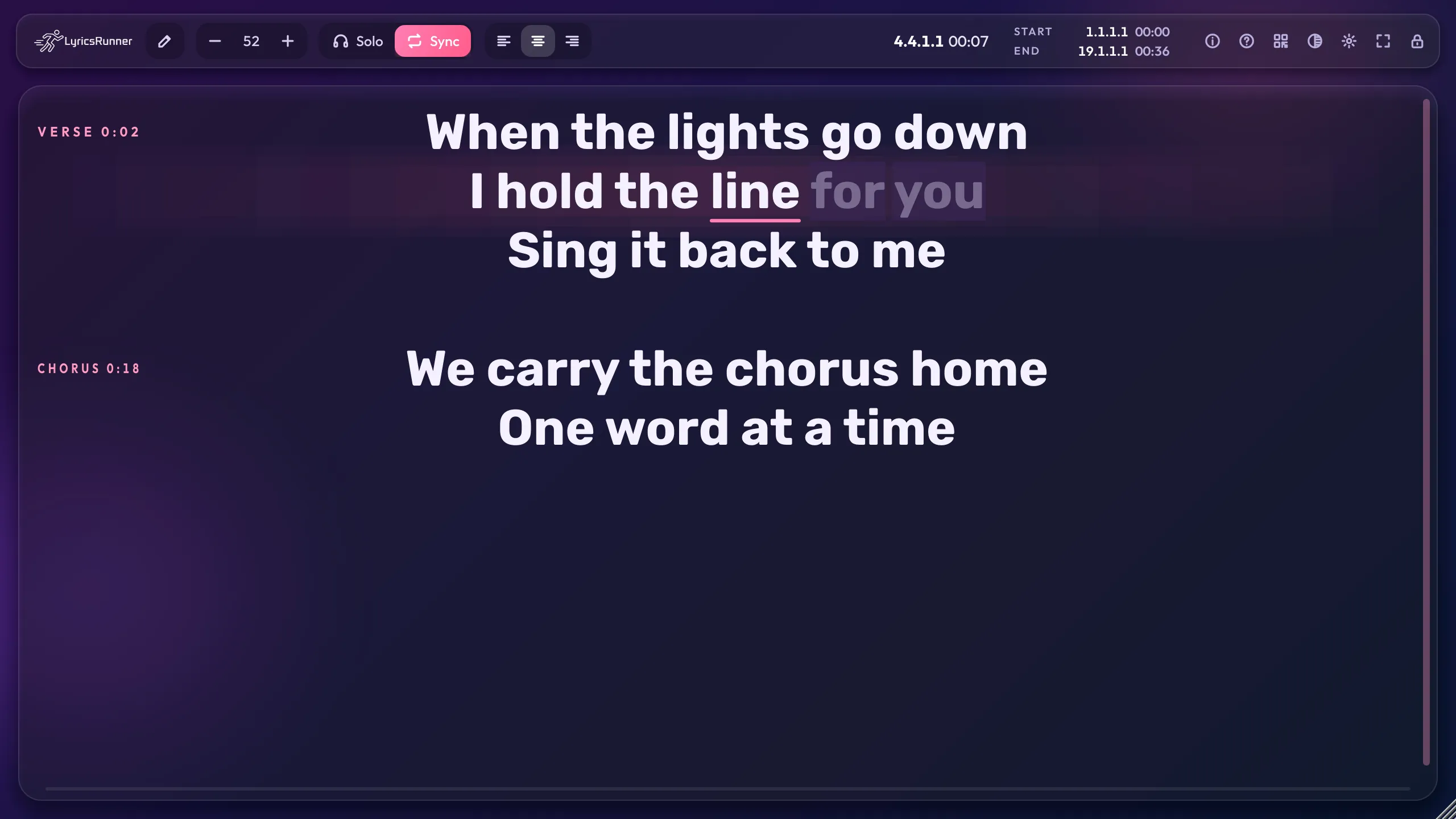
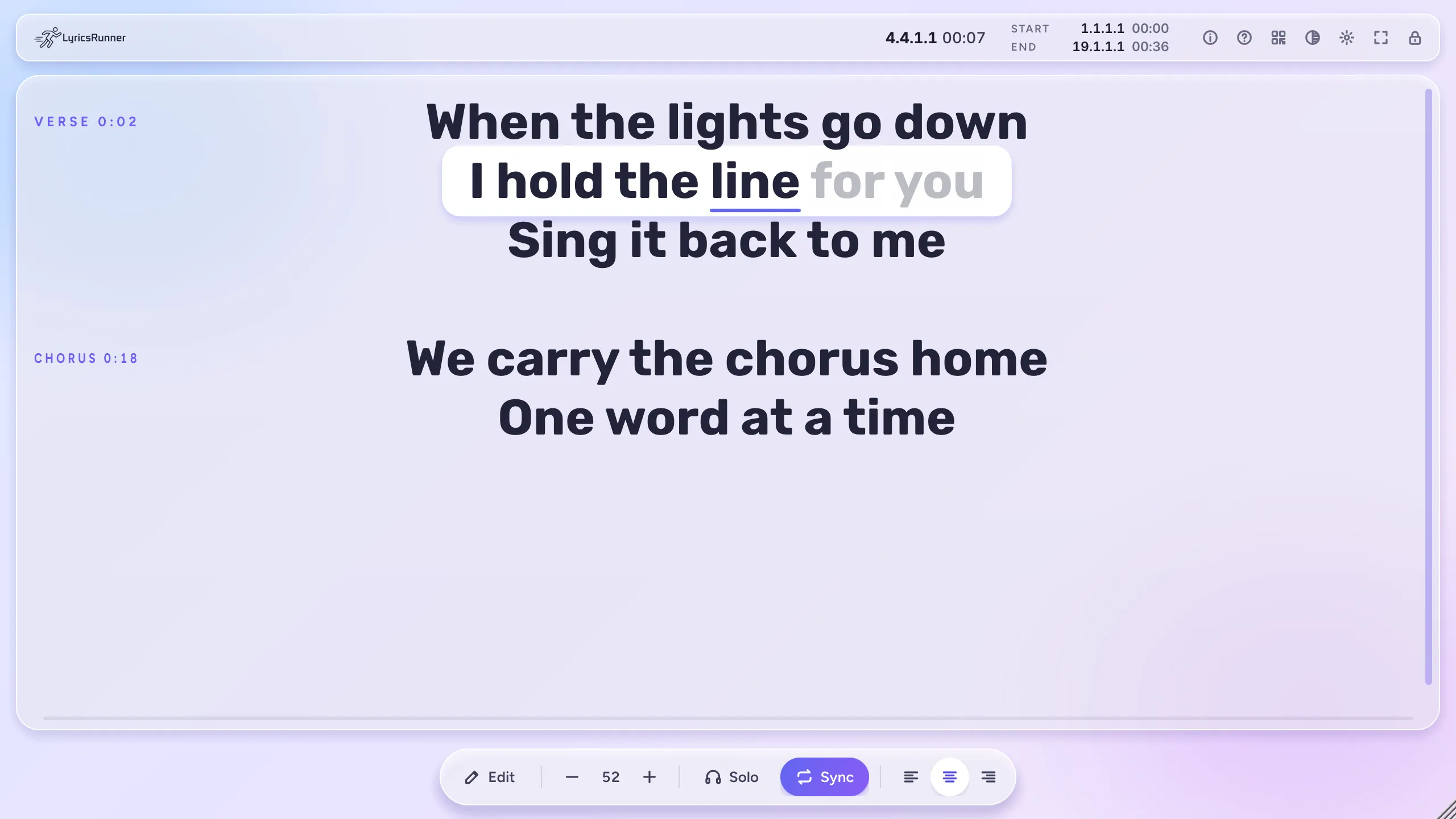
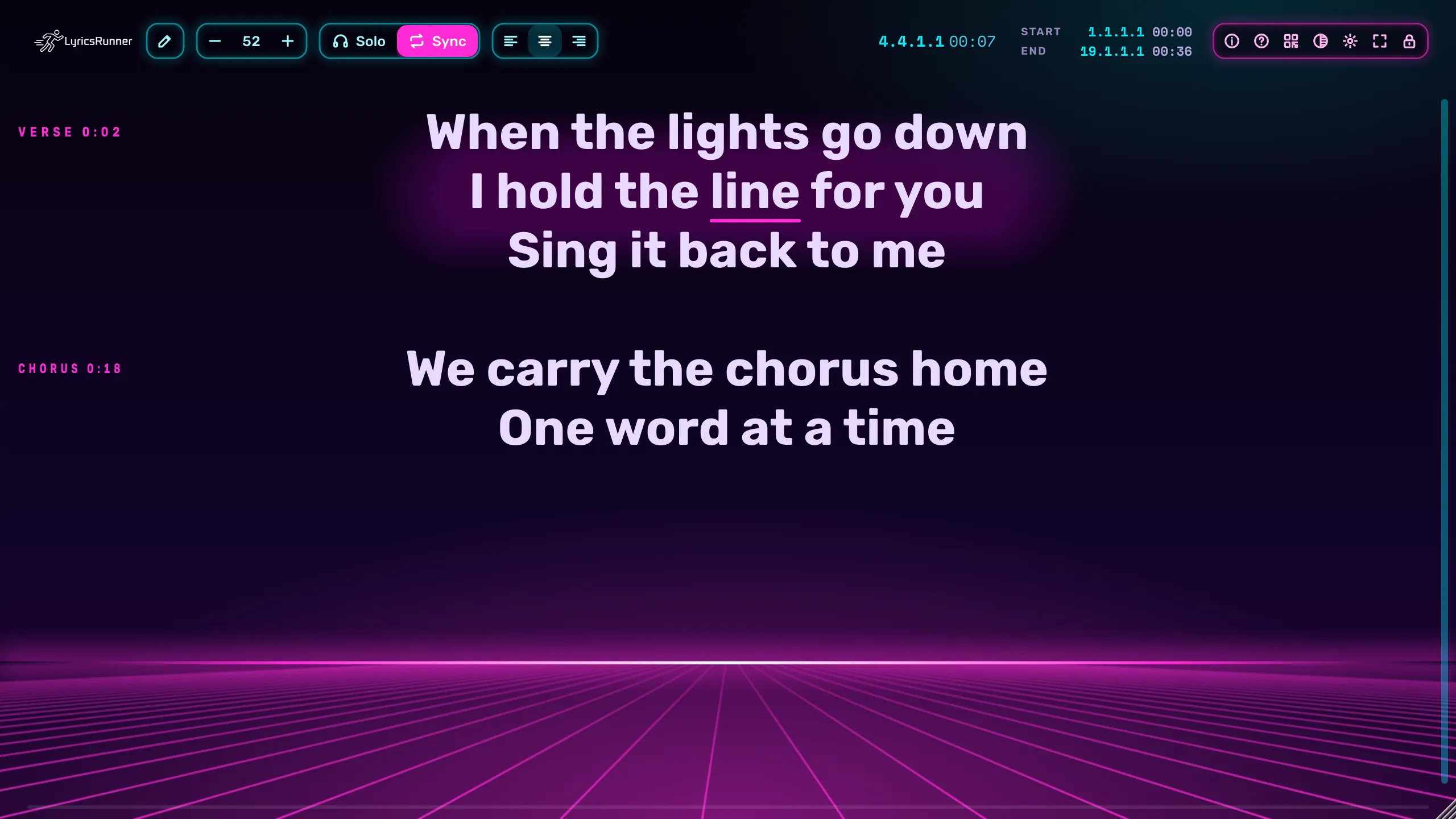
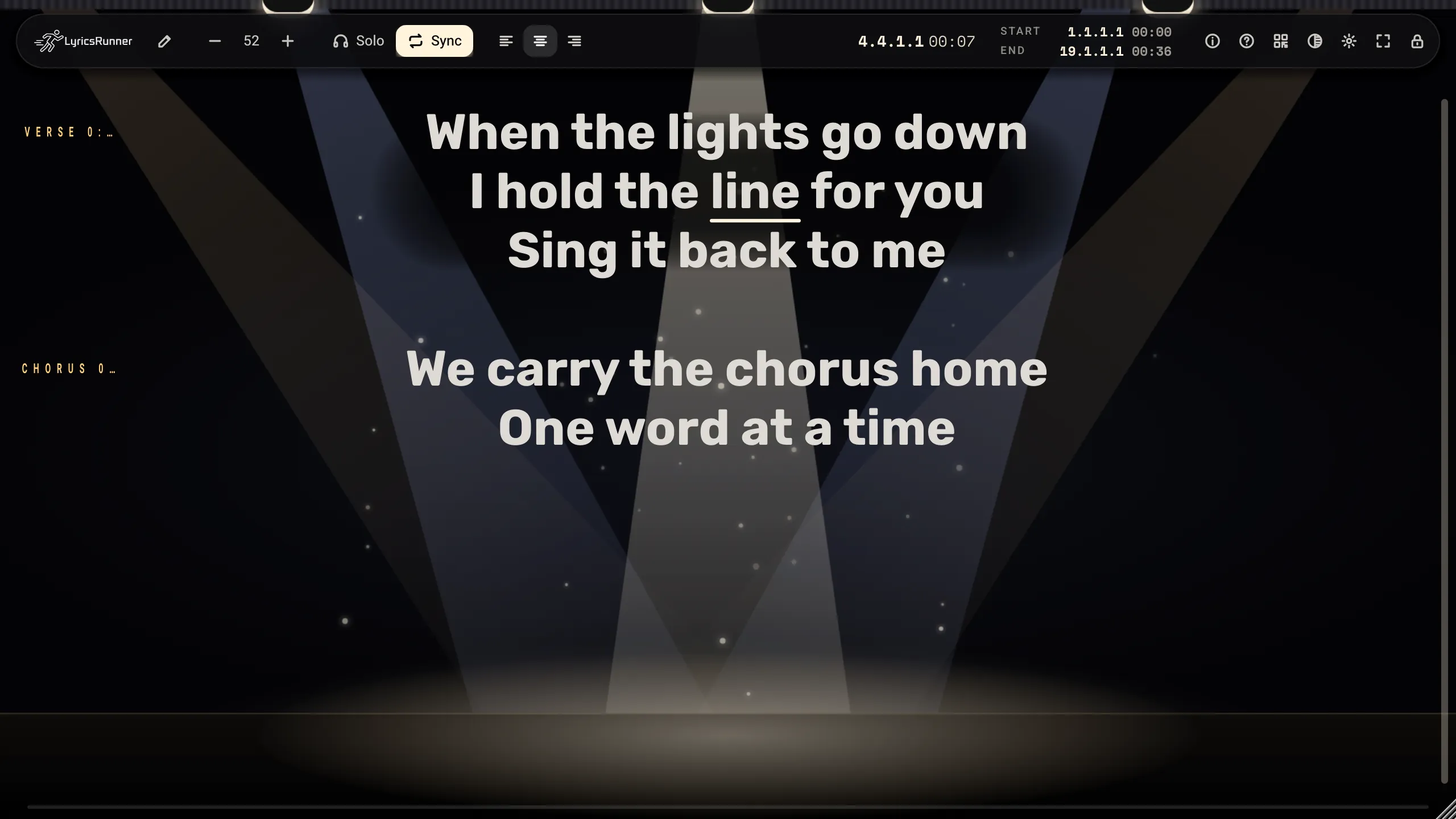
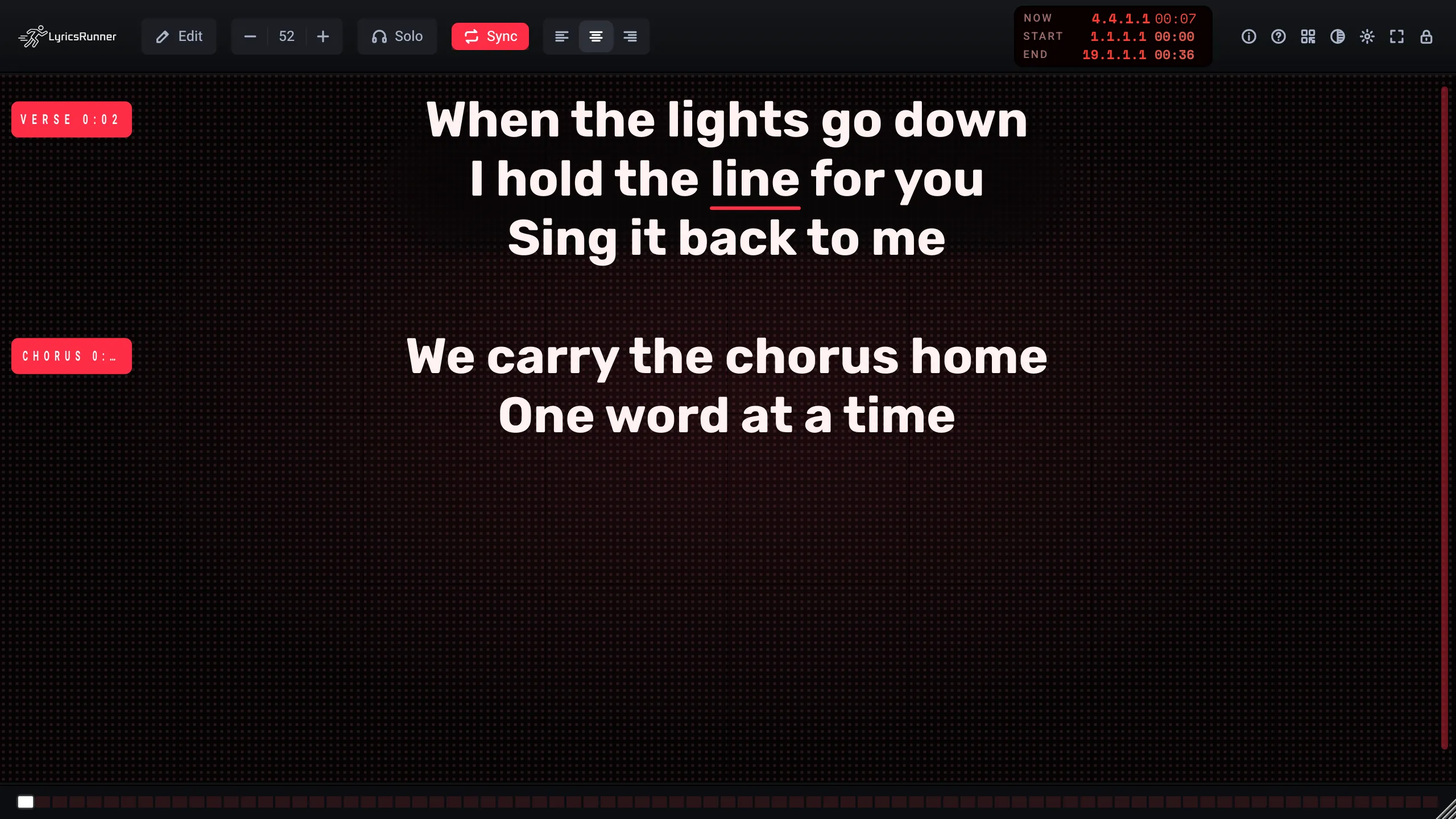
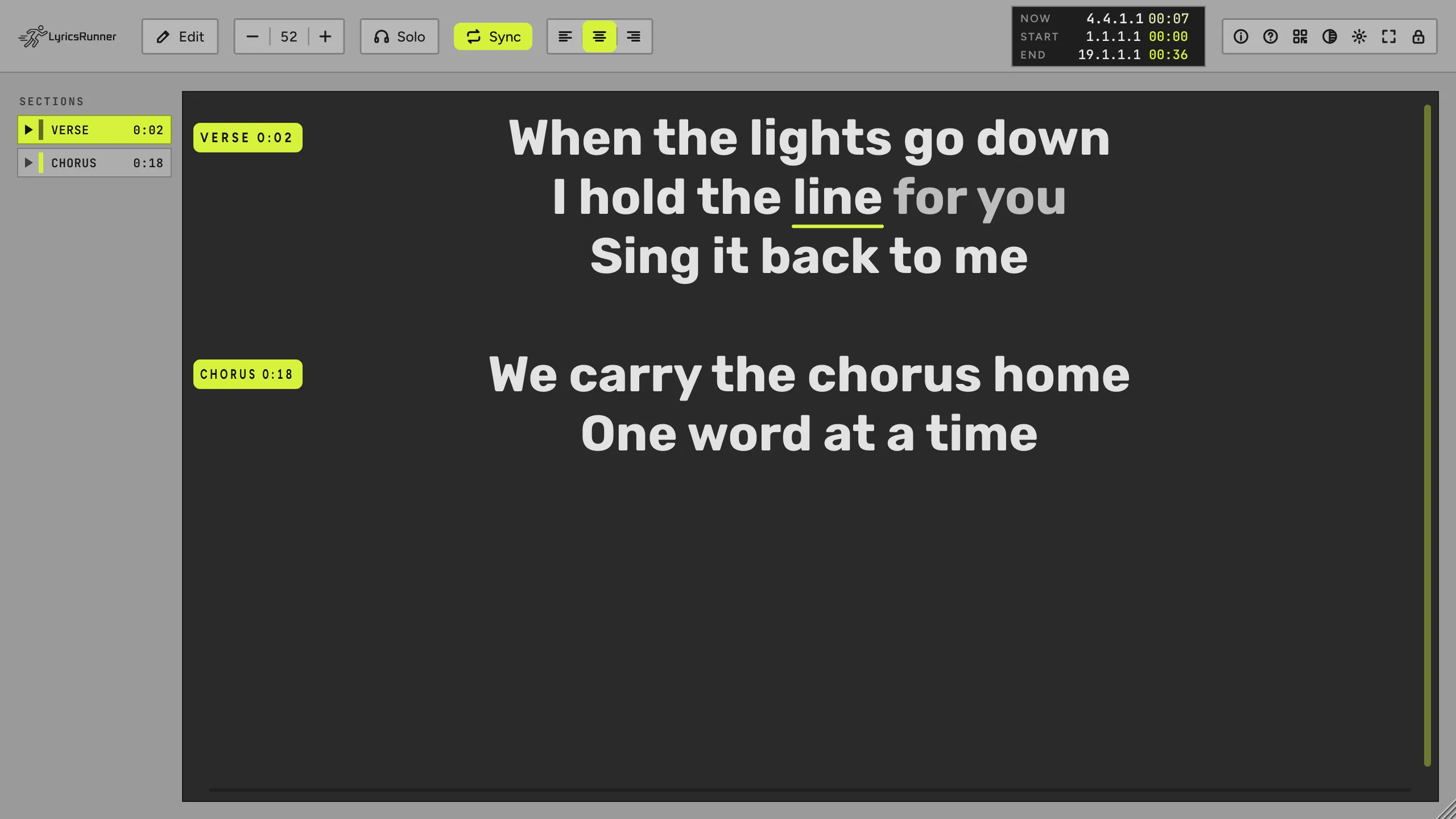
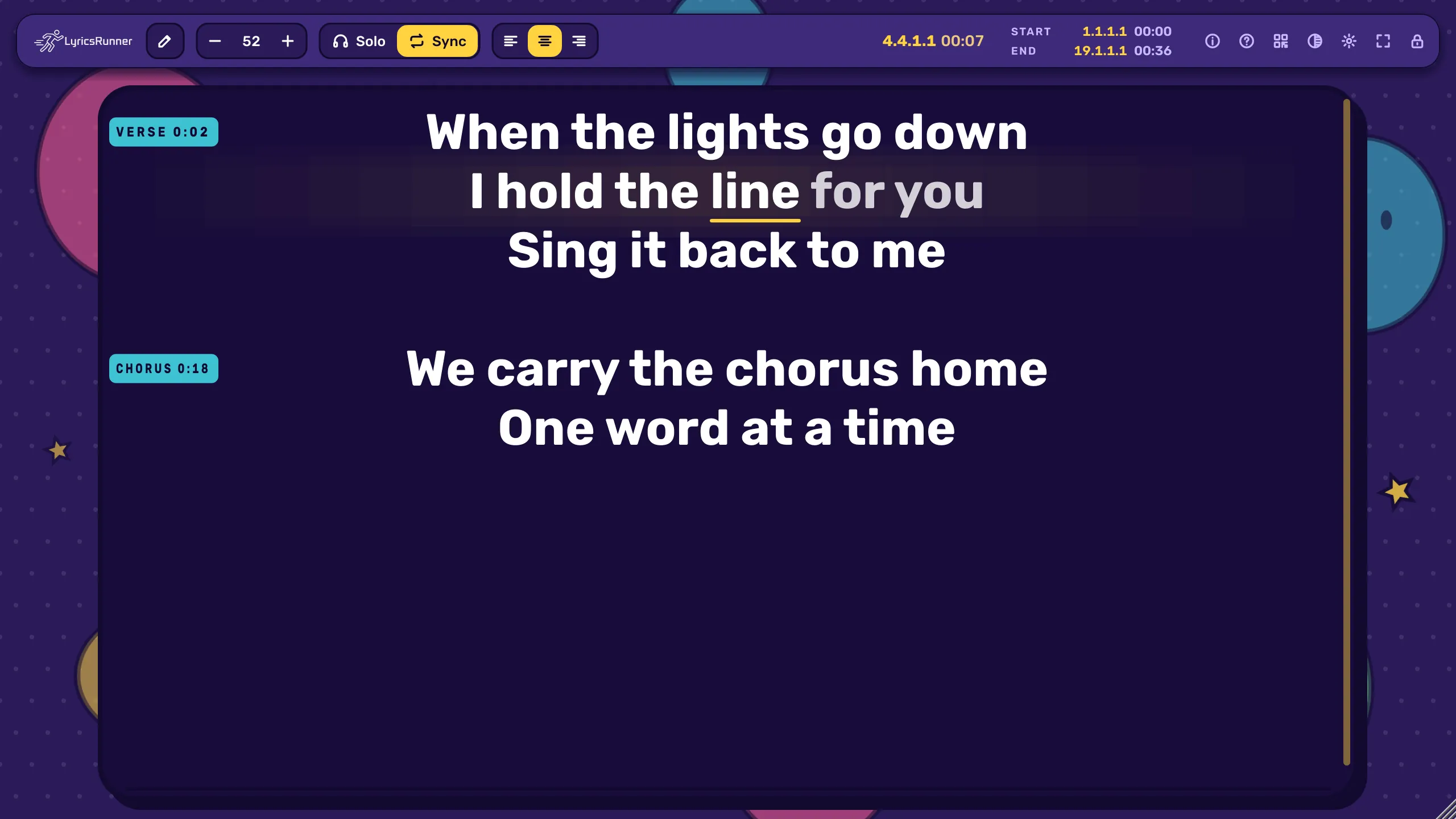
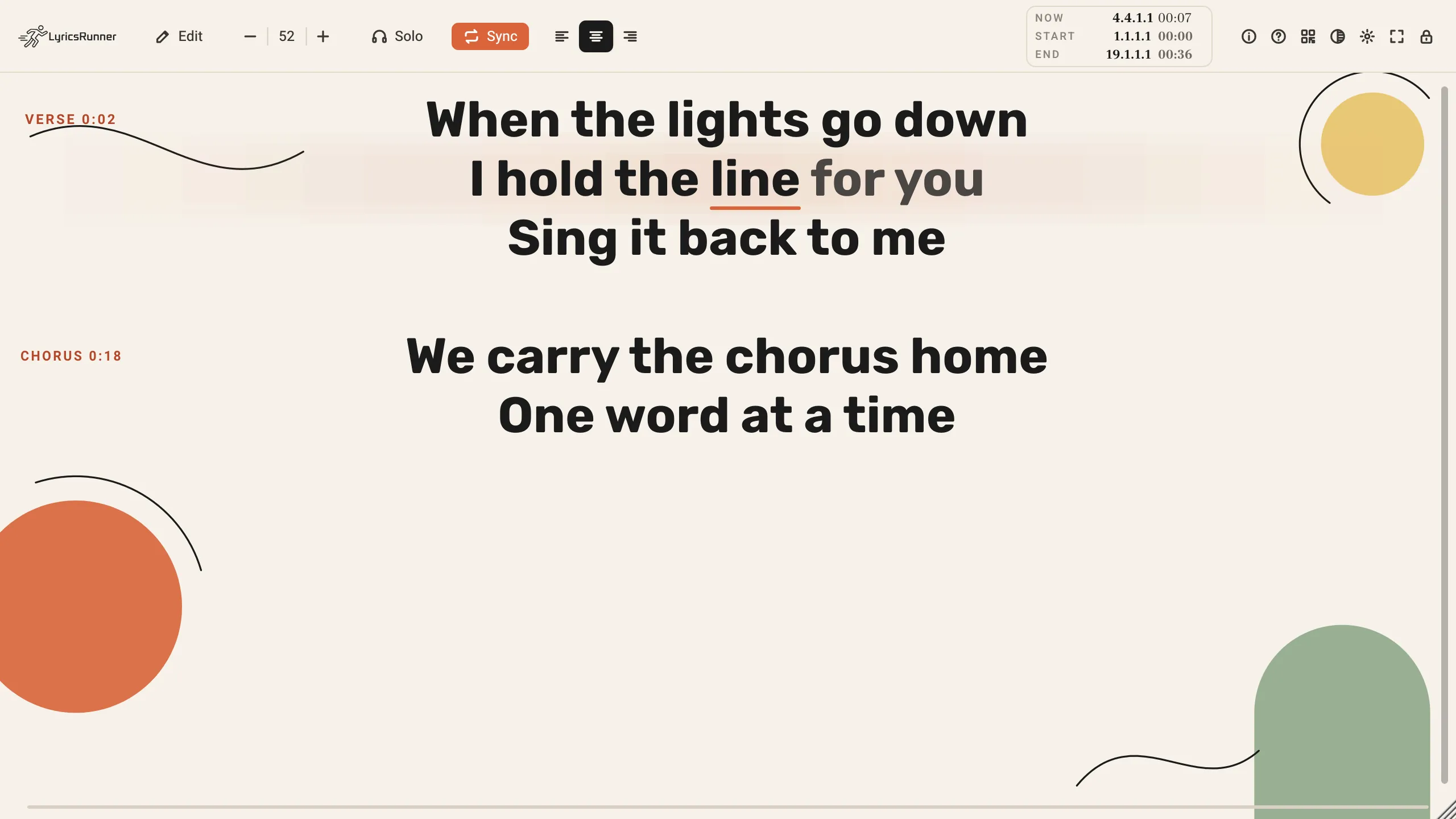
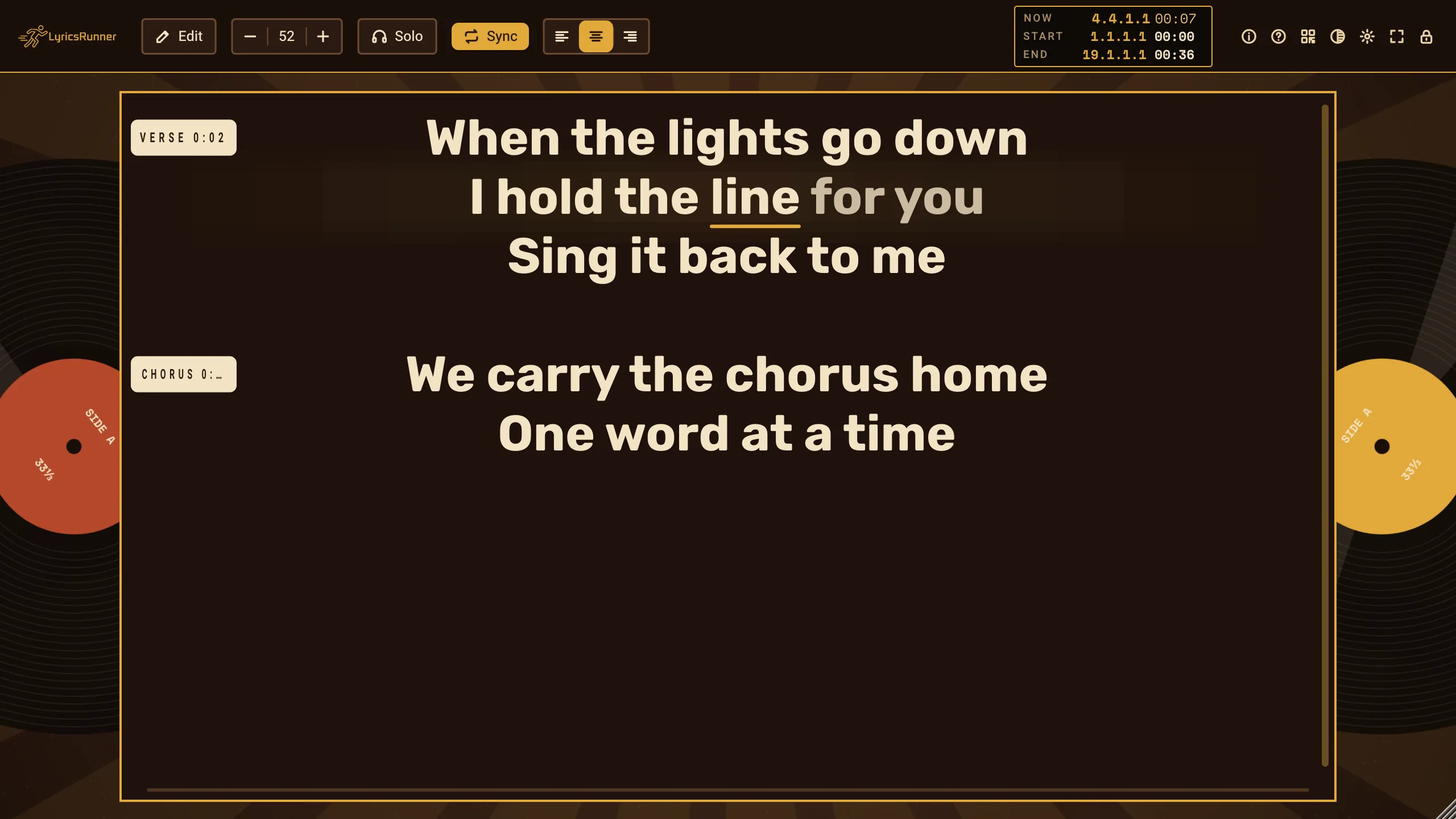
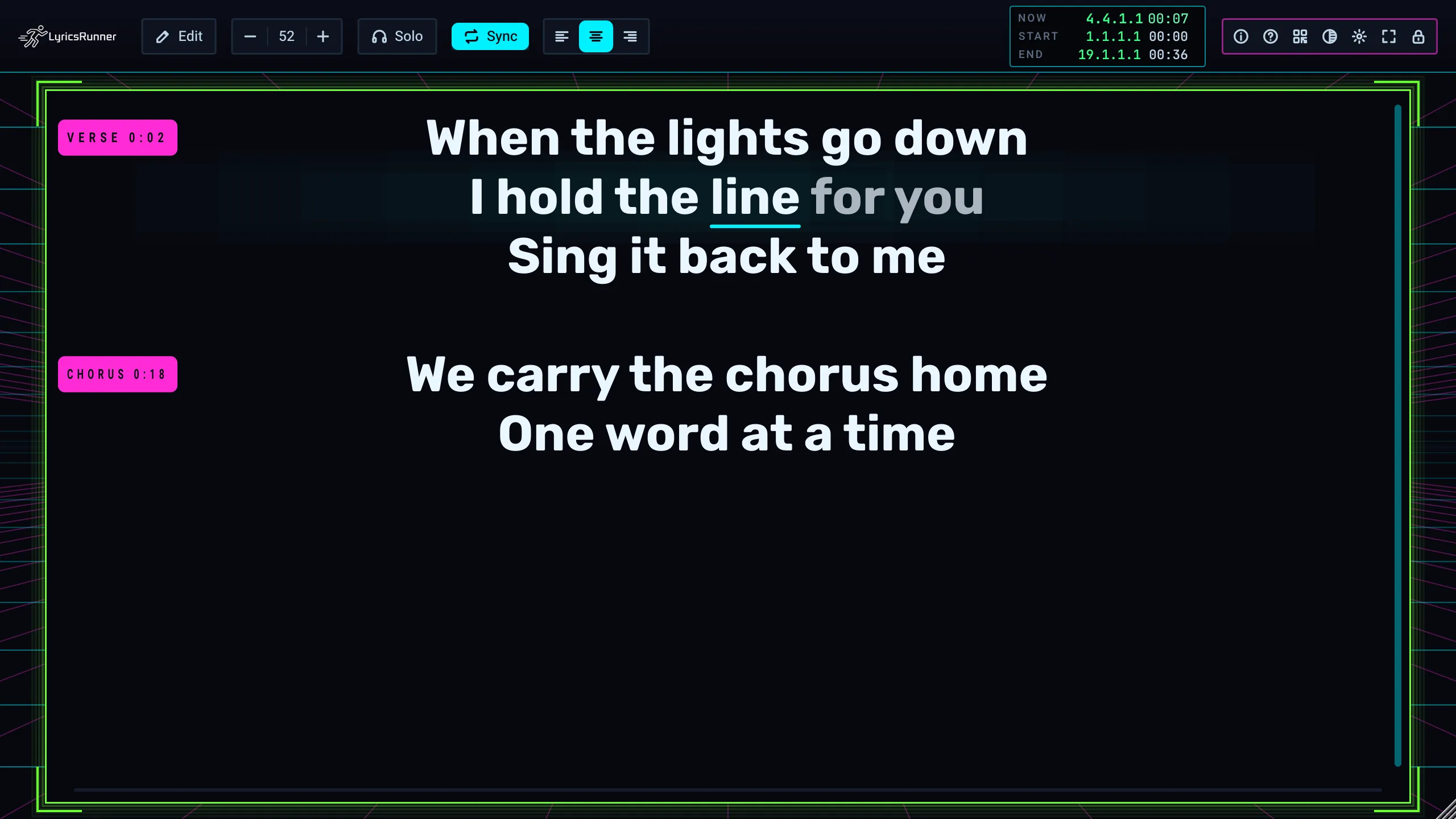
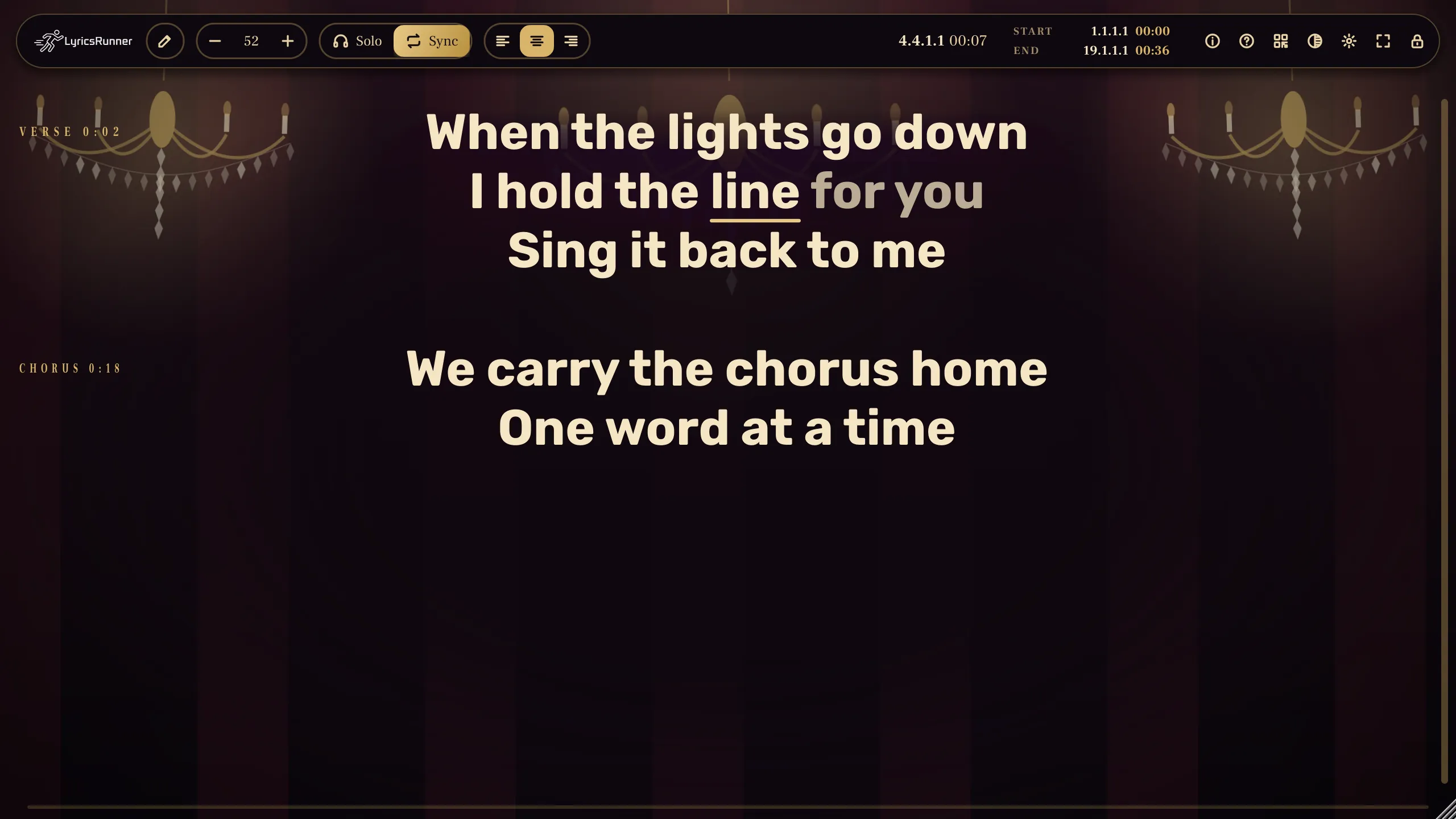
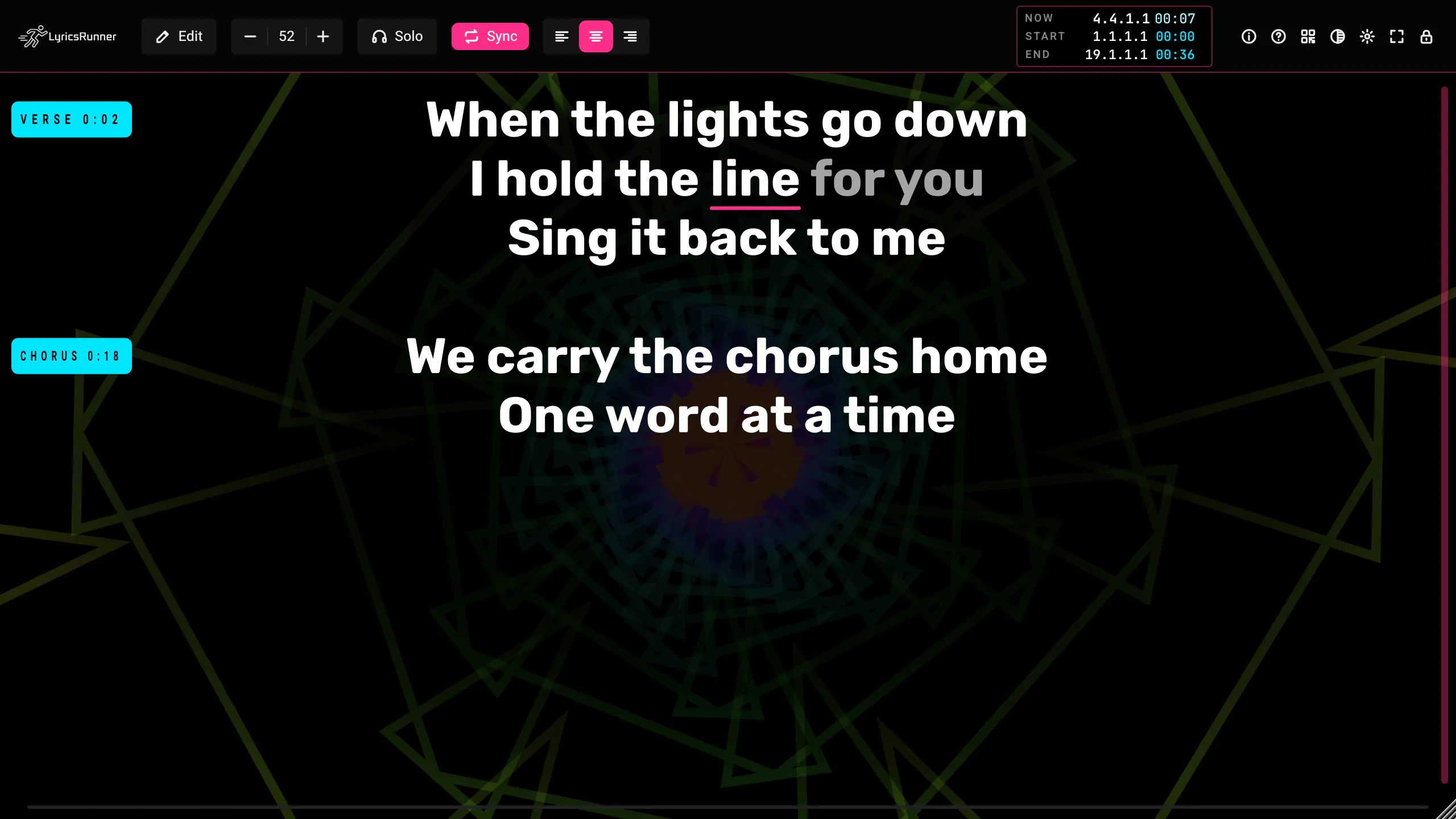
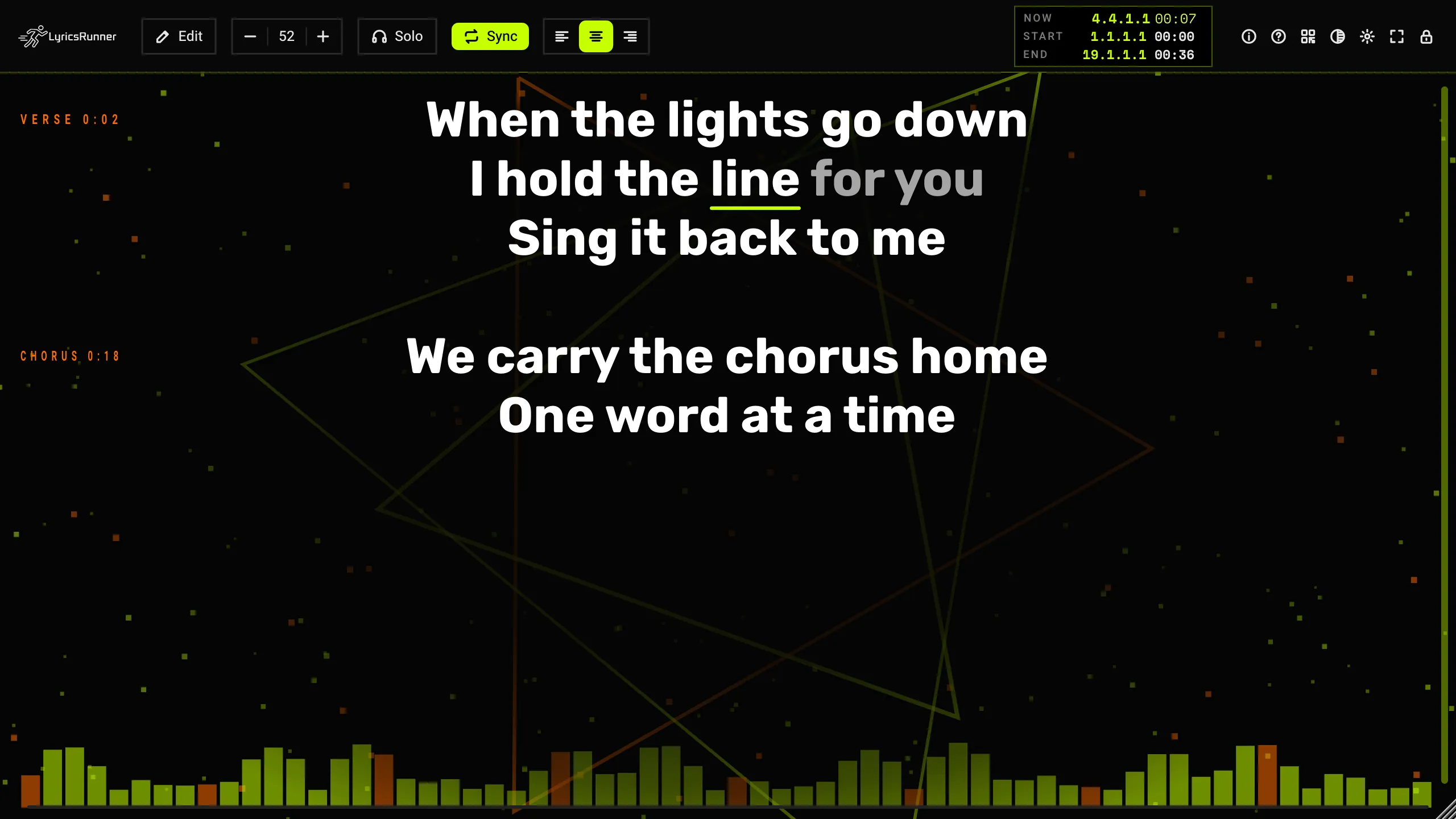
The looks, in order:
- Carbon blue. Fine dots, a rounded blue bar, blue lyric panel. This is the one you see first.
- Carbon grey. The same shape, in dark grey.
- Carbon light. A light bar and dark ink, for a bright room.
- Graphite. A dark desk, one toolbar, a blue accent.
- Purple night. Glass bars and a pink glow.
- Lavender. A light glass look. The clock sits on top, and the tools sit in a dock at the bottom.
- Synthwave. Neon outlines and a grid floor.
- Stage lights. Warm beams and a dark pill bar.
- LED wall. A hardware bar, a red accent, and dotted letters when the type is large.
- Live desk. Flat grey, square buttons, a lime accent. On a wide window this look adds a Sections list on the left.
- Toon. Cartoon shapes that move behind the card.
- Ink and paper. A still, quiet print on warm paper.
- Vinyl. Records and a sunburst, gently moving.
- Arena. A moving grid and a border that shifts colour.
- Crystal hall. Chandeliers behind the words.
- Tunnel. A dark hexagon tunnel behind a dark centre.
- Pulse. Shapes that breathe with the beat from the DAW.
Click again for the next one. The choice is saved with the project.
Tip. Click through once in the real room. Dark stages like carbon blue, graphite, or the LED wall. A bright rehearsal room likes carbon light or ink and paper. If the motion pulls the singer's eye, pick a still look. Ink and paper, and the carbon looks, stay calm.
Background picture
Gear or right-click, then Background picture.
- Choose a picture (PNG, JPG, WebP)...
- Remove the background picture, once one is loaded.
The picture sits behind the lyrics. It can also show on the phones. A file over 64 MB is refused.
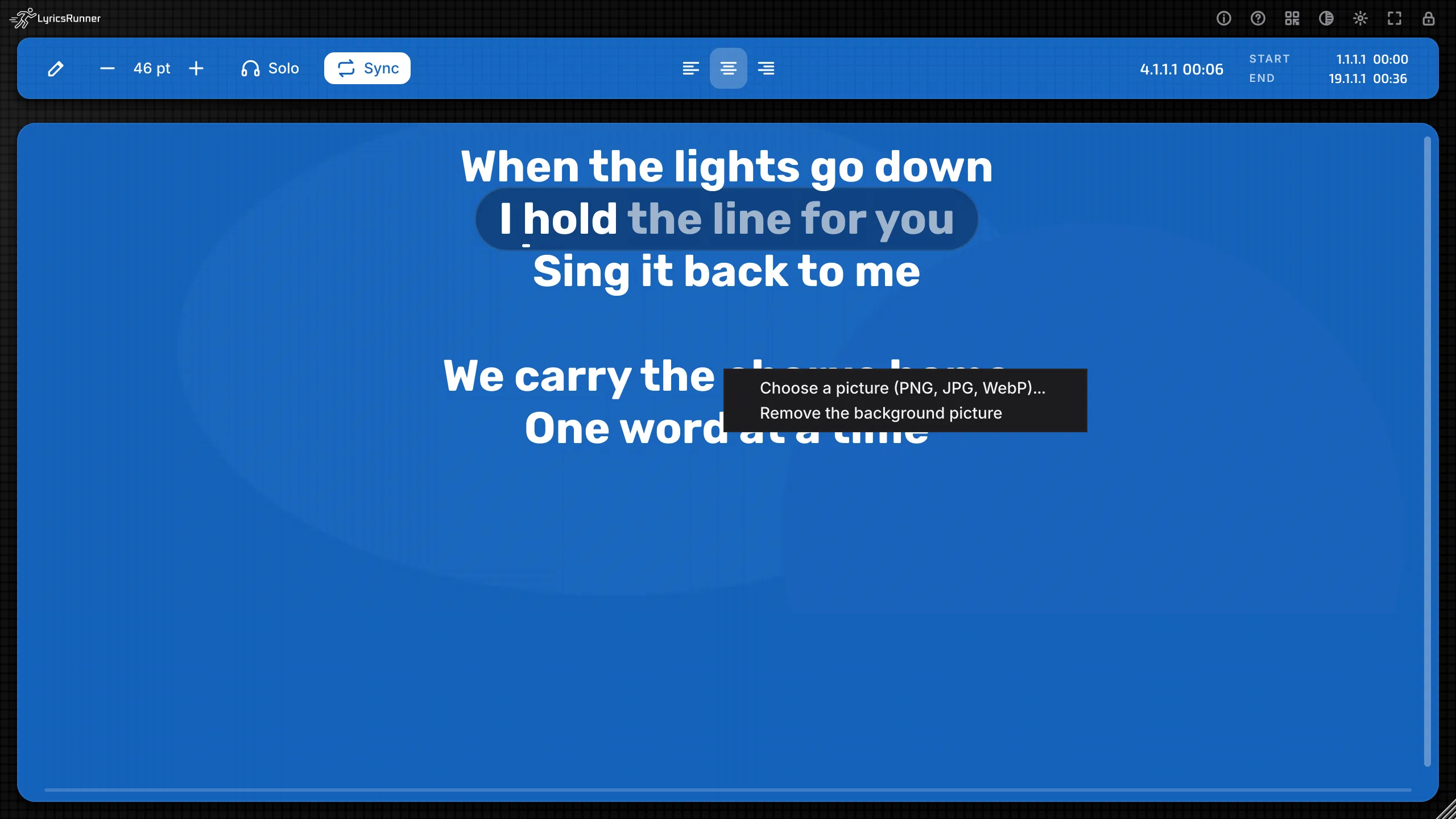
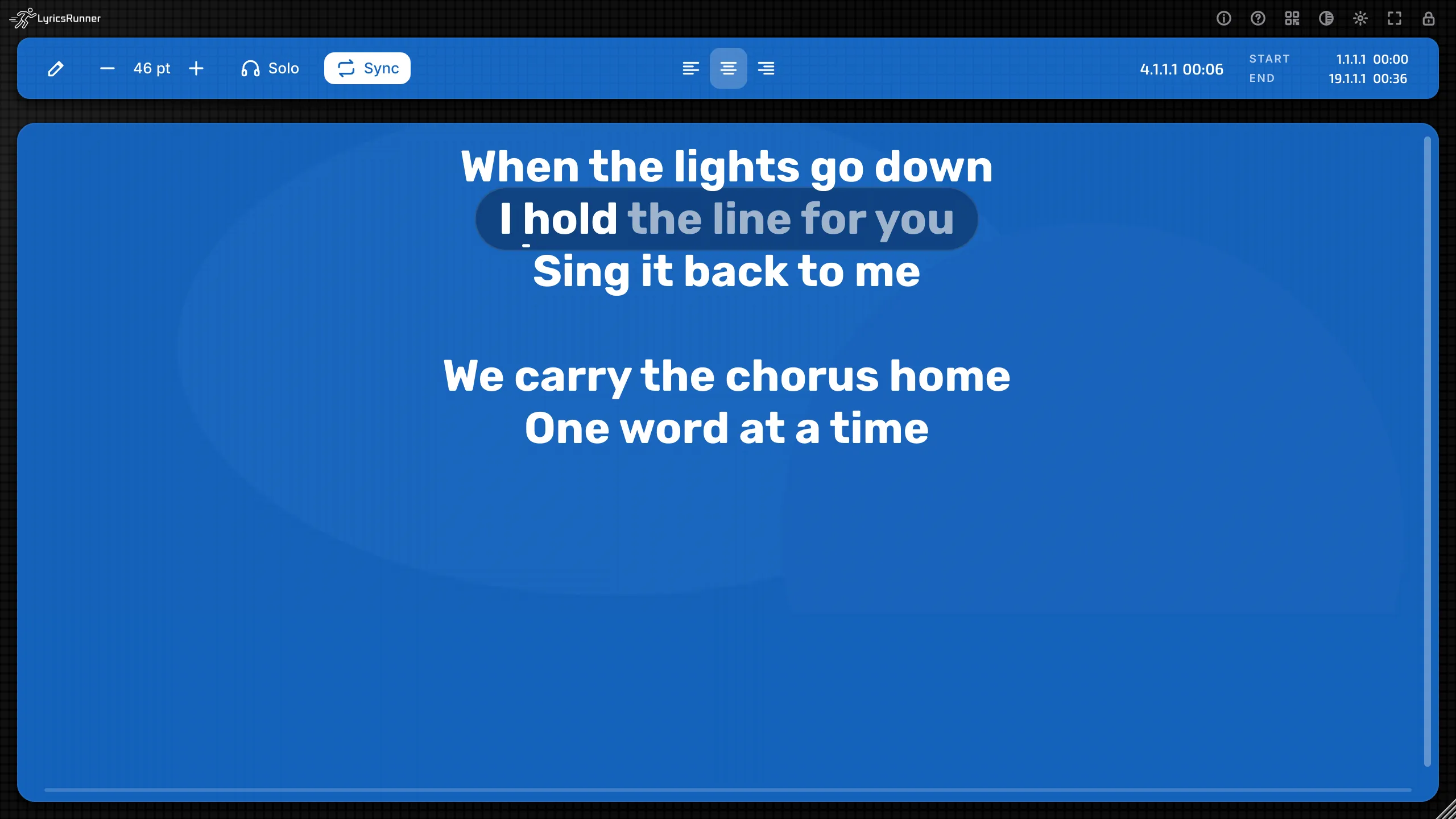
Tip. A soft photo of the stage, or a simple colour wash, keeps the words readable. A busy photo fights the lyric. If you use Show mode, this picture is the one for every song in that window.
Karaoke view
Open the gear or right-click, then Karaoke mode.
- Off (scrolling lyrics). The normal teleprompter. The whole song scrolls, and the current line stays near the middle.
- Fade. The next section fades in.
- Slide up. The next section rises into place.
- Zoom. The next section grows into place.
- Word by word. The current line sits on a band, and the words light up as they are sung. This is the classic karaoke read.
- Typewriter. The section types itself on, with a caret.
A section is a page. Mark your sections first (next chapter) and each page arrives on its own time. With no markers, the song is treated as one span and the pages are less useful.
Seek, loop, or jump in the DAW and the page follows. Karaoke is a picture of the song time, so a rewind lands on the right page.
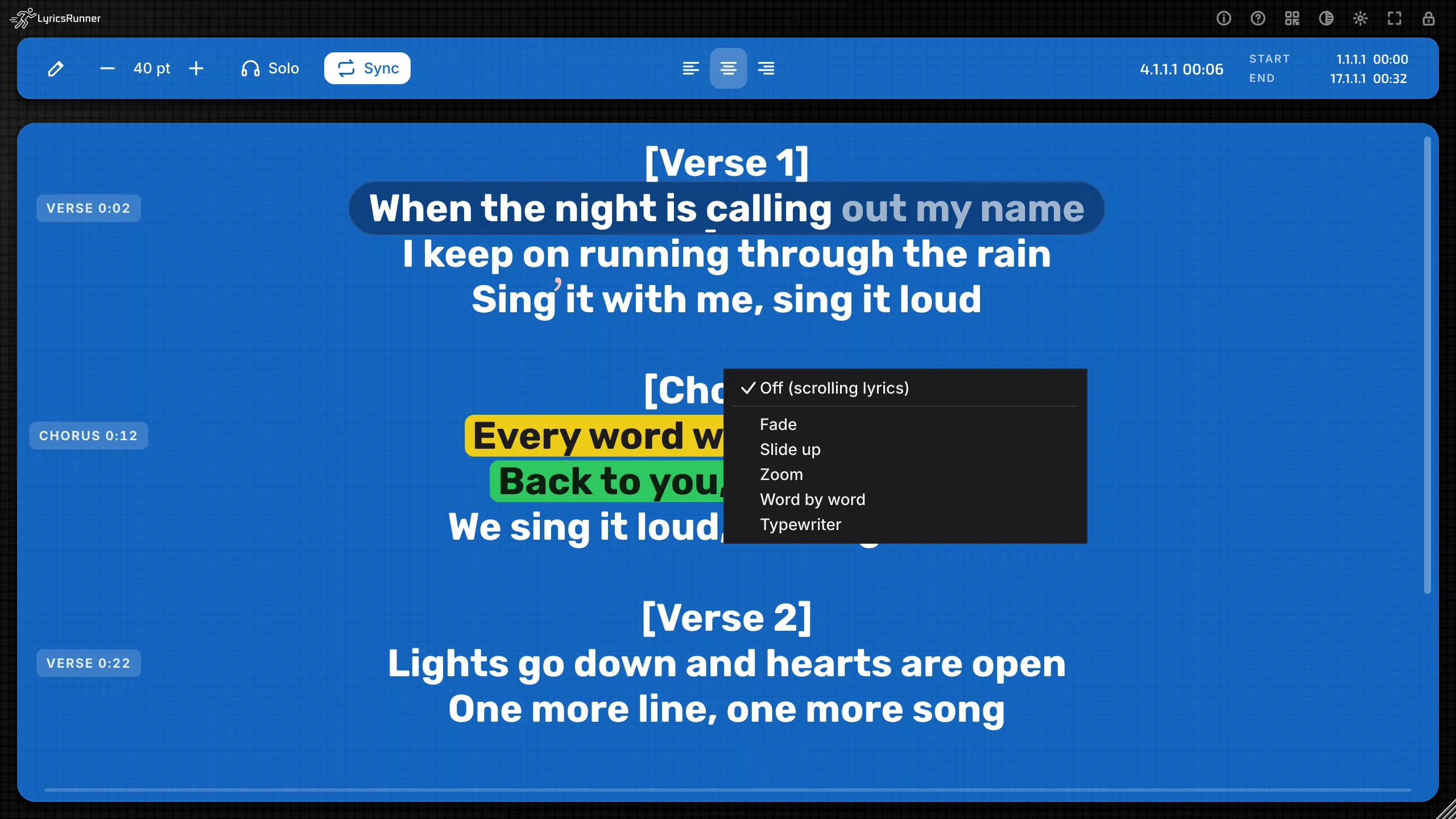
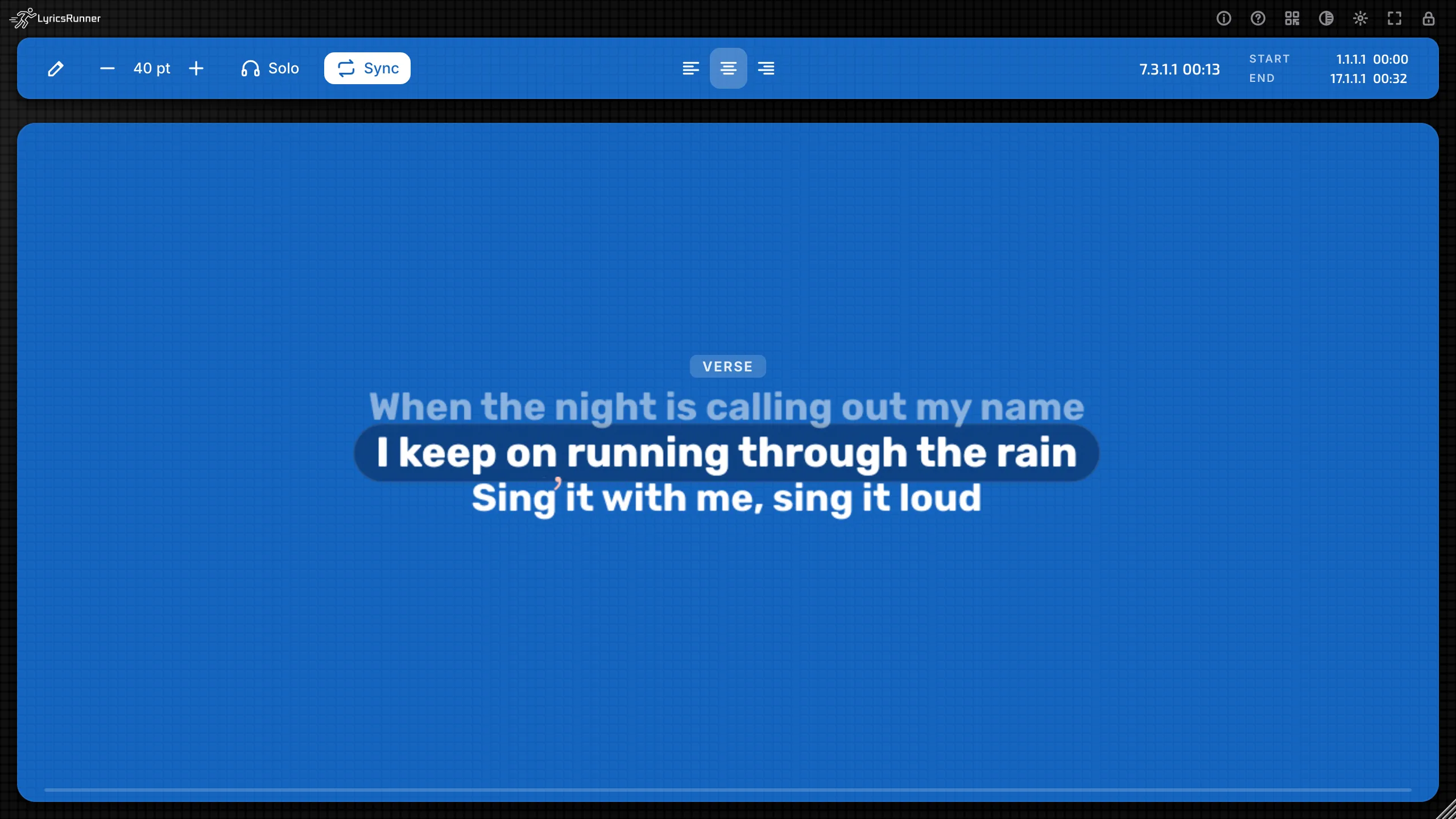
Tip. Word by word is the one to learn first. Fade is the calmest page turn. Typewriter is a nice intro. Use one style for the whole gig so the singer's eye learns it.
Karaoke effects
Karaoke effects is in the same menu. Until karaoke is on, the menu title reminds you that the effects show in karaoke mode. Each effect is its own tick. They all start off.
- All off. Clears every effect.
- Bouncing ball. A ball marks the word.
- Beat pulse. The page breathes with the tempo.
- Sparkles. A little glitter on the change.
- Wave (sung word). The sung word lifts.
- Handwriting reveal. The line draws itself.
- Fire flicker. A warm flicker on the text.
- Audio spectrum strip. A strip that follows the audio on this track.
- Beat background. The background moves with the beat.
- Fly-away words. Words leave as they finish.
- Big 3-2-1 countdown. A large count into the page.
- Stage light beams. Beams behind the lyric.
- Duet split. Colours the lines by singer. Set the singers first.
- Grand finale. A finish at the end of the song.
- Song title (grand finale)... The name shown with the finale, and on the title card of an MP4 clip.
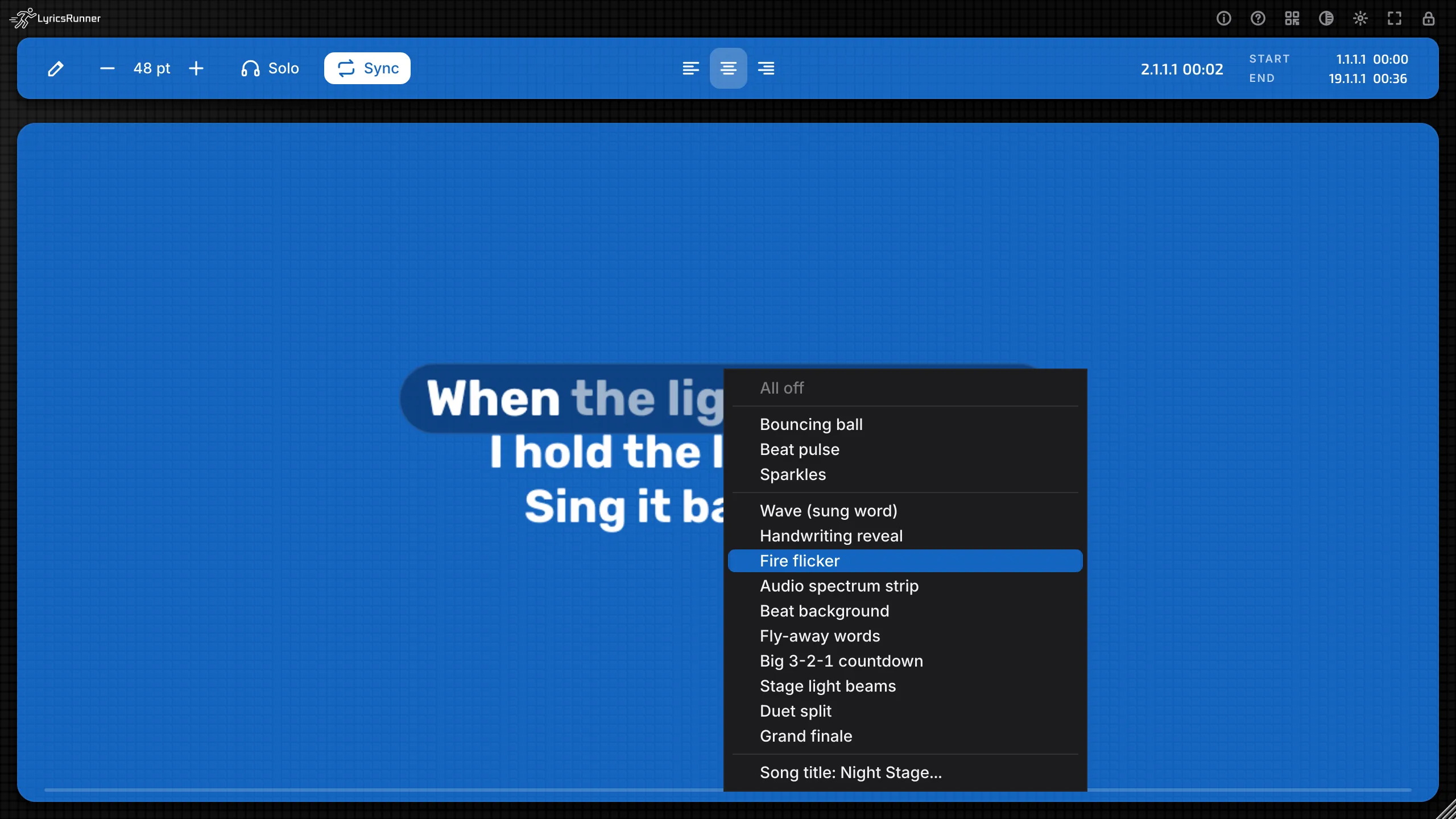
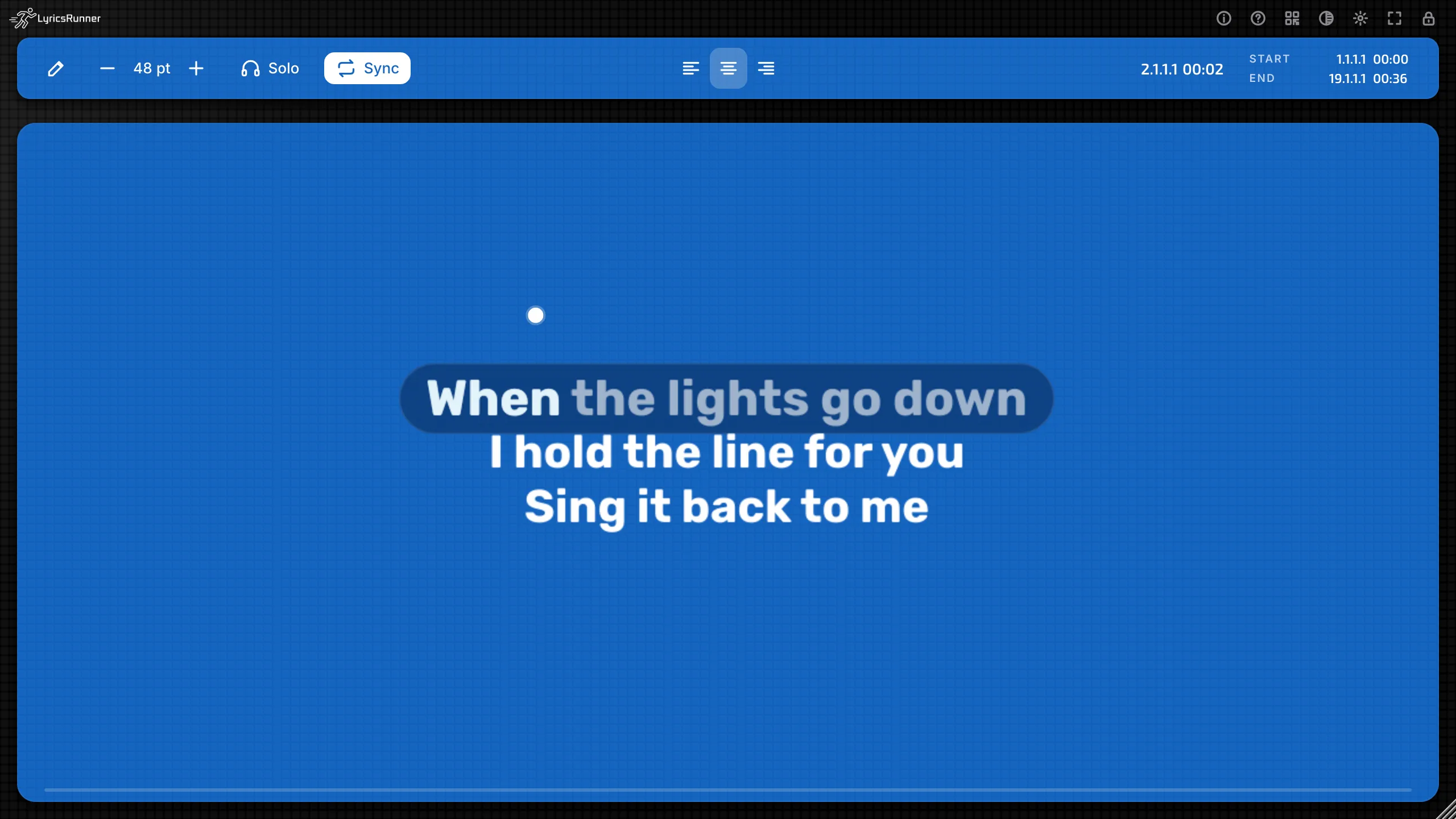
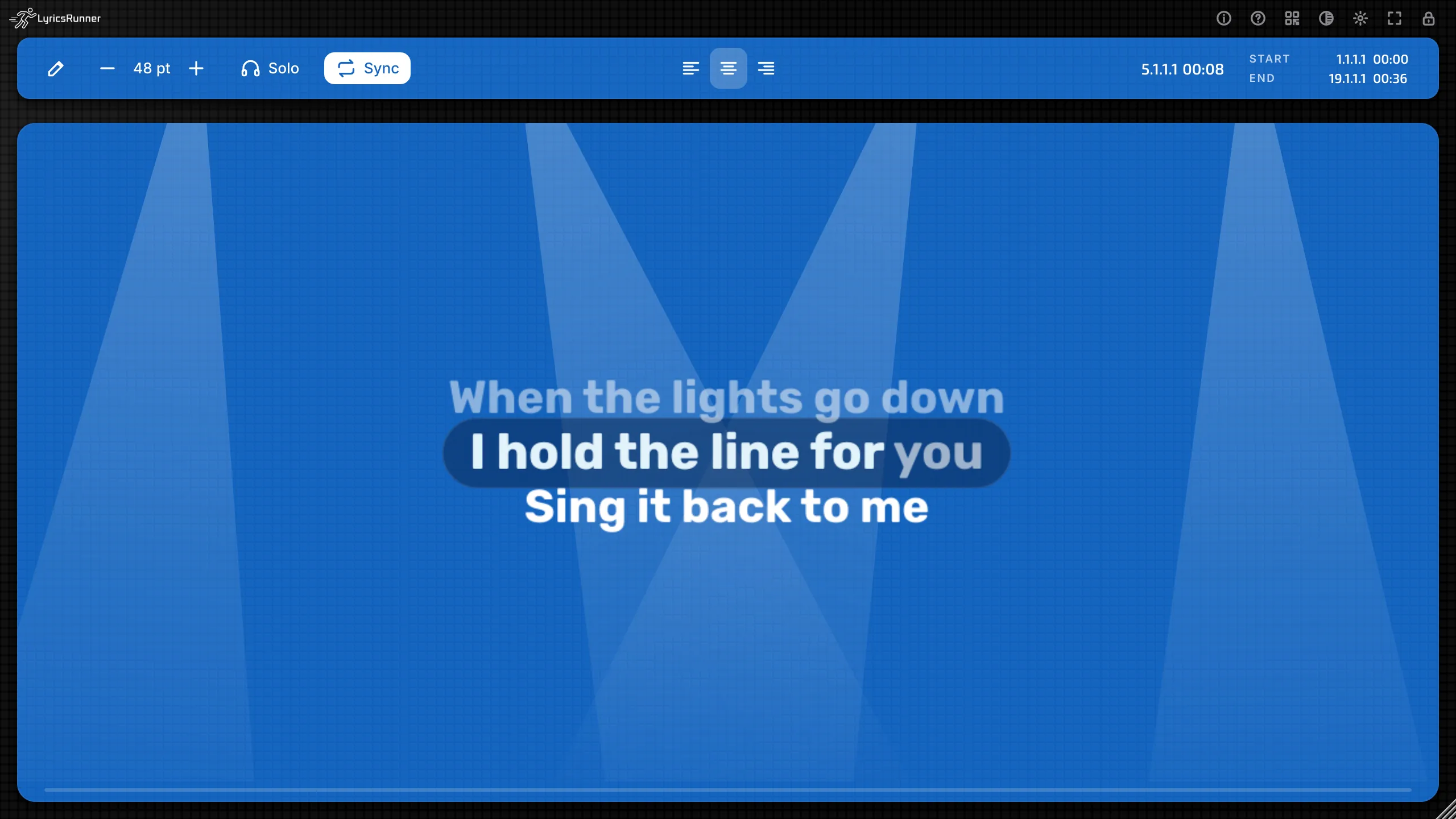
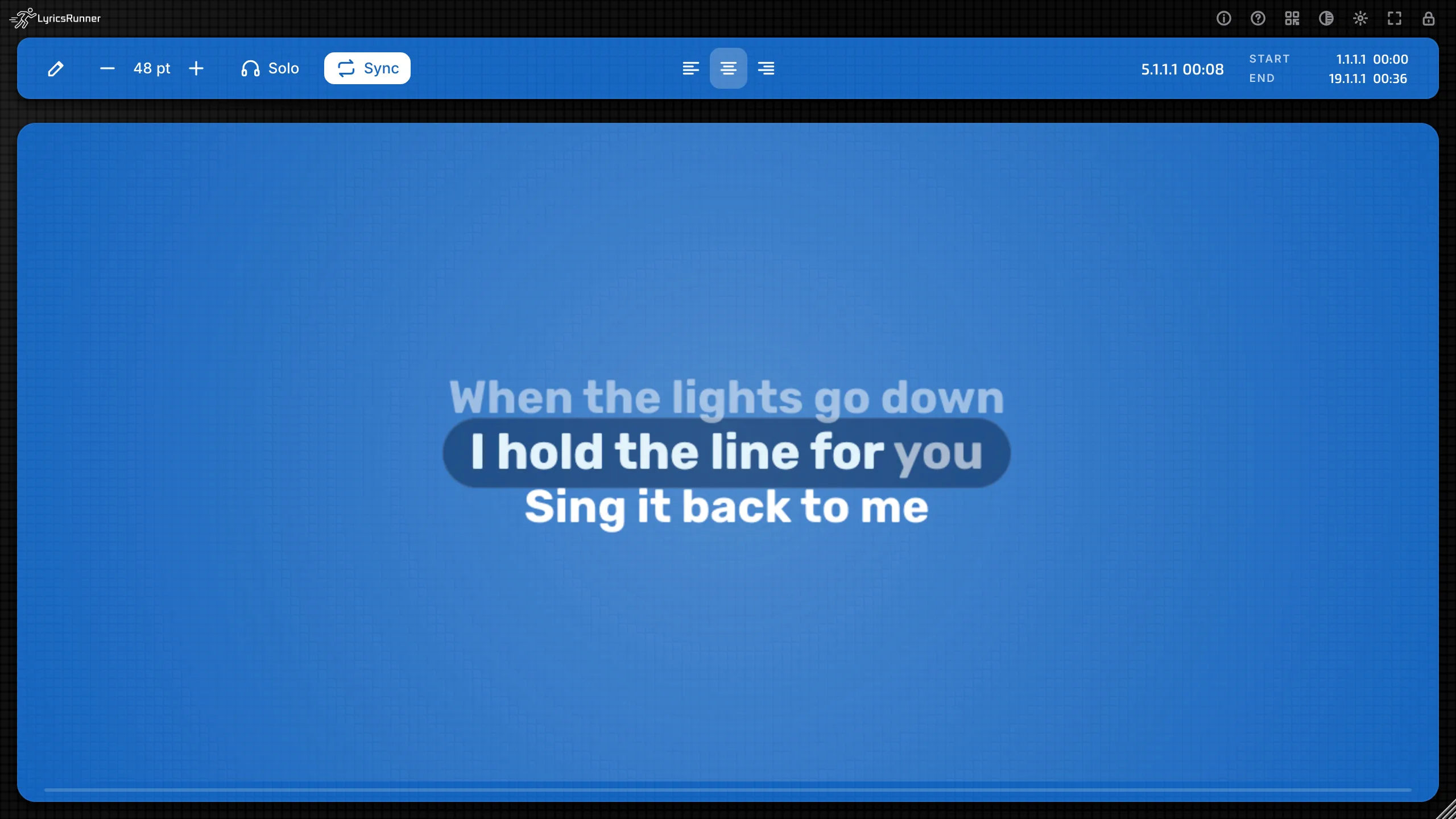
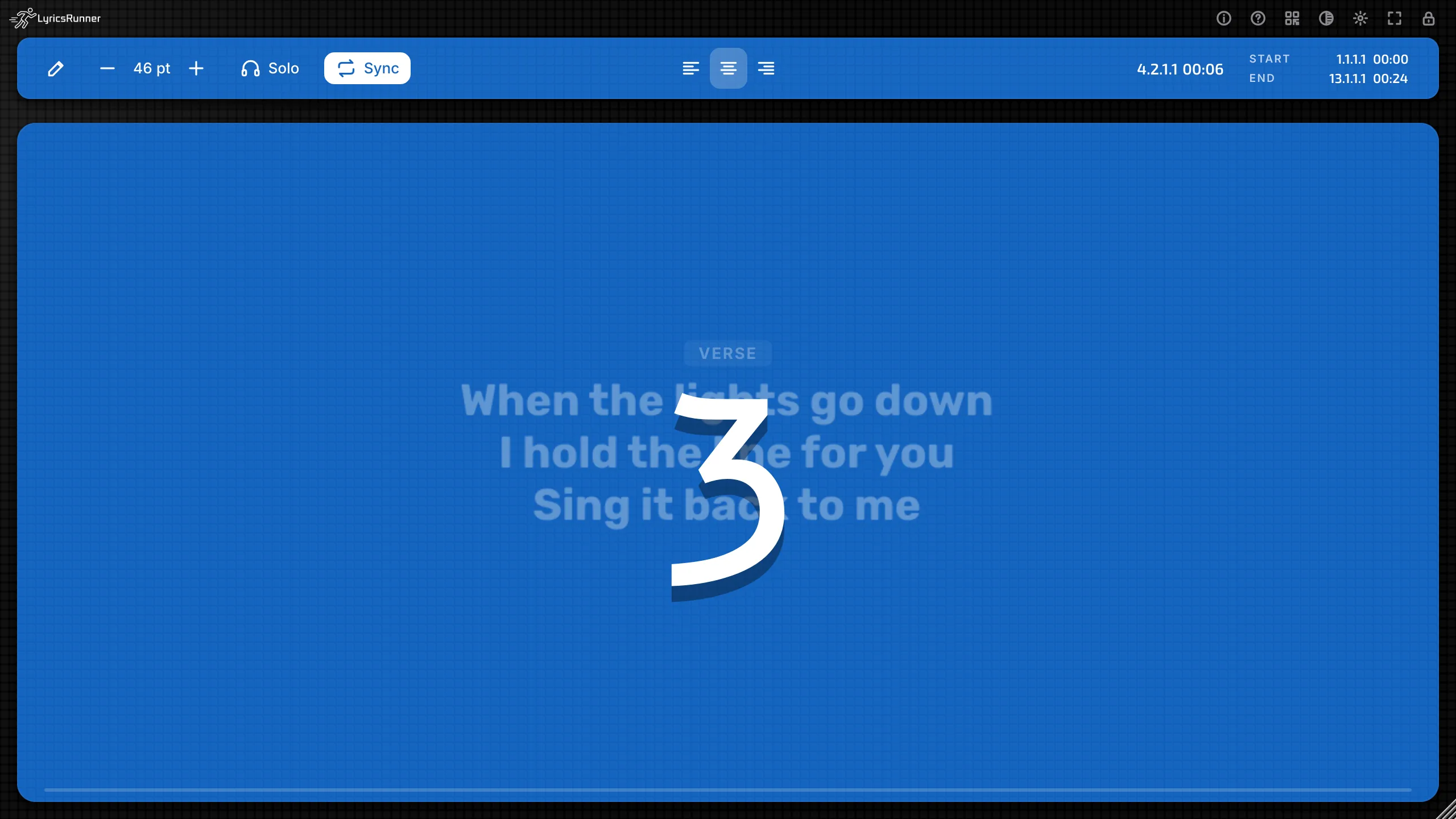
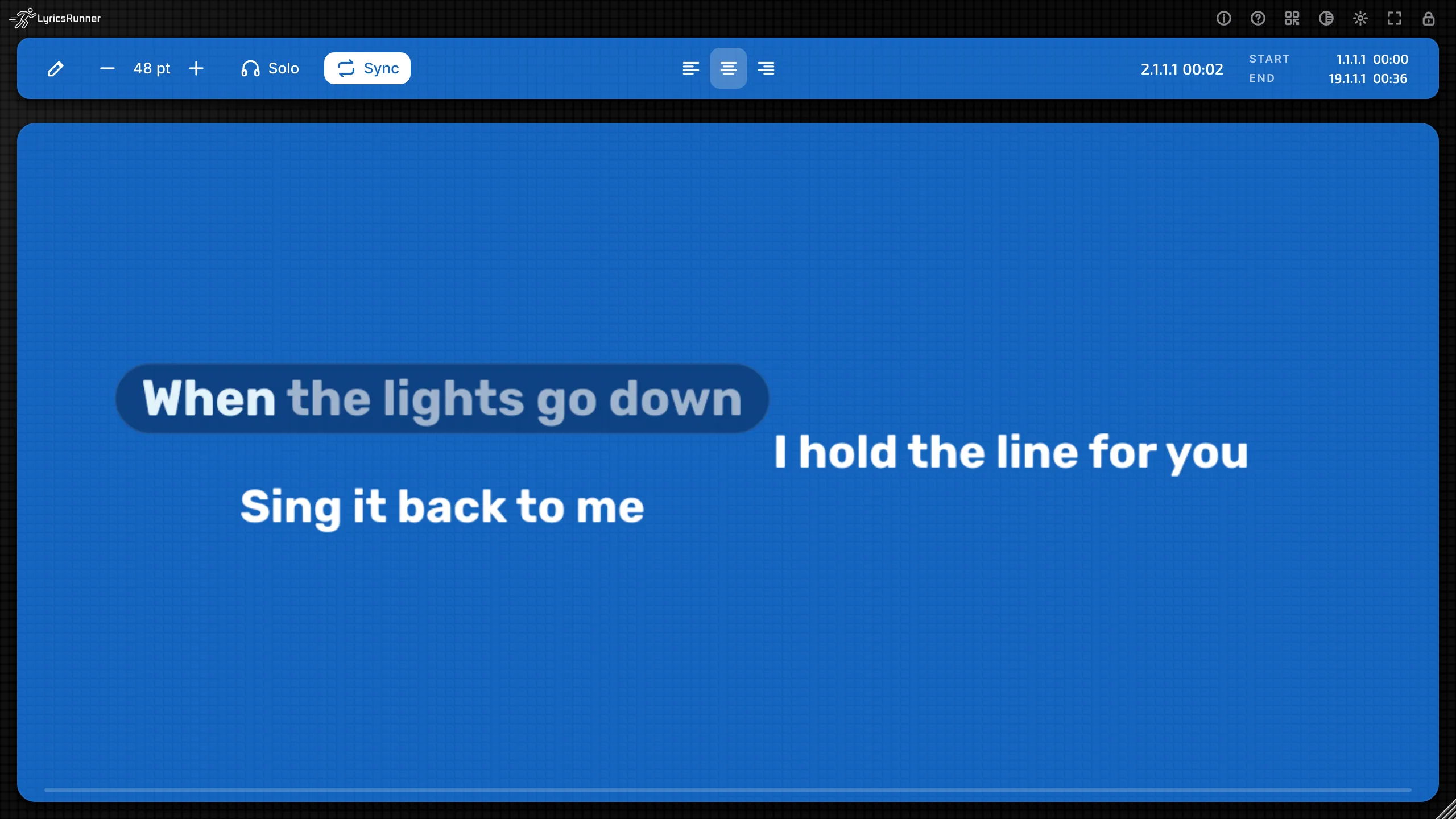
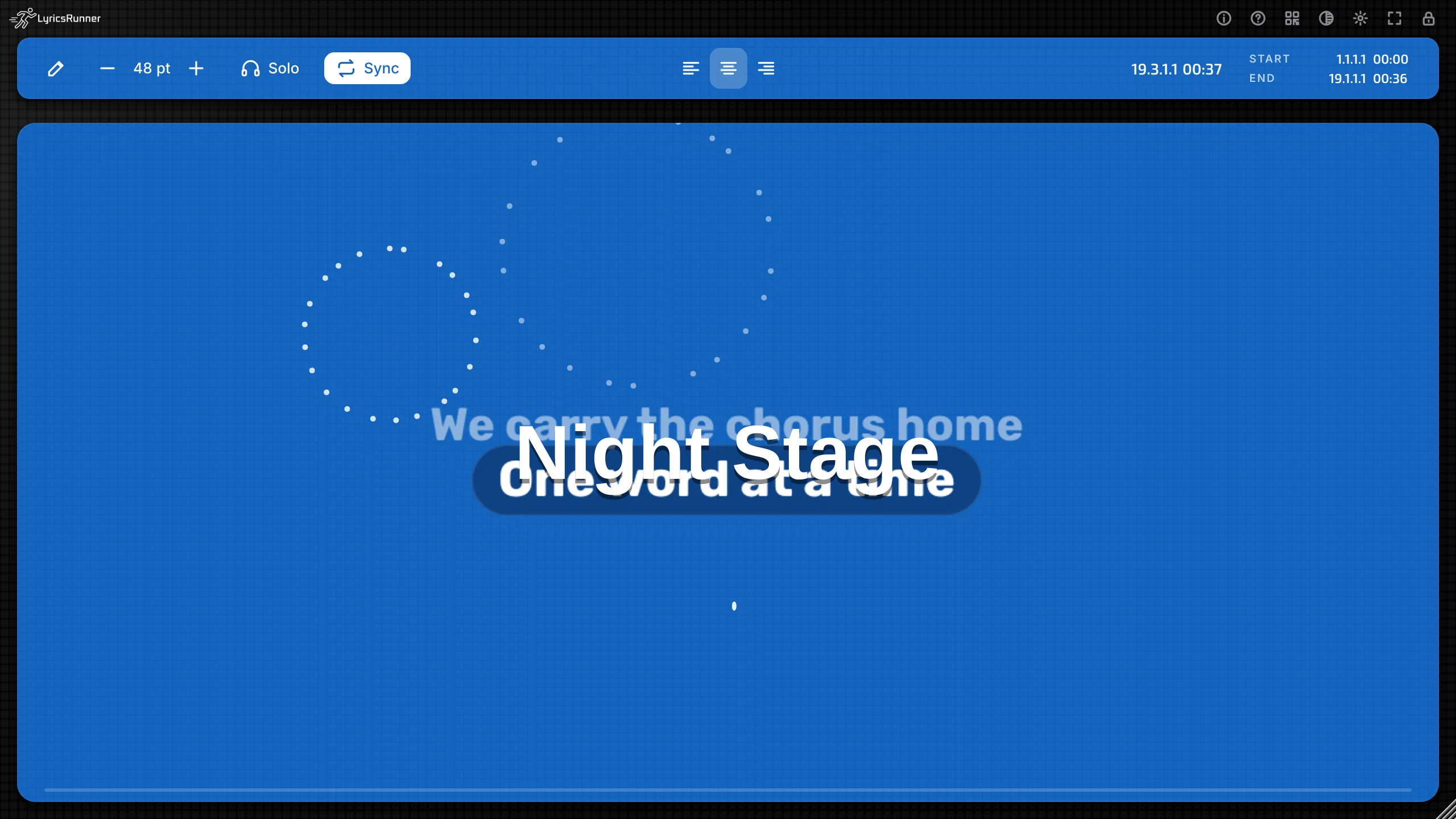
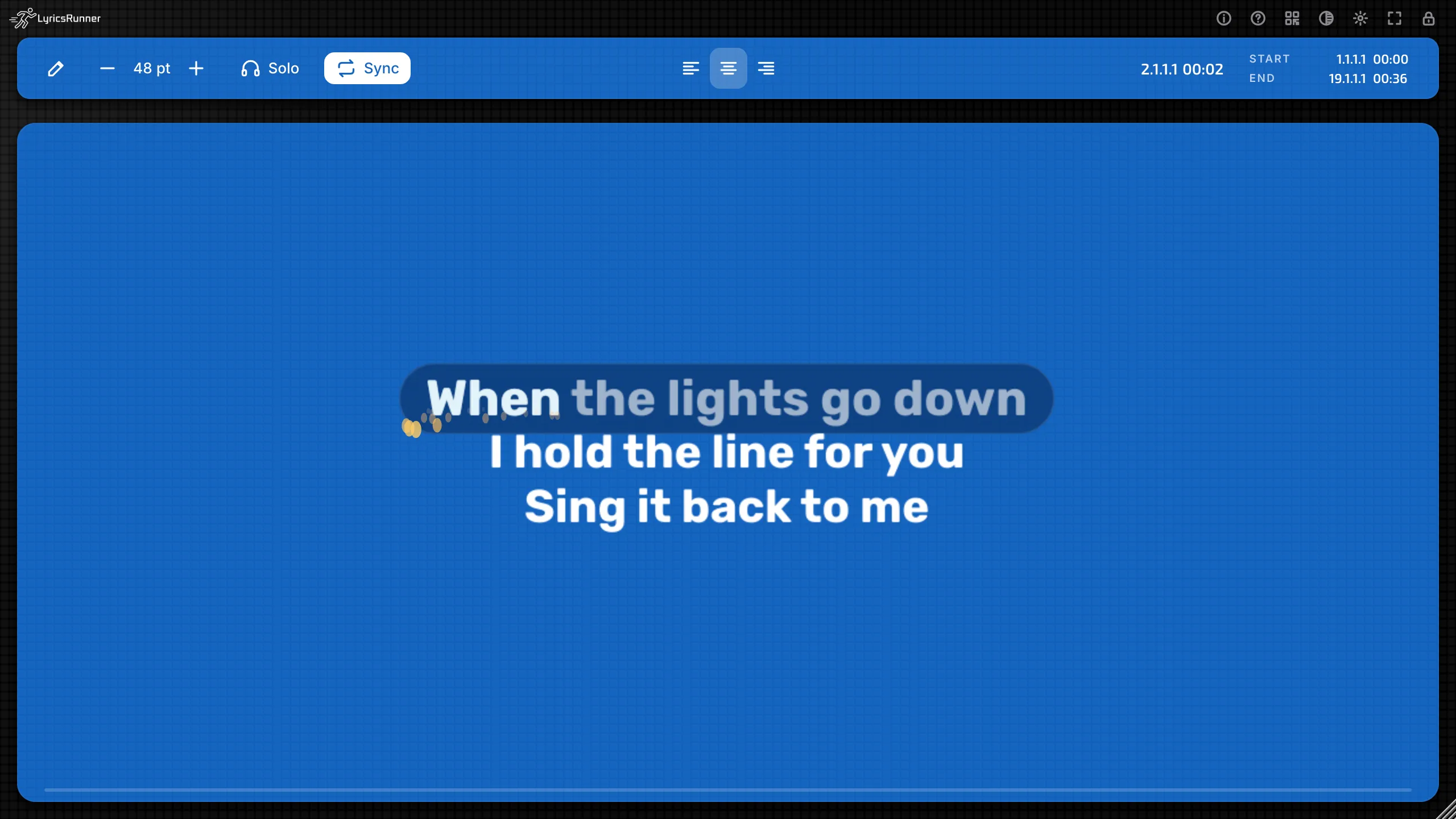
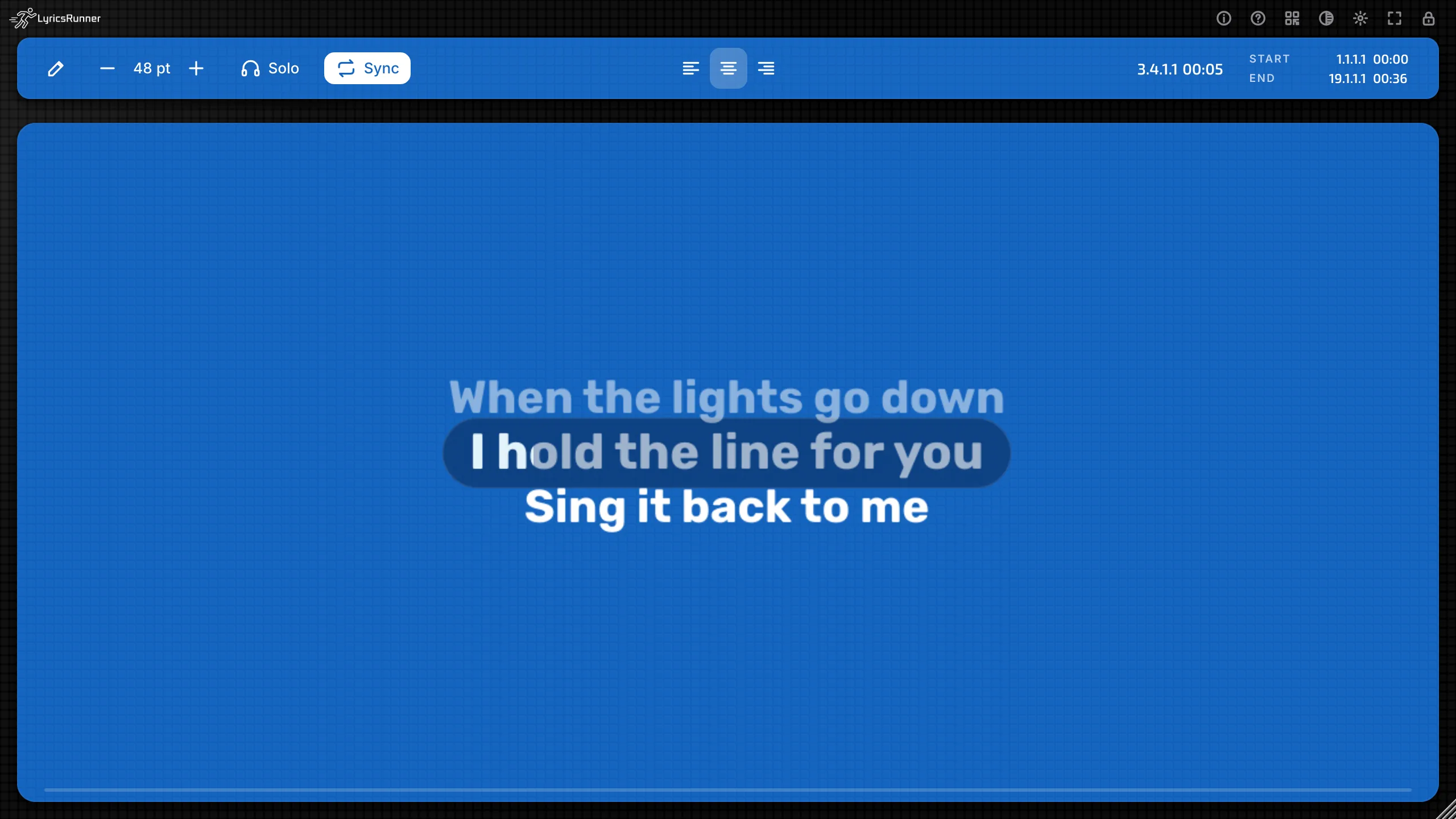
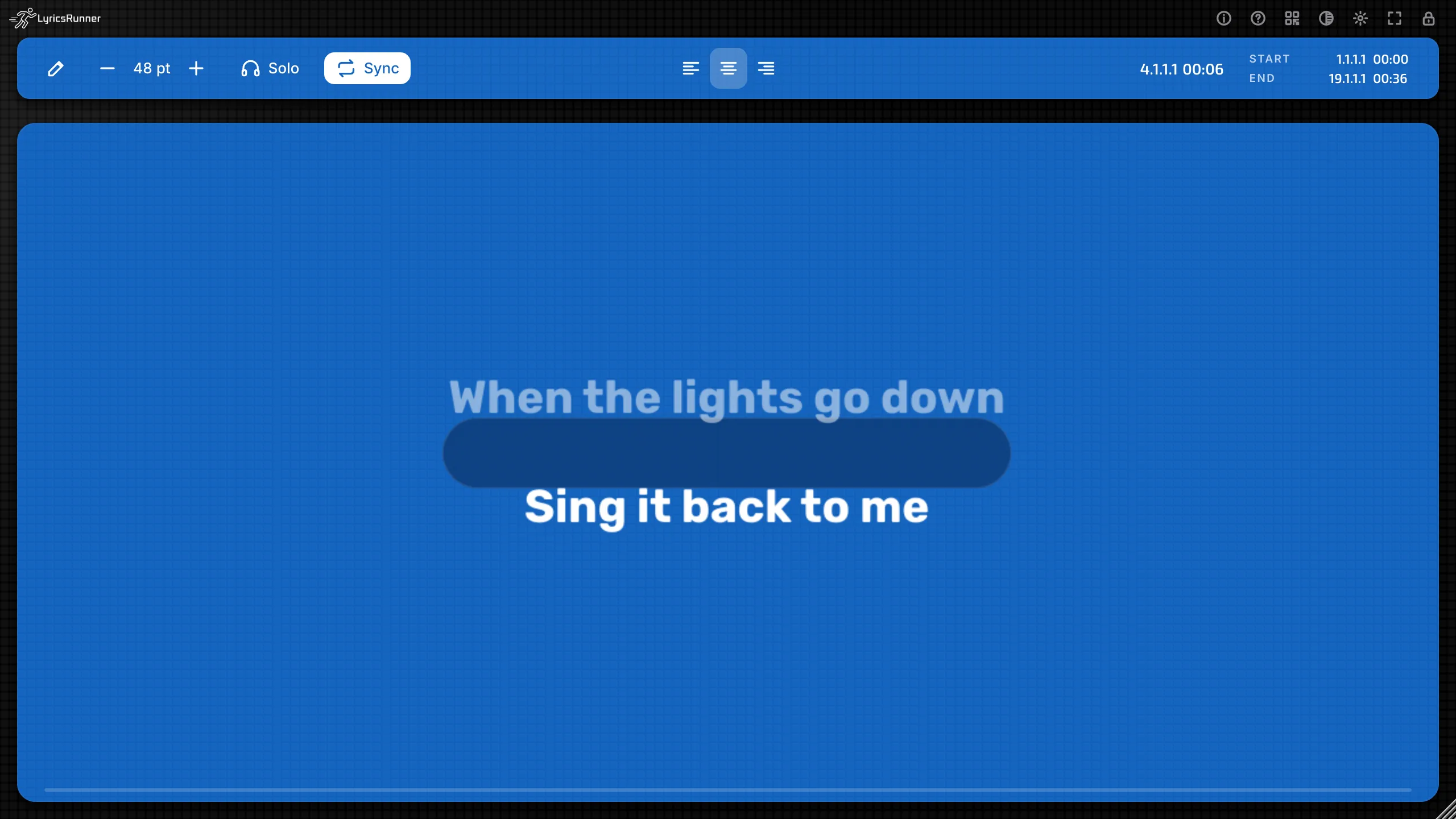
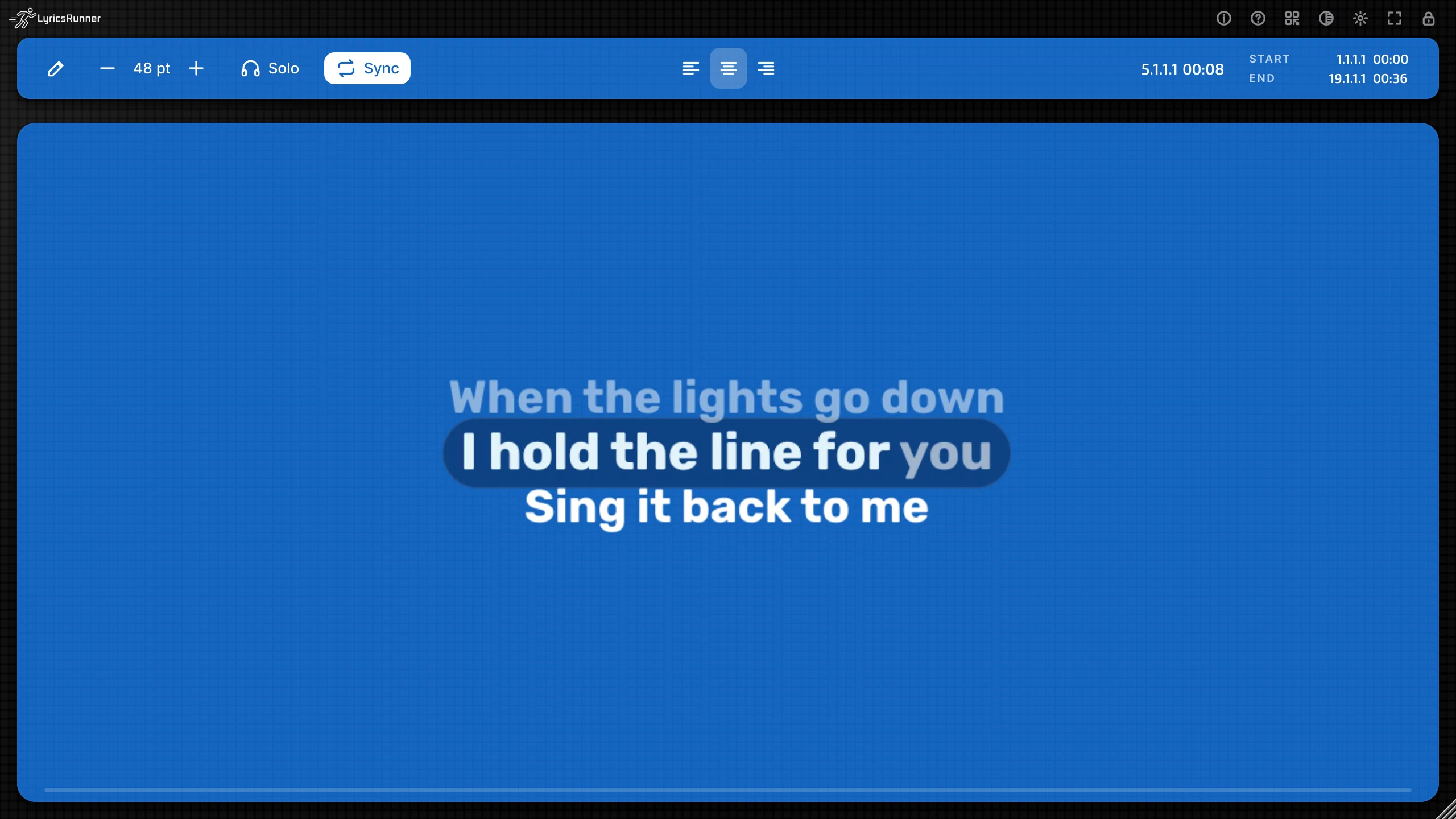
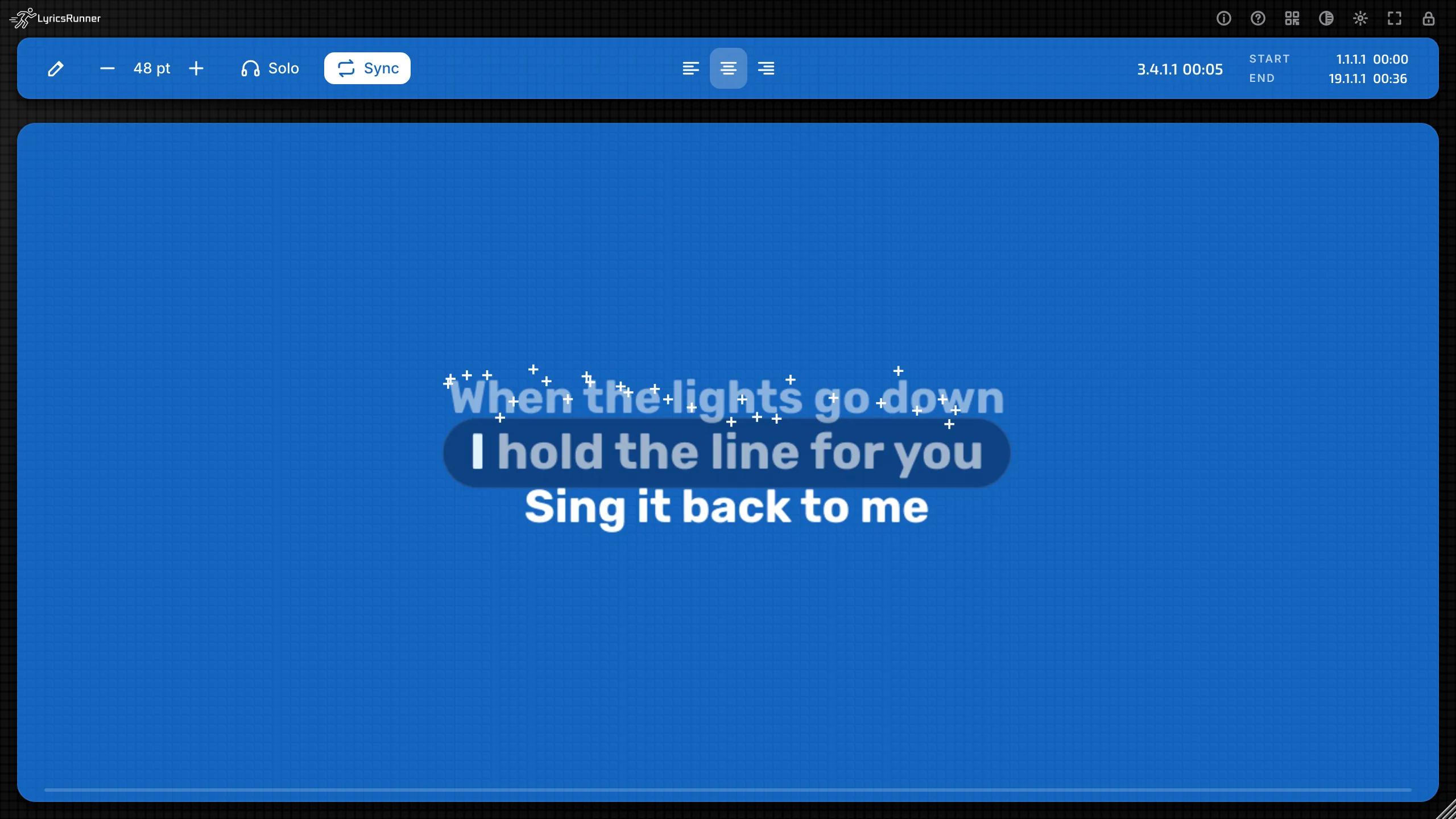
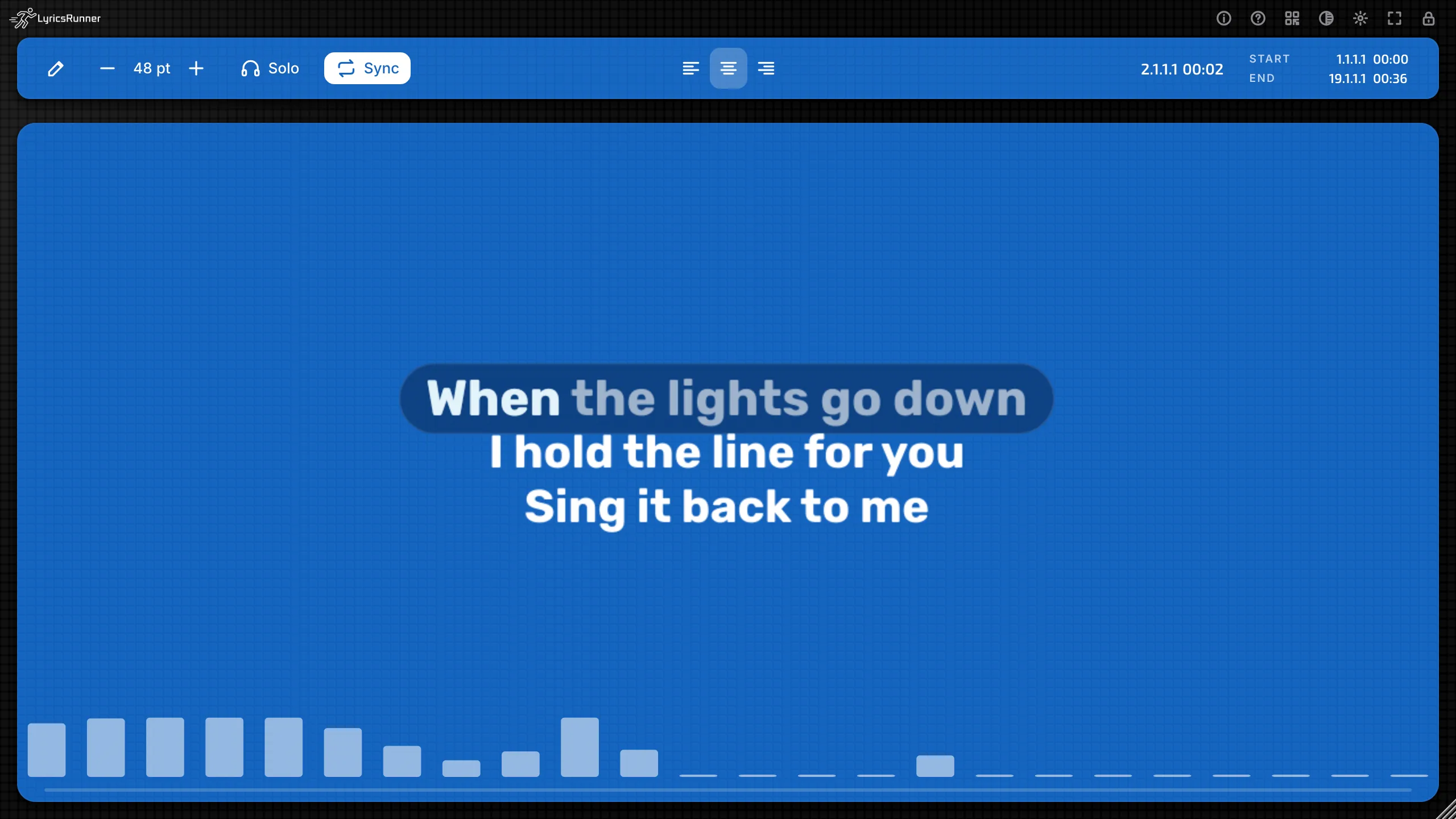
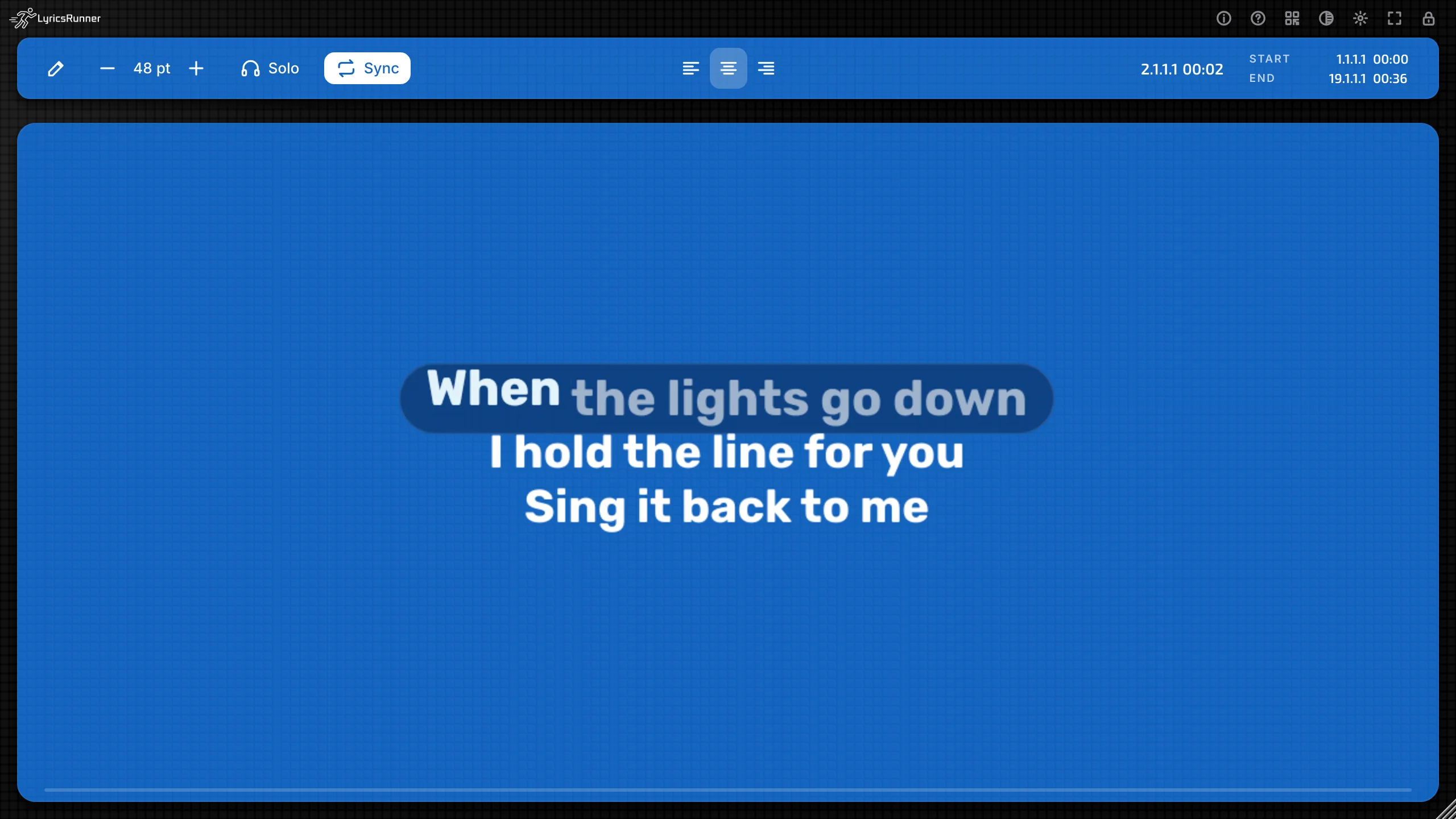
Tip. Turn on Word by word, then add one effect. The bouncing ball or the big countdown is enough for most rooms. Stacking many effects makes a busy picture. Save the grand finale for the last chorus, and type the song title so the ending has a name.
Sections and cues
Section starts here
Put the cursor on the first line of a part. Right-click, or use the gear, and open Section starts here (at DAW position).
The names are Intro, Verse, Pre-chorus, Chorus, Bridge, Outro, and Section. Section is the plain one, for a part that has no other name.
The time of the marker is the DAW playhead at the moment you click. Pause the song where that part begins, then mark the line. If the transport is not running, LyricsRunner estimates a time from the line's place between Start and End.
The menu then shows the name and the time, for example Chorus and the clock. Remove section start clears that line.
A small tag can sit by the lyric. On the flat grey look with the lime accent, a wide window also shows a SECTIONS list on the left. It is a map. The part that is playing lights up. You do not edit the song from that list.
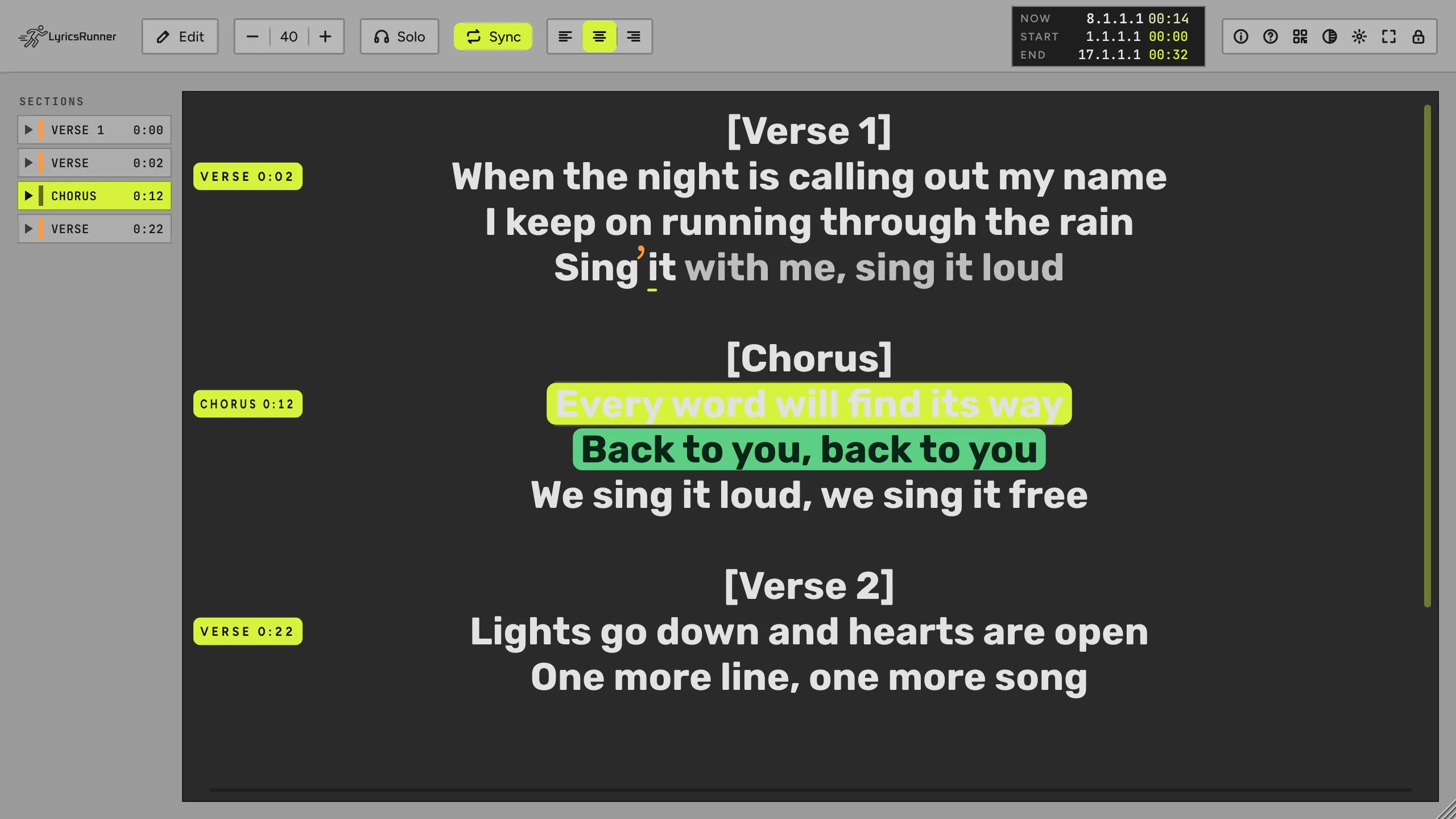
Tip. Mark only the places a singer needs: intro, each verse, the chorus, the bridge, the outro. Four to eight markers make kind pages. A marker on every line makes the karaoke flicker.
Countdown before sections
Countdown before sections counts into the next marked part.
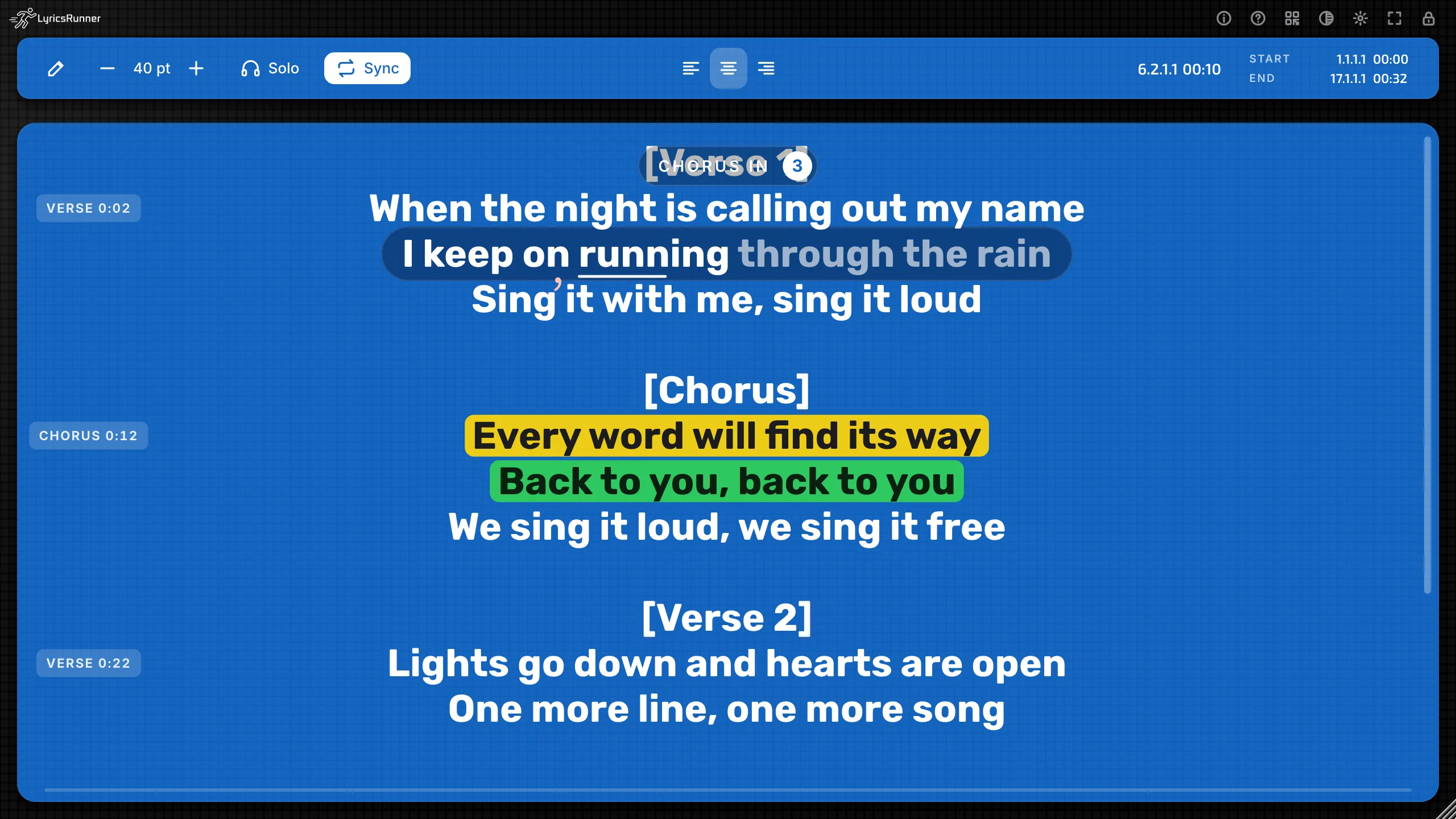
- Off
- 2 beats
- 4 beats
- 8 beats
You see a small pill, such as "CHORUS IN 3", and the number ticks with the tempo. It uses the DAW's beat. It shows while the song is playing and Sync is on.
Tip. 4 beats is the natural count for most songs. Use 8 when the singer comes in after a long turnaround. Use 2 for a fast song where four beats would feel early.
Entry cue before the next line
Gear or right-click, Live show, then Entry cue before the next line.
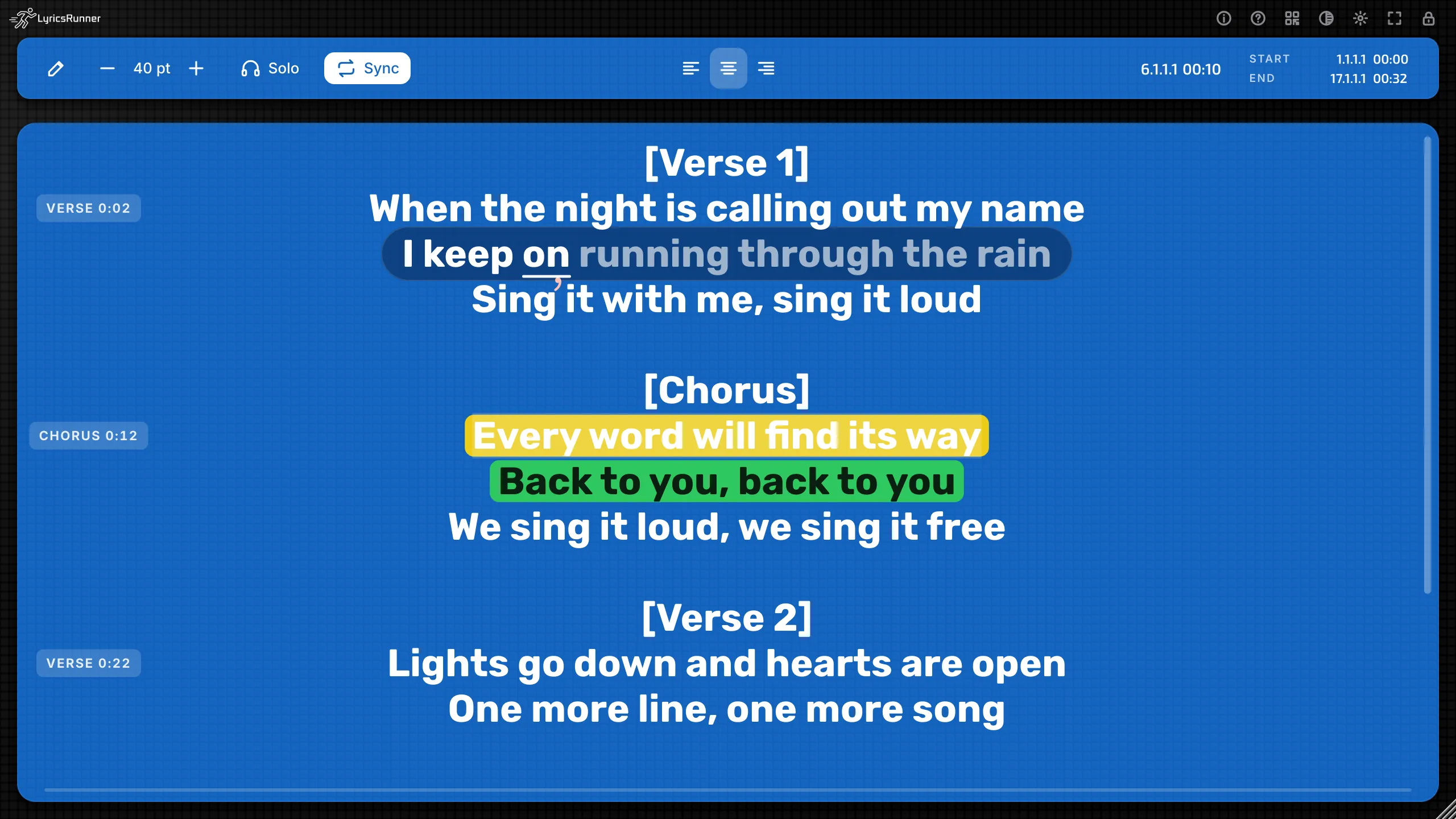
This is a short flash before a line that comes back after a gap, such as after a solo. It stays quiet during ordinary lines.
- Off
- 1 s before the line, 2 s, 3 s, 4 s
- 1 bar before the line, 2 bars before the line
- After a gap of 2 s or more, or 4, 6, or 8 seconds
The cue uses the line times. With AI timing, those times are the sung words. Without it, the lines are spread across the section.
Tip. Start with 2 seconds, after a gap of 4 seconds or more. The singer gets a nudge into the chorus, and the cue stays out of the busy verses.
Forgotten-line prompt
Live show, then Forgotten-line prompt (listens to the input).
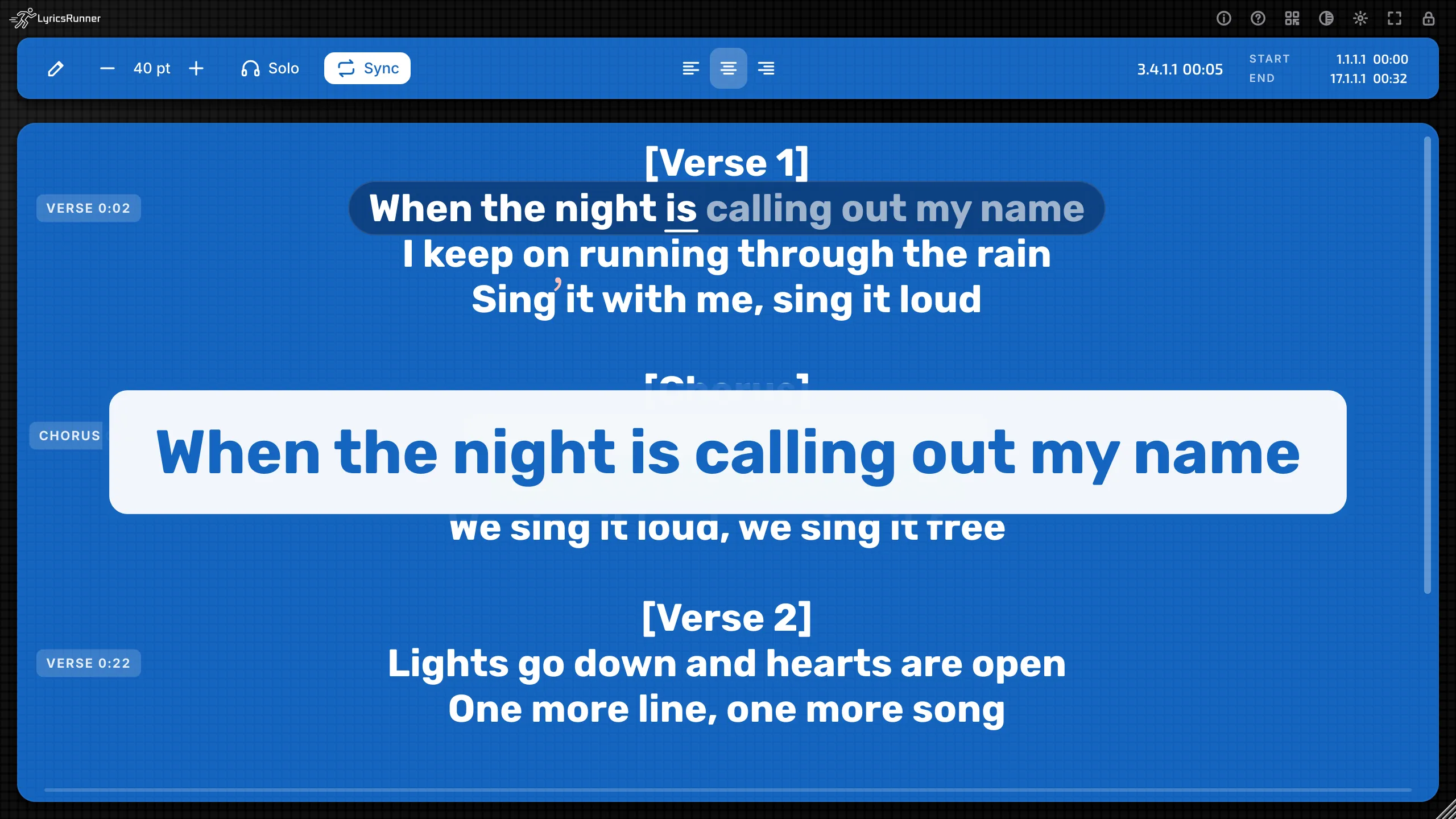
If a line is due and the plug-in hears silence, the line is shown big until the voice comes back. It only watches lines that have sung timing from the AI. An instrumental gap does not trigger it. The menu says so when that timing is missing: "Needs the sung line timing (AI vocal following)".
- Off
- Prompt after 1 s of silence, or 1.5, 2, or 3 seconds
- Silence below: Quiet singer / far mic (−55 dB), Normal (−45 dB), or Loud stage / mic bleed (−35 dB)
Tip. Use Normal in a quiet vocal booth. Use Loud stage when the drum kit leaks into the vocal mic, or the prompt will think the drums are the singer. Use Quiet singer when the mic is far and the voice is soft.
Stage notes
Live show, then Stage notes.
Put the cursor on a line first.
- Stage note on this line... A short note, up to a brief sentence. The box says it is only for you.
- Edit the stage note on this line... when one is already there.
- Remove the stage note from this line
- Show stage notes shows or hides them on the lyric.
- Remove all stage notes
The menu reminds you: only you see them, here and on the singer's phone, never on the audience page.
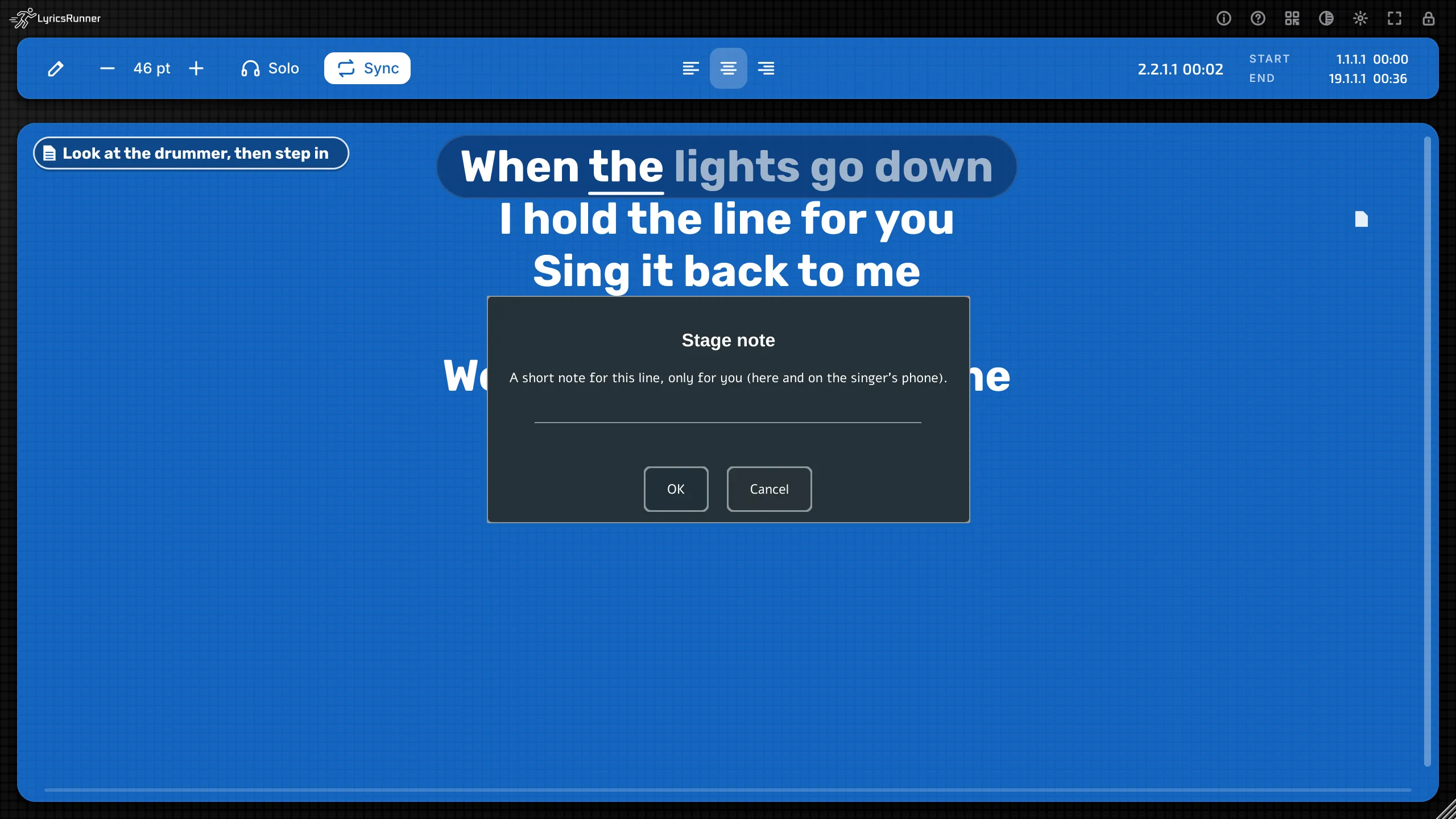
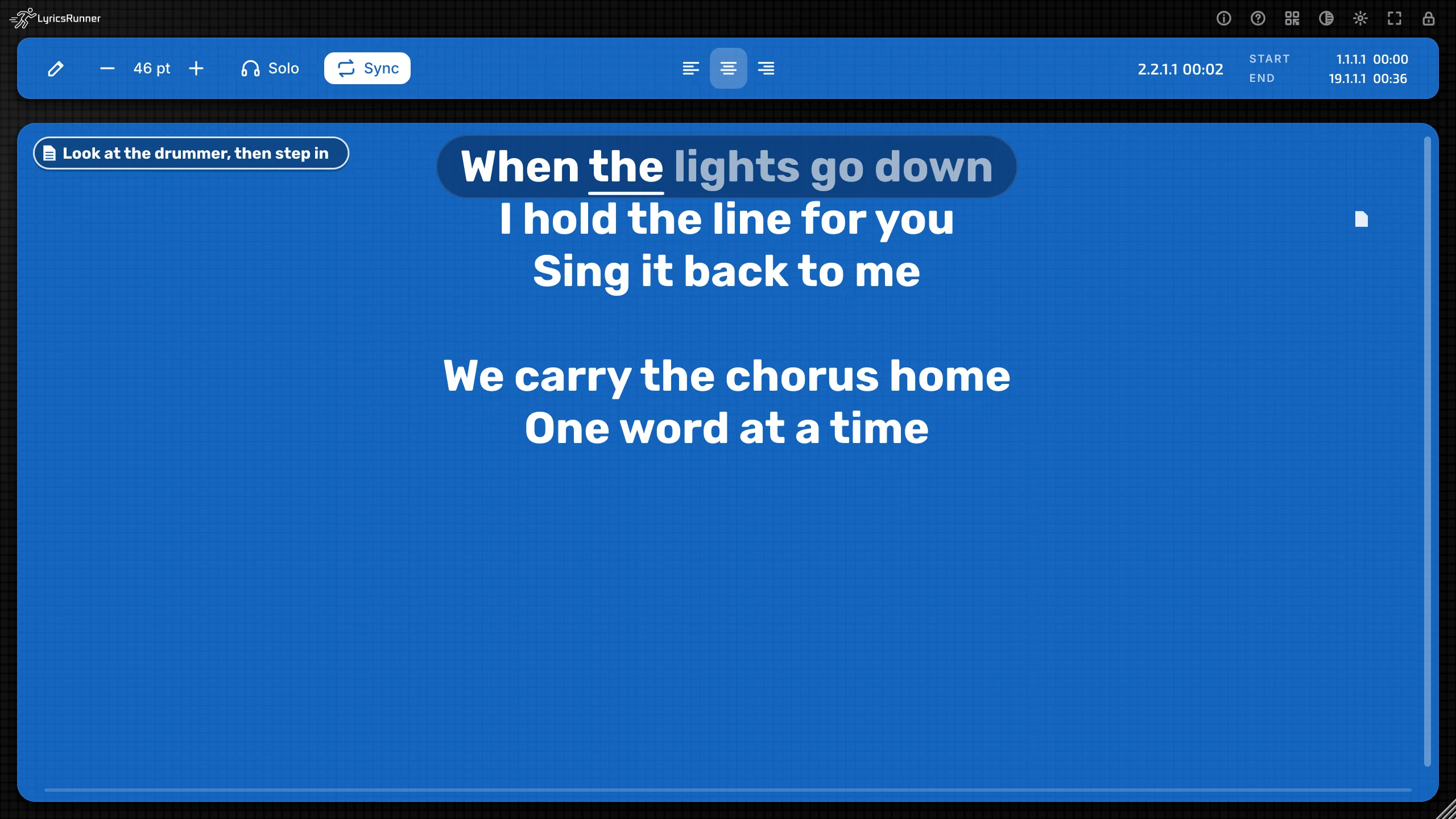
Tip. Write the cue, not the paragraph. "Smile" , "step left", "harmony up" . The singer can read that in one glance.
Mirror the lyrics
Live show, then Mirror the lyrics (teleprompter glass).
The words flip, so they read correctly through a teleprompter's beam-splitter glass. The phone page has its own mirror button for the same job.
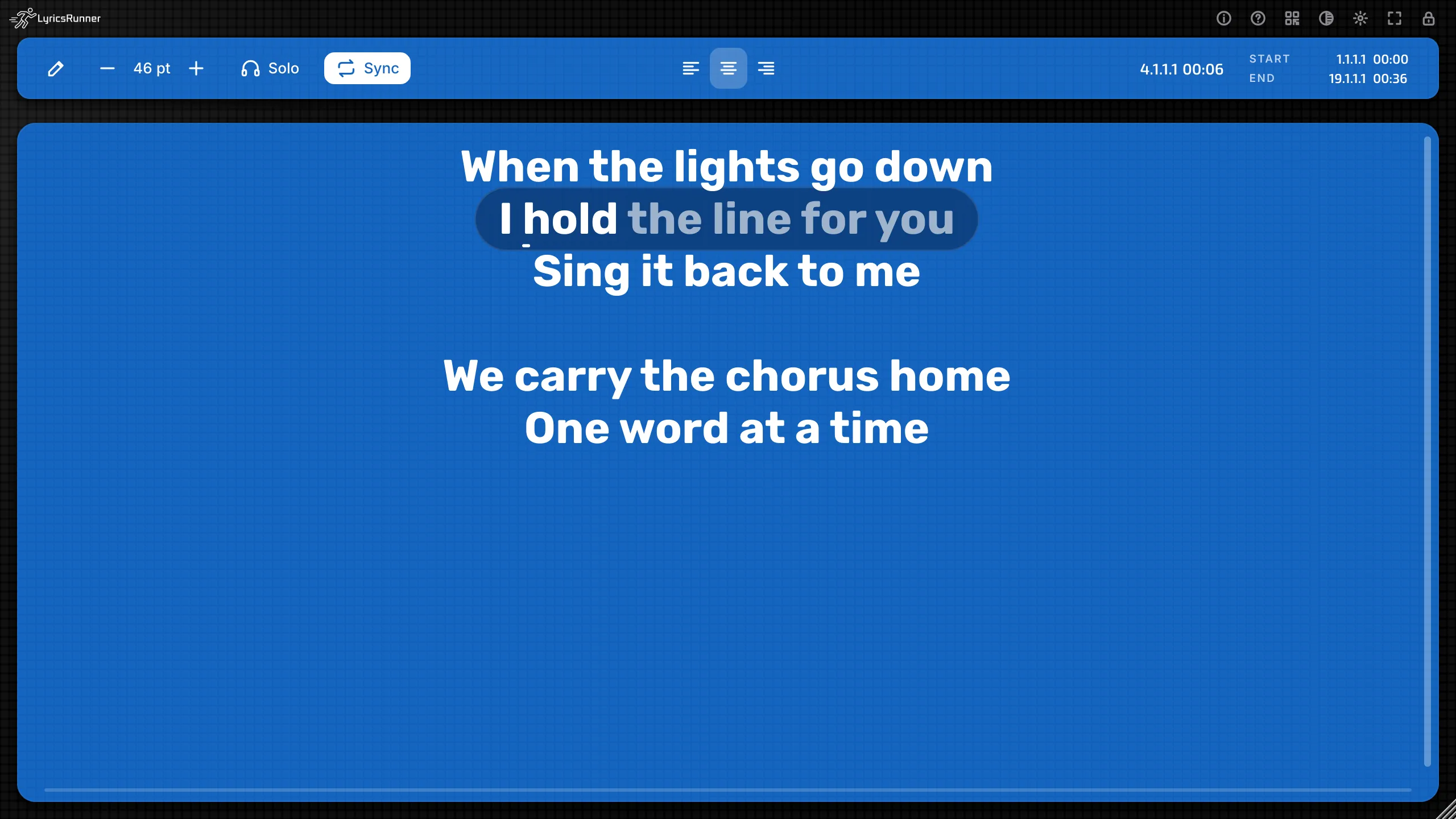
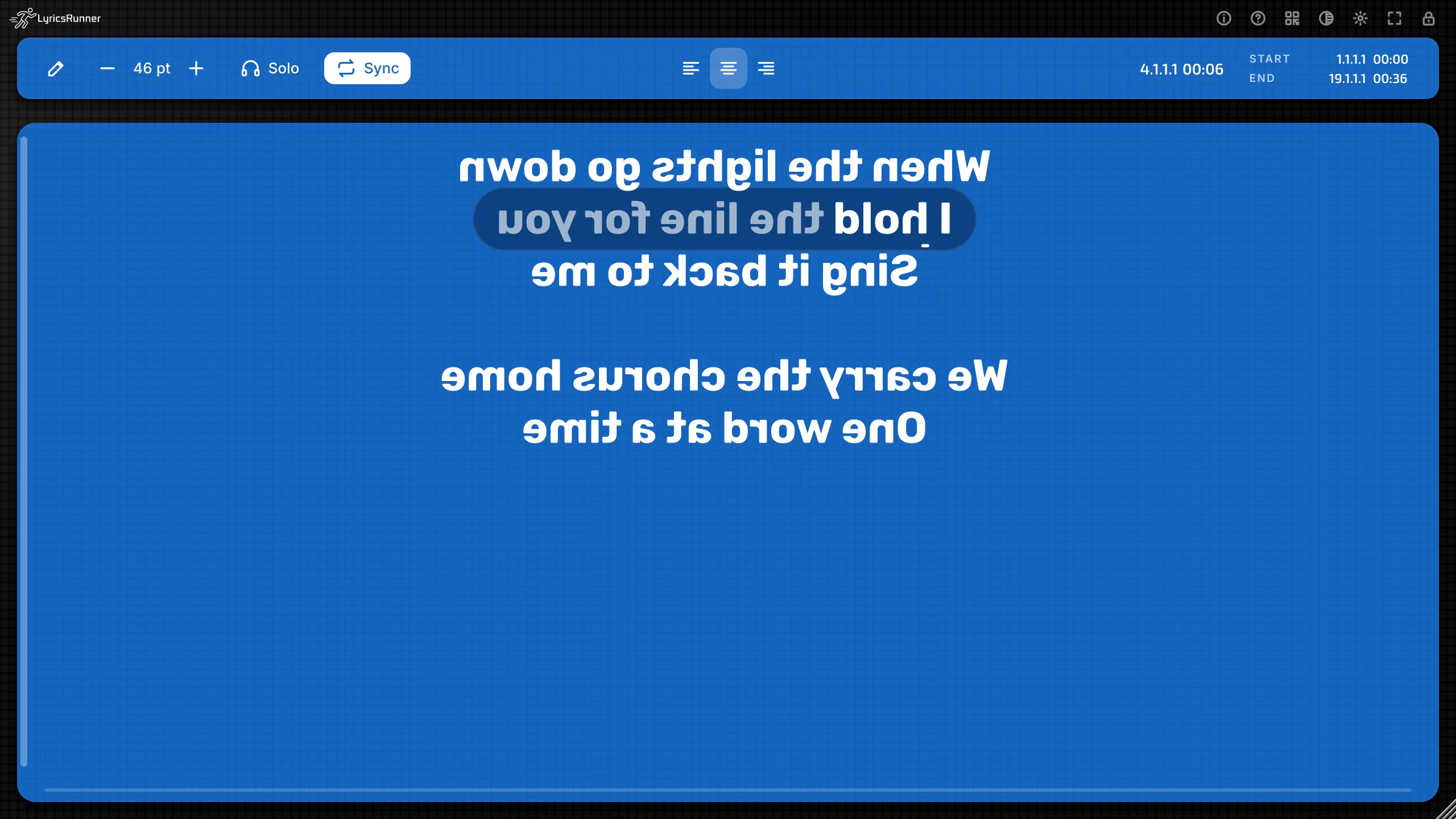
Tip. Turn this on only for the glass. On a normal screen the words will look backwards. If they look backwards by surprise, this tick is on.
Colours, breaths, and duets
The highlight bar
Click Edit, then drag across a word or a line. A small bar floats near the selection.
Five dots: yellow, green, blue, red, and white. Then a hollow ring with a slash, which clears the colour and the breath marks in the selection. Then a breath mark.
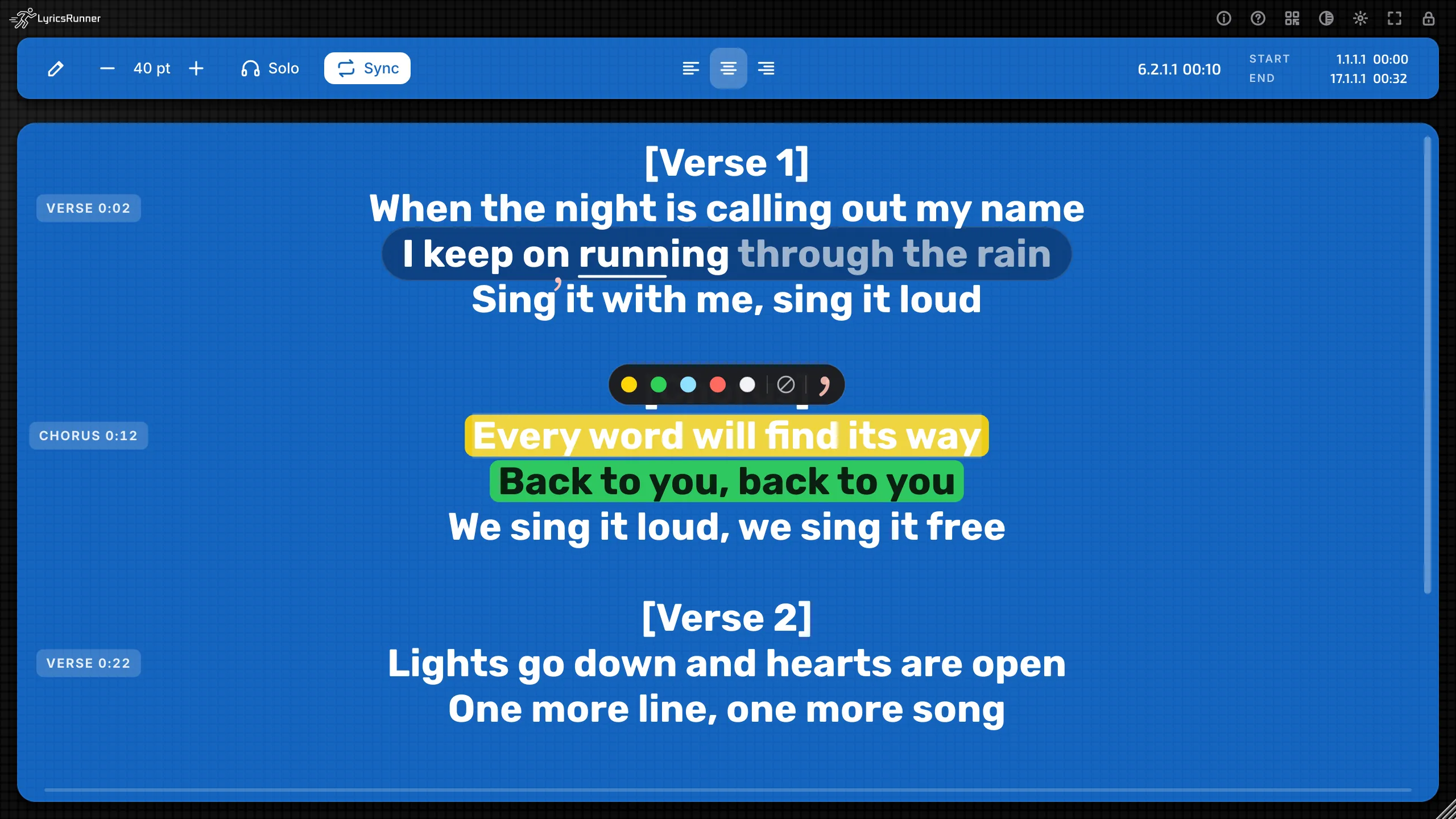
Tip. Colour the whole chorus in one colour, and leave the verses plain. The singer then sees the chorus before they read it. One or two colours are plenty.
Breath mark
The breath mark is a small comma above the lyric, a place to breathe.
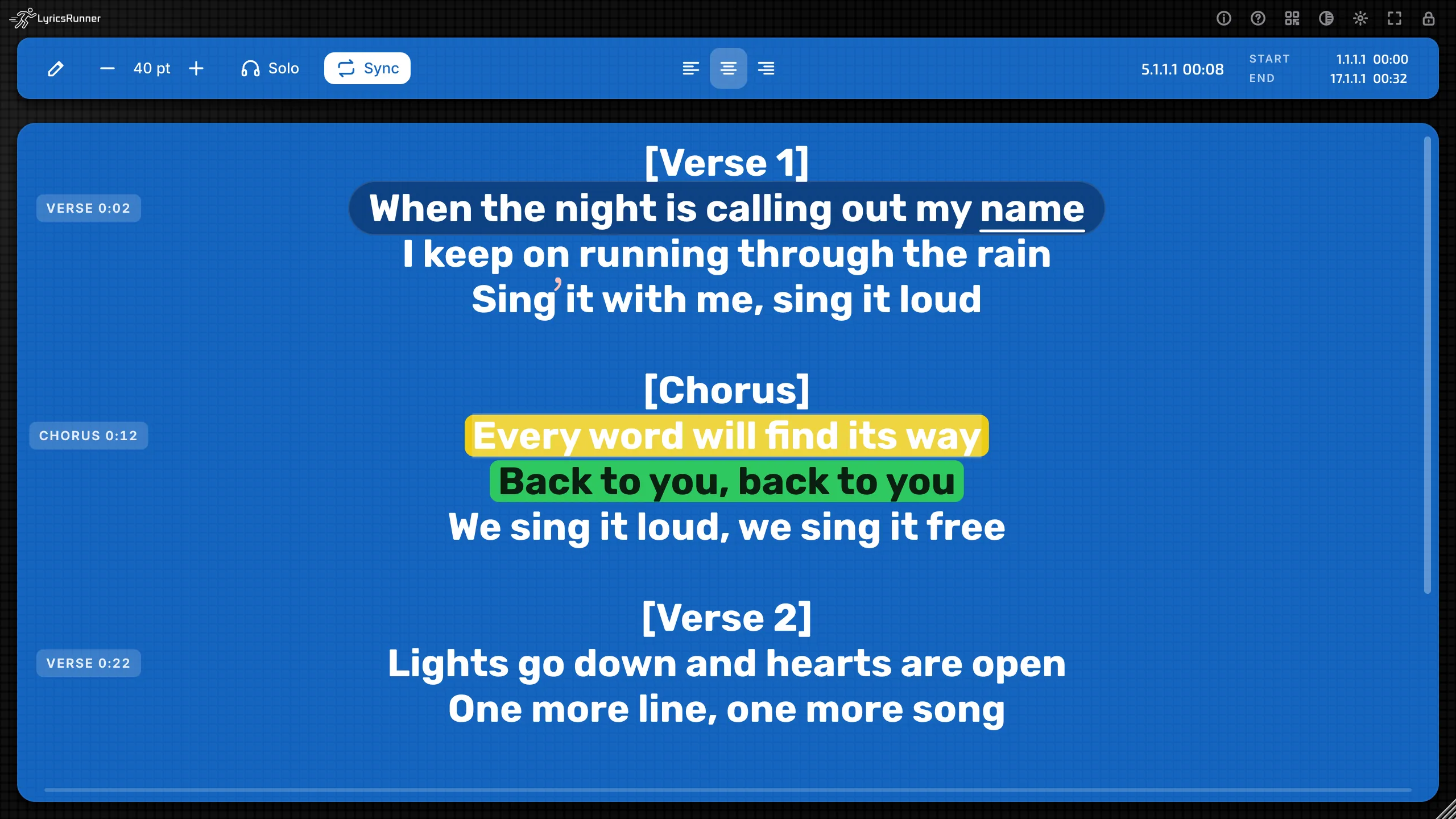
You can add it from the highlight bar, or from the menu: Breath mark here. The shortcut is Ctrl+' on Windows and Linux, and Command+' on Mac. If a breath is already at the cursor, the menu says Remove breath mark.
Tip. Mark the breath at the end of a long line, not in the middle of a word. The comma then means "you may breathe", which is what a singer wants.
Duet singers
Duet singers gives you Singer 1, Singer 2, and Singer 3. Select the lines, then choose Sung by Singer 1 (or 2, or 3). With no selection, it colours the line at the cursor. No singer colour clears it.
Each singer has a submenu, colour and name:
Sky, Coral, Mint, Amber, Violet, Pink, Teal, Orange, Default colour, and Rename...
The name can be the person's name. It shows in the menu. The karaoke effect Duet split uses these colours on the page.
Tip. Rename them to the real names before the rehearsal. "Sung by Maya" is faster to trust than "Sung by Singer 2".
The AI timing
The gear menu has AI vocal following. After a successful pass it says AI vocal following: timed.
The AI listens to the audio on this track, then lines your words up with the voice. Word by word, the scroll, the phone, the entry cue, and the forgotten-line prompt all get sharper, because they know which word is being sung.
A small status pill appears while it works. It tells you what it is doing, then fades.
What you click
- Download AI model (about 57 MB). The first time. It needs the internet once. The menu shows the size. After that, the model stays on this computer for every song.
- Use model file... If you already have a whisper model file (a ggml
.bin), you can point at it. The choice is remembered. - Analyze vocal (play the song once). Arms the listener. Play the song from the top, with the vocal on this track. When the transport stops, it studies the take. The menu then says Analyze vocal again if you want another pass.
- Stop listening and analyze now. Appears while it is listening, once it has heard at least a second. Use it if you do not want to wait for the DAW to stop.
- Cancel. Stops a listen, an analysis, or a download.
- Clear AI timing. Forgets the word times and goes back to an even spread between Start and End.
- Live follow (experimental). While this is on, the highlight tries to chase the voice as you sing, using the analyzed times as the map.
If this copy of LyricsRunner has no AI, the menu says AI is not included in this build. If the computer is too old for it, the menu says AI needs a CPU with AVX2 (2013 or newer).
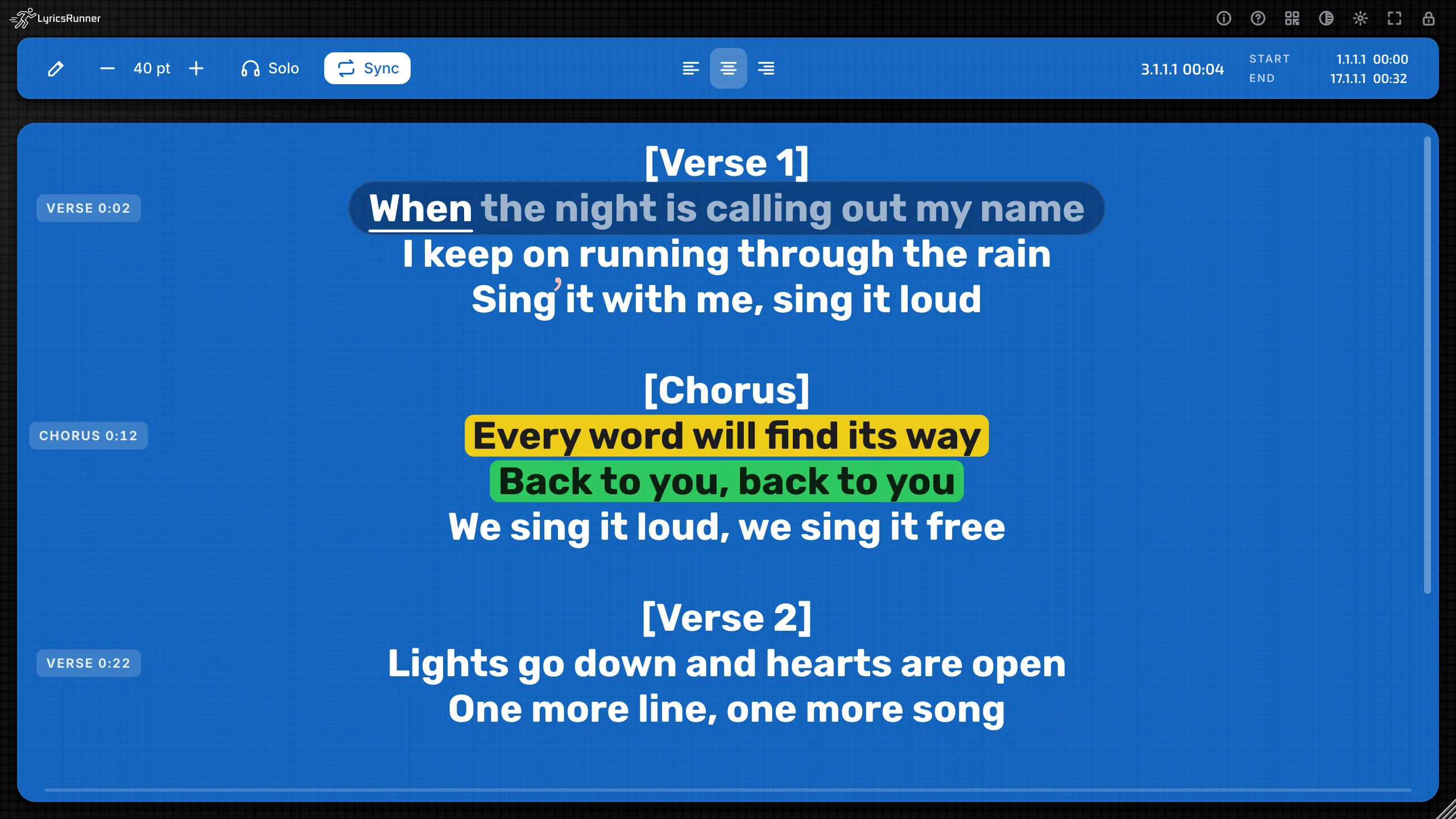
Tip. Put LyricsRunner on the vocal track, or on a bus that carries the vocal. Play the song once, in a quiet pass, with the singer's real words. Then look at Word by word. If a phrase is early, run Analyze vocal again on a cleaner take. Clear AI timing if you would rather time the song by hand with Start, End, and sections.
Live follow is marked experimental. It is the tool for a singer who stretches the time. For a tracked vocal that does not change, the one analysis is the steadier light.
In Show mode, analyze while that song is the one on screen. The word times are saved with that song. The next song keeps its own.
The singer's phone
The phone page is a web page. There is no app to install. The singer's phone over Wi-Fi currently works with a Mac and an iPhone. Put them on the same Wi-Fi. Windows support is coming.
Turn it on
Click the phone icon in the toolbar. LyricsRunner starts the page and shows a card: Singer's phone, a QR code, and the words "Scan with the phone camera (same Wi-Fi). The link changes each time you turn this on."
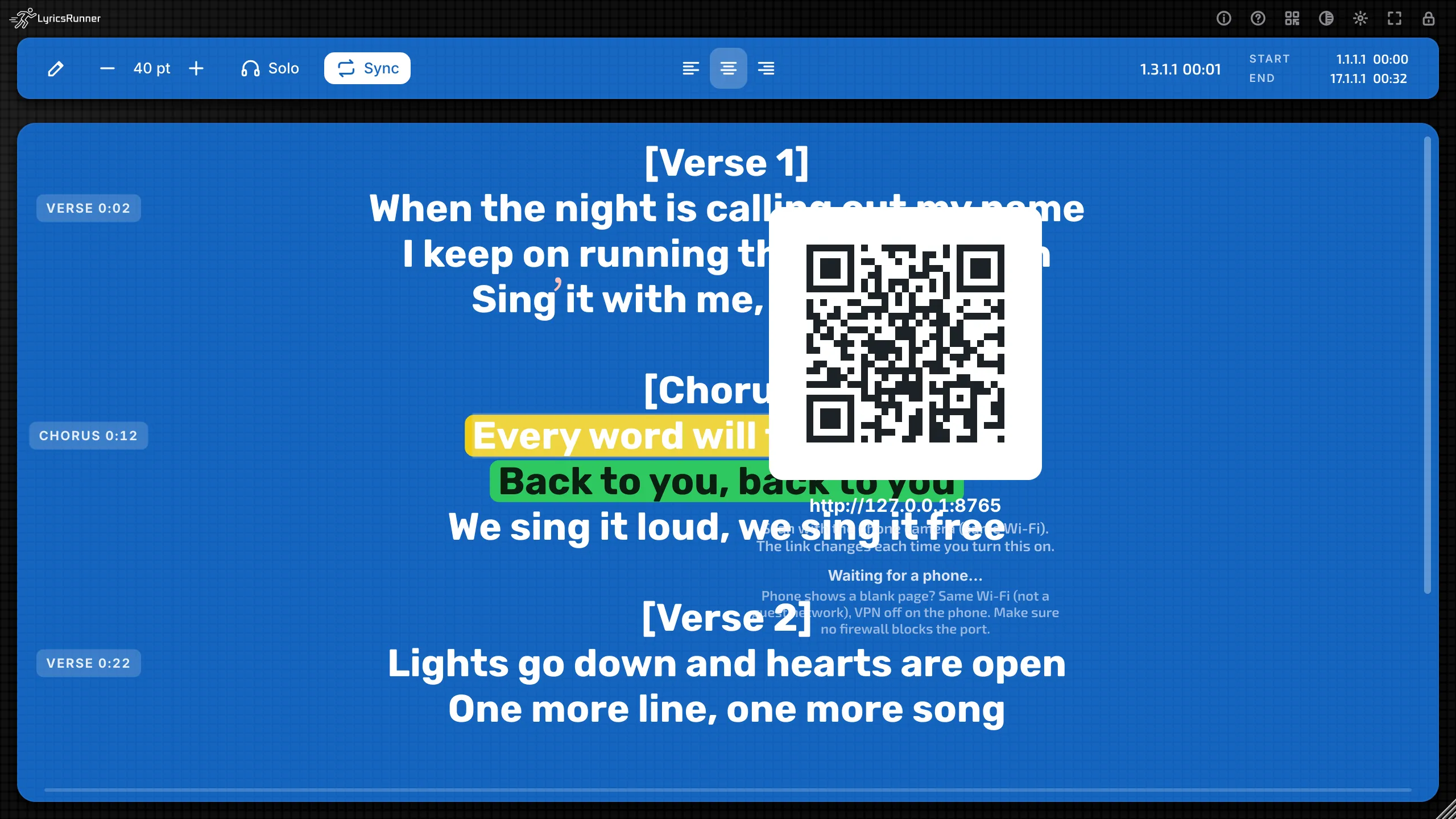
You can also open Singer's phone in the gear menu.
- Show lyrics on a phone (local Wi-Fi). The on/off tick.
- The QR code, once it is on.
- Copy link. For a message, if the camera is awkward.
- Audience QR (lyrics only)... A second code. The next chapter.
- Copy audience link.
- Fan page (audience phones)...
- Turn off phone links, from the phone card.
On the Mac, the first time, macOS may ask to allow incoming connections. Allow it (System Settings, then Network, then Firewall, if you are setting it by hand).
Every LyricsRunner 2 window has its own page and its own QR. Two singers can each have a plug-in and a phone. A second copy never steals the first one's code.
Tip. Scan the code in the rehearsal, with the singer's own phone, before the doors open. Leave the page on. Turning it off and on makes a new link, and the old tab will not follow.
On the iPhone
The page follows the plug-in: the scroll, the karaoke style, the colours, the breath marks, the section chip, and the stage notes. In Show mode it also shows the "up next" card between songs.
Along the top:
- A dot. It glows when the page is live.
- The clock.
- A− and A+. Smaller and bigger text, just for this phone.
- Dark mode. A darker page when the stage is dark.
- Mirror for teleprompter glass. Flips the phone, the same idea as the mirror tick in Live show.
The size you pick on the phone stays on the phone. It does not change the plug-in window.
Tip. A− and A+ are the singer's own comfort. Leave the plug-in size alone for the projector, and let the phone be a little larger.
If the phone stays blank
Use the same Wi-Fi, not a guest network. Turn VPN off on the phone. Scan the current QR, because the link changes each time you turn the page on. On the Mac, allow incoming connections when macOS asks.
The menu says No Wi-Fi / local network found when the Mac has no local network to share. Join the Wi-Fi, then turn the phone page on again.
The audience and the fan page
Audience QR
Audience QR (lyrics only)... opens a second code. The card says the page is lyrics only, read-only, on the same Wi-Fi, and that you can share or project it. Any number of phones can open it.
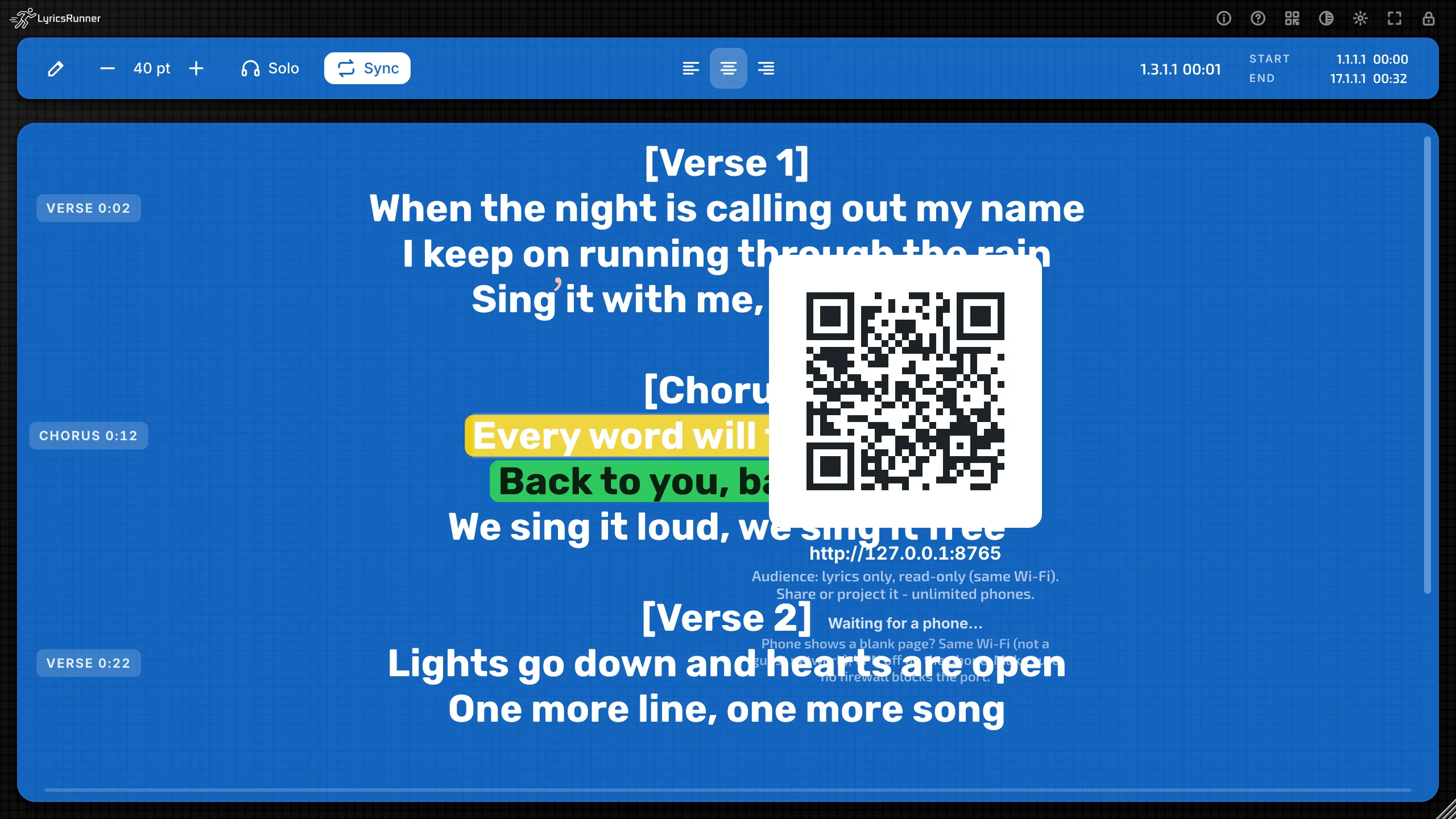
That page does not show stage notes. It does not show the singer's private cues. Hand the audience the audience link. Keep the singer link for the singer.
Tip. Project the audience page on the venue screen, and keep the singer's phone for the notes only the singer should see. Two codes, two jobs.
Fan page
Fan page (audience phones)... is what the audience phones can do besides reading the lyric. Click Save to keep it. Cancel leaves it unchanged.
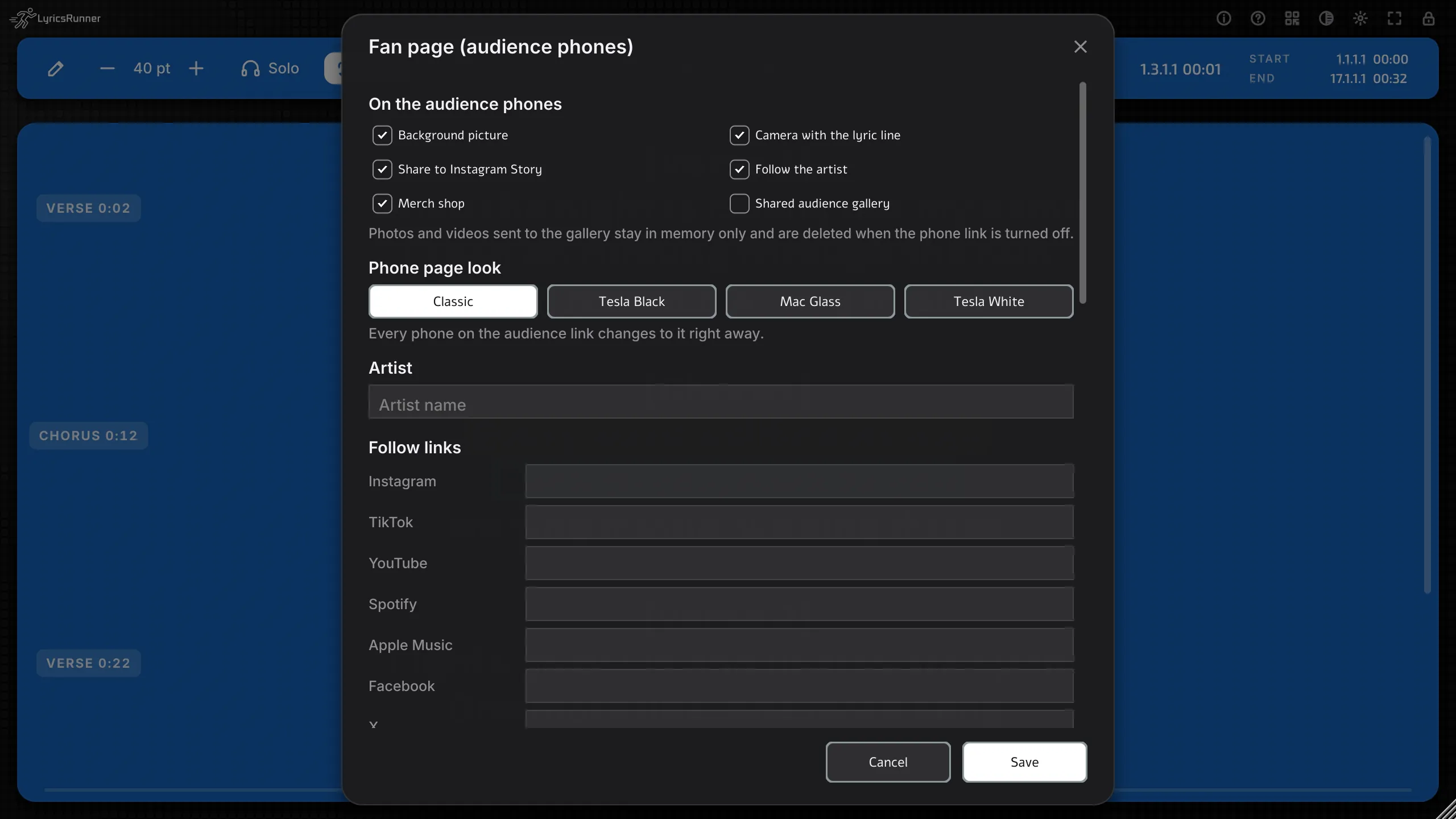
On the audience phones
- Background picture
- Camera with the lyric line
- Share to Instagram Story
- Follow the artist
- Merch shop
- Shared audience gallery
Photos and videos sent to the gallery stay in memory only. They are deleted when the phone link is turned off. Save all to folder... copies them to a folder you choose. Clear all empties the gallery. You can hide a single photo.
Phone page look. Classic, Tesla Black, Mac Glass, or Tesla White. Every phone on the audience link changes to it right away.
Artist. The artist name.
Follow links. Instagram, TikTok, YouTube, Spotify, Apple Music, Facebook, X, SoundCloud, and Website, plus a few links with your own names.
This song on Spotify. Saved with this song only. The other fan-page settings are remembered for the next project too.
Merch shop. Up to a handful of items. Each one has a name, a price, a buy link, and a picture. Picture... and Change picture pick the photo. The small remove button clears the picture.
Tip. Turn on Follow and the song's Spotify link for a public show. Leave the camera and the gallery off until you actually want photos from the room. The gallery is a live pile of pictures, and it disappears when you turn the phone link off, unless you have saved them to a folder.
Show mode and New song here
Show mode is for a real set, about twenty songs or more. One LyricsRunner 2 holds the whole night. The playhead picks the song, so a jump, a rewind, or a loop lands on the right lyric. For one song, leave Show mode off. The window stays wider, and one song is simpler.
The short setup is in Start here. This chapter is the detail, and the pictures.
The Setlist
Gear or right-click, Live show, then tick Show mode. A Setlist column appears beside the lyrics. The first time, the words already in the window become song 1, named from your song title, or called Song 1.
Each row is a song: the name, the start clock, the end clock, and × (tooltip: Remove this song). The row that is playing has a bar beside the name. The song that is coming up has an outline. Click a name or a clock to edit it. Clocks look like 03:12, and can include an hour, such as 1:04:10.
The menu line under Show mode says it plainly: the playhead chooses the song. Each song keeps its own lyrics, times, markers, word timing, and notes.
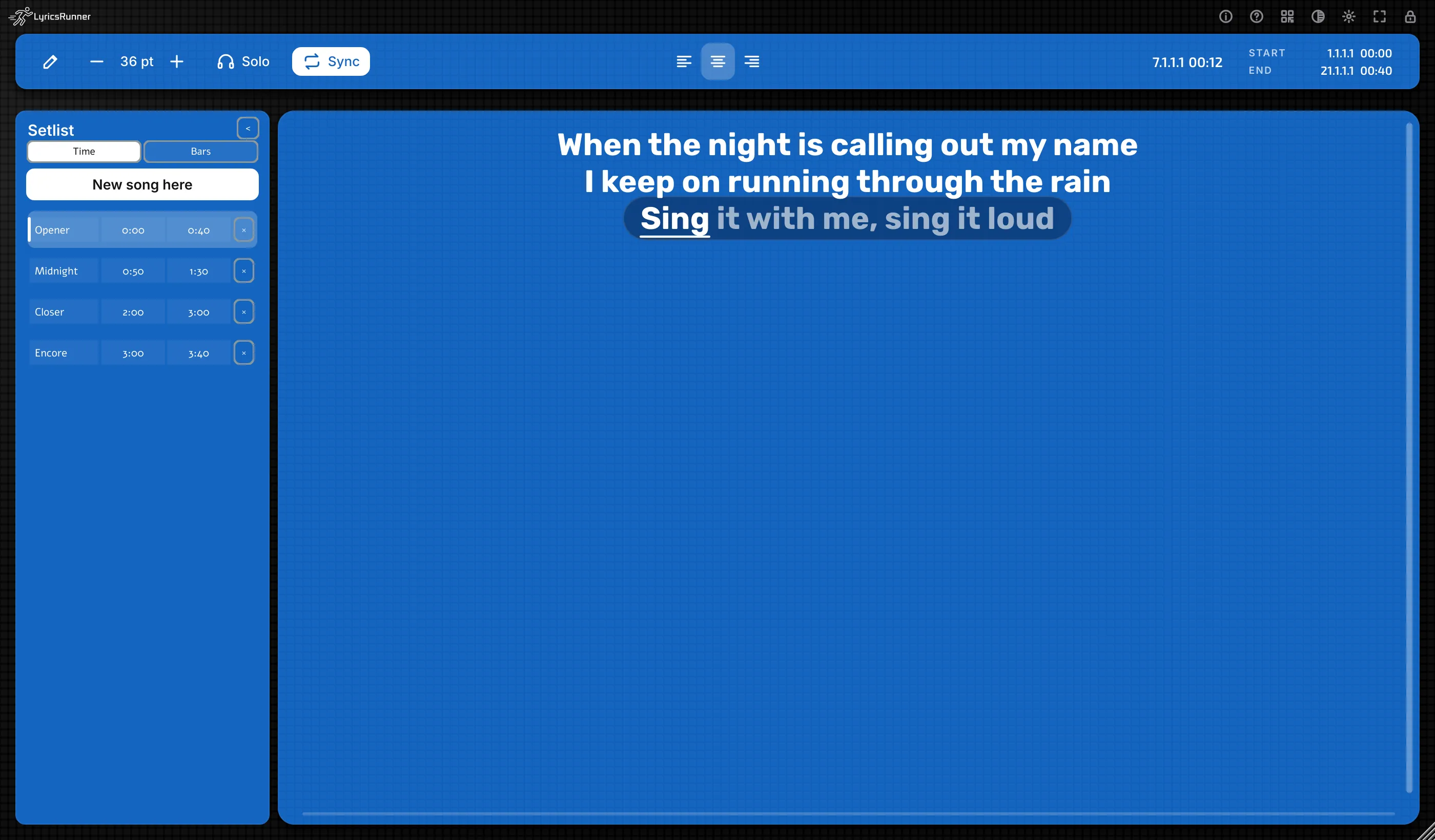
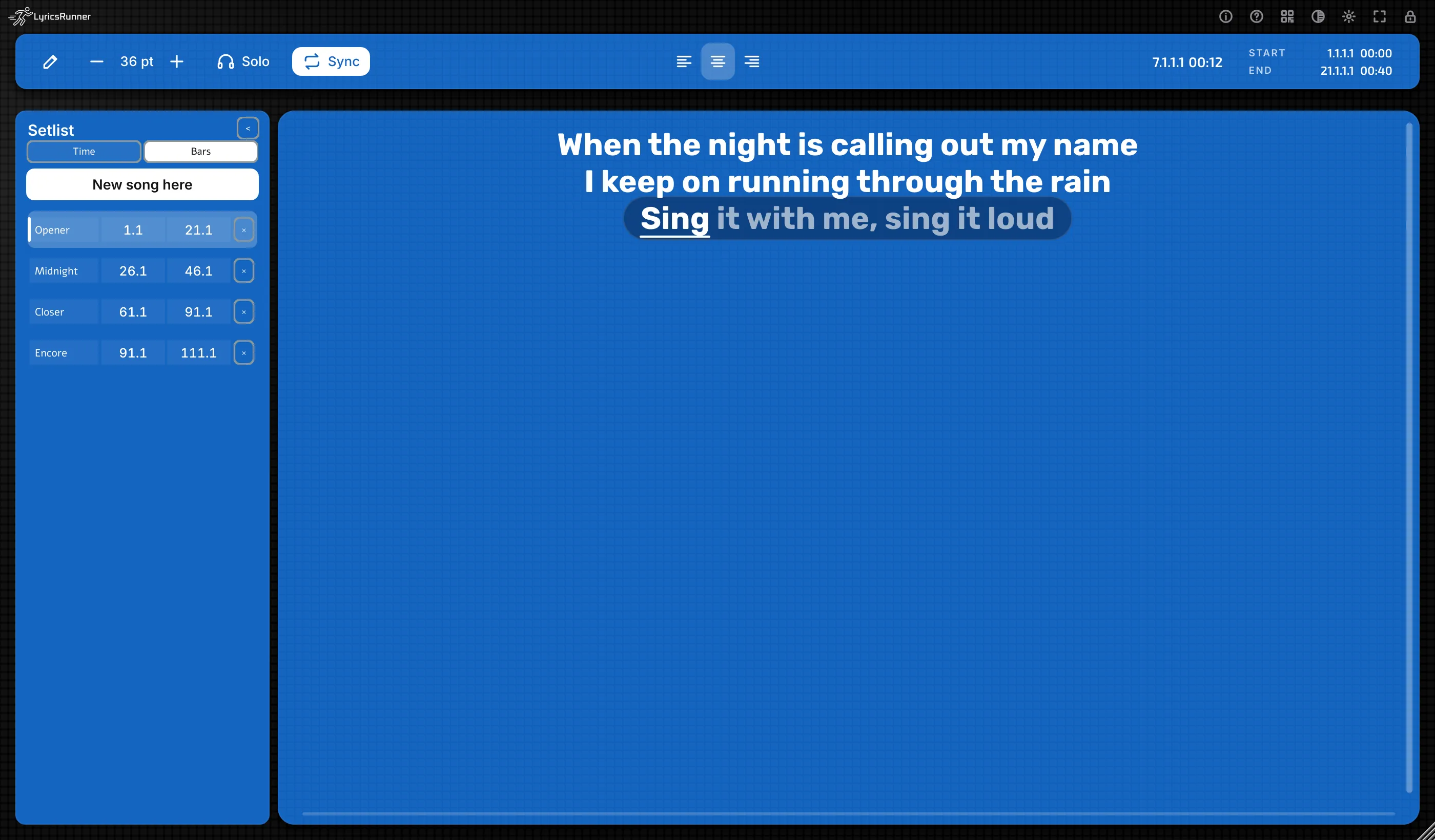
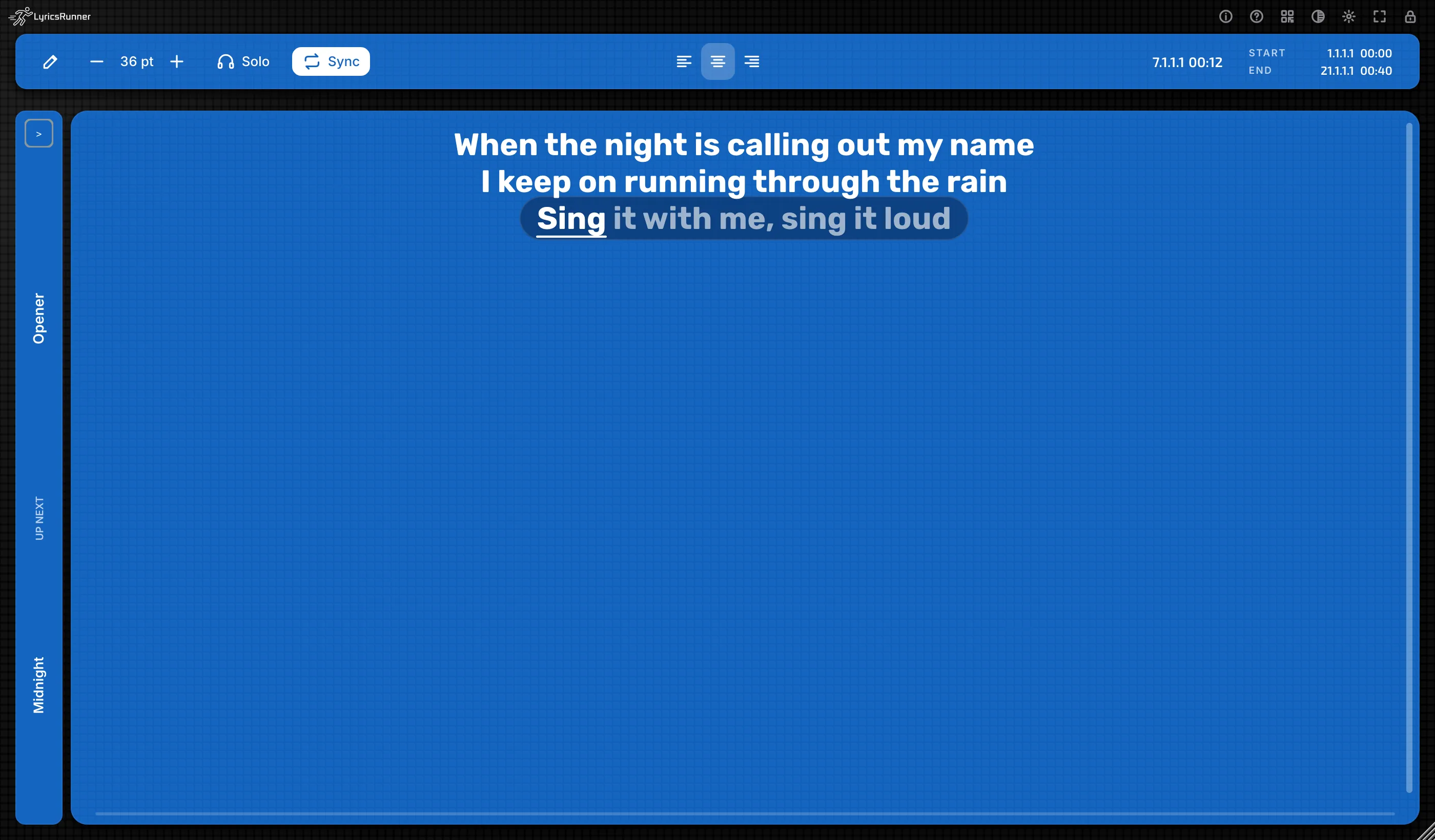
Tip. Rename the rows to the real titles before the rehearsal. "Opener" and "Closer" are easier to trust, mid-show, than "Song 4".
New song here
New song here is the button at the top of the Setlist. The tooltip says "Stamp the playhead as the start of the next song".
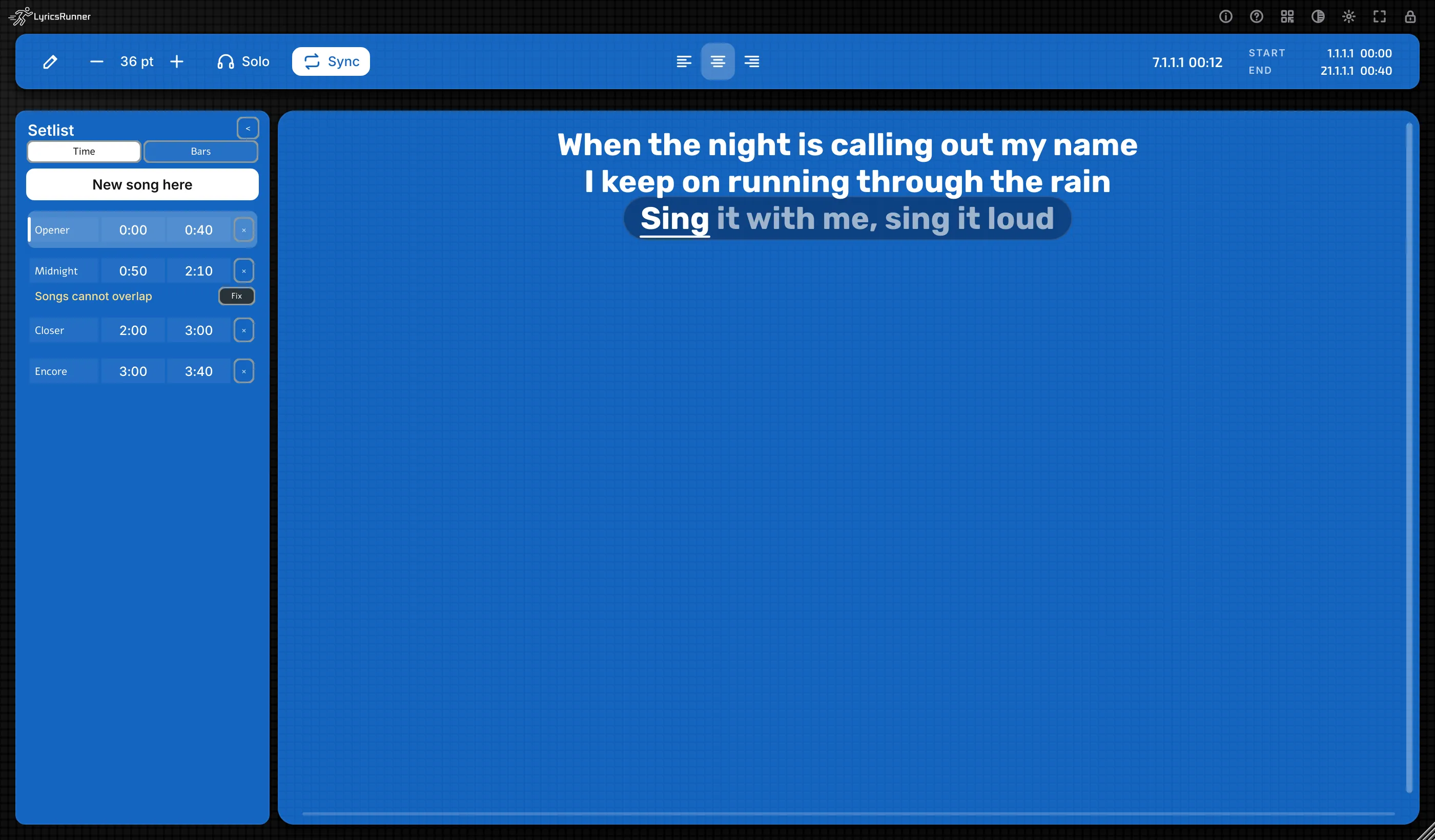
It rounds the playhead to a whole second. That second becomes the start of the next song and the end of the one before it.
- In the middle of a song, the song splits. The new song takes the time that was left.
- In a gap, the gap closes onto that second.
- After the last song, a new song opens there.
- A second click on the same second does not add another song. That second is already the boundary.
The new row is named Song 2, Song 3, and so on. Type the real title. You can also type the clocks yourself while the transport is stopped. 04:10 and 07:05 is a whole song. New song here is the fast way while you listen.
Tip. Click once, on the downbeat, then rename. If the stamp is a second late, type the clock you wanted.
Between songs
Inside a song, that song's lyrics fill the card, the karaoke, and the phone.
In a gap, the card clears and shows UP NEXT and the next title. After the last song it says BETWEEN SONGS. The phone shows the same card.
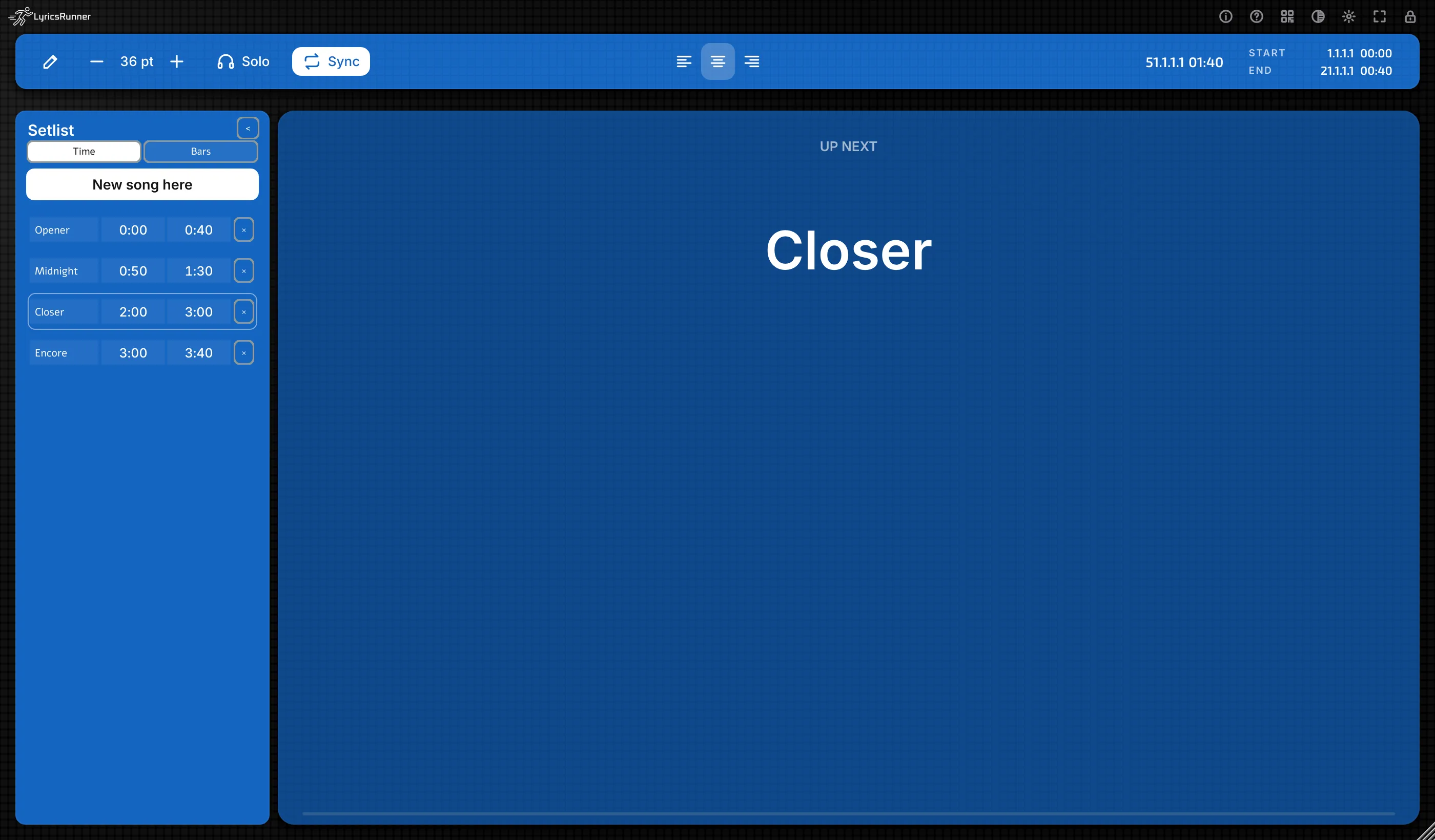
Tip. Leave a few seconds between the end of one song and the start of the next if you want this card. If they meet on the same second, the next lyric appears at once.
Building the night
- Lay the songs out on the DAW timeline.
- Turn Show mode on. Name song 1.
- Press play. At the next downbeat, click New song here once.
- Paste the lyrics while the playhead is inside that song. Add the chorus marker, the colours, and any stage notes.
- Run Analyze vocal while that song is on screen, if you want the words to light up. Those times stay with that song.
- Click New song here at the next downbeat. Repeat.
- Click the lock. Click it again when you need to edit.
What you type belongs to the row with the bar. Move the playhead and the card changes. The edit stays on the song you left.
One phone QR covers the whole set. The iPhone follows the playhead, including UP NEXT.
Turn Show mode off and the column hides. You are back to a single song. Tick it again and the setlist is still there. Save the project before you close the session.
Tip. Pick the theme and the background picture before you stamp the songs. You rehearse in the look you will use on stage.
Current limits
Whole seconds. A song can start at 1:23. It cannot start at 1:23 and a half. New song here rounds to the nearest second. Type the second you want if a vocal attacks just after the click.
Theme and backdrop are for the window, not for each song. Every song shares them. Font, text size, alignment, karaoke style, karaoke effects, and the countdown are shared too. That is one stage look for the night. If one song truly needs another picture, load a second LyricsRunner 2. That copy has its own theme, its own picture, and its own phone QR.
Image lyrics are one picture for the window. A photo of a lyric sheet does not change per song. Typed lyrics do.
Rows should not overlap. When two songs meet on the same second, that second belongs to the next song. If they overlap, the one that starts later wins. Keep each end at or before the next start.
A picture instead of typed lyrics
Some singers bring a photo or a scan of the words. Image lyrics in the gear menu does that.
- Load image (PNG, JPG, WebP)... Then Load another image once one is open.
- Show the image instead of the text. The tick that switches the card from typed words to the picture.
- Edit boxes (draw 1, 2, 3...). Drag rectangles in order. Box 1 is the first phrase, box 2 the next. The Edit button on the toolbar does the same job while a picture is showing.
- Show the whole image while playing. The card shows the full photo instead of the cropped box.
- Remove image.
The boxes share the time from Start to End, evenly, until you set a time on a box. While the song plays, the current box fills the card. The phone can show the same picture. A file over 64 MB is refused, and a very large photo is scaled down so the project stays light.
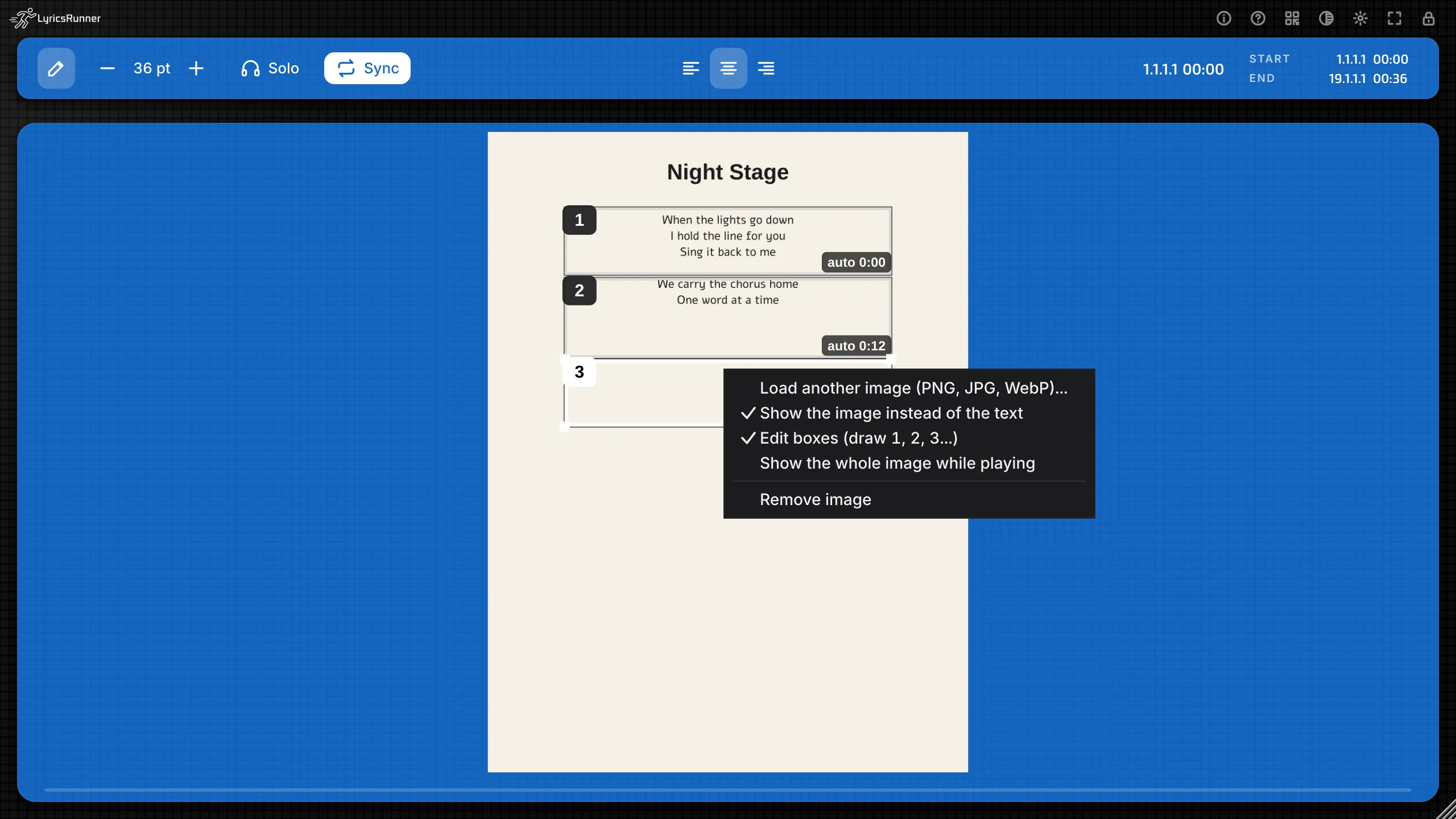
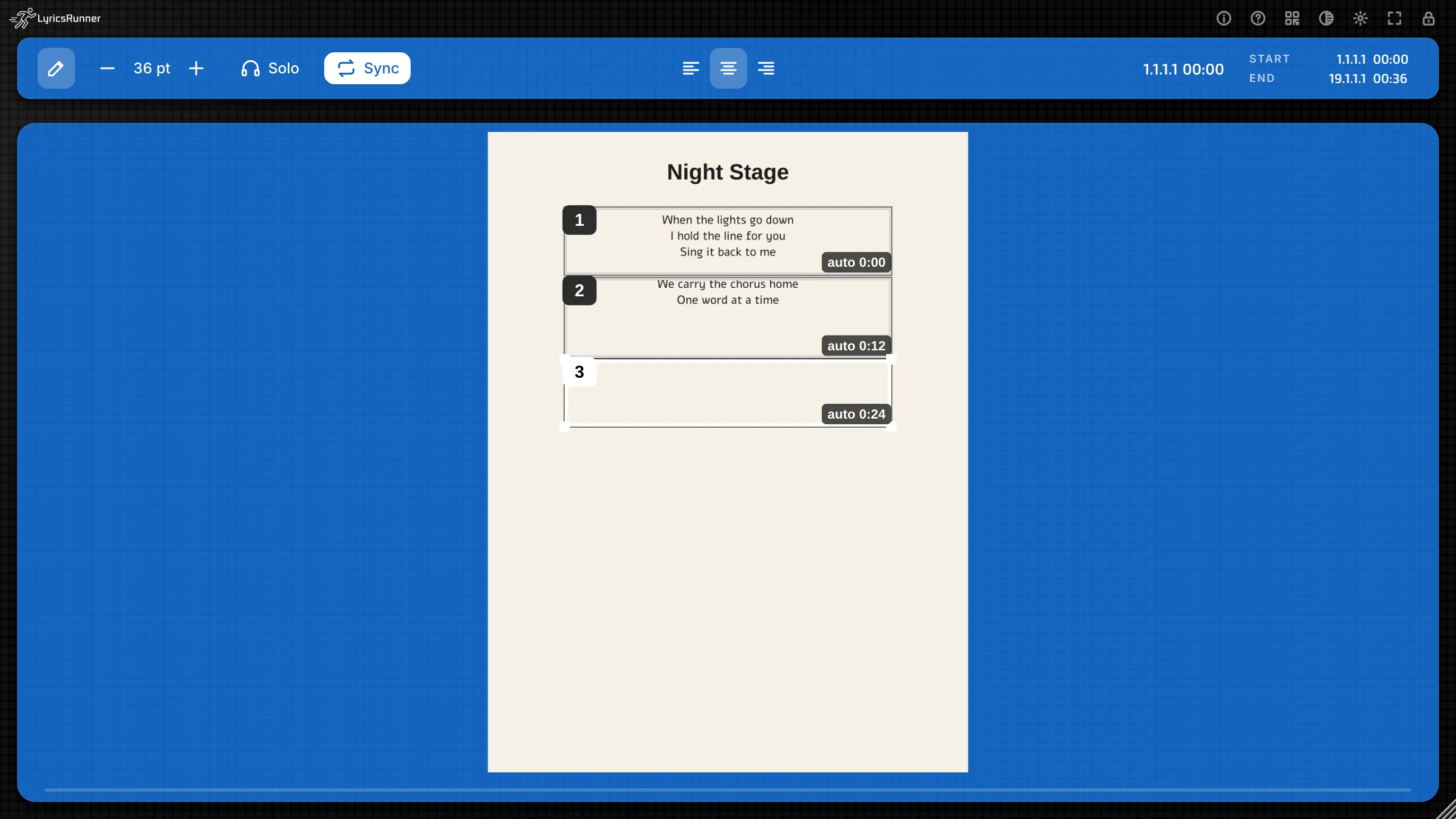
Tip. Draw the boxes in reading order, top to bottom. Then play the song once. If a box arrives early, that phrase is too big a share of the time. Split it into two boxes.
The standalone app and MP4 clips
The app, with no DAW
Open LyricsRunner 2 from your applications. It is the same window. The app has its own transport, under Karaoke clip (MP4) in the menu:
- Load a song (MP3, WAV, FLAC, Ogg, Opus)... You can also drop the audio file onto the window. Once a song is loaded, the menu shows its file name and offers to load another.
- Play the song and Pause the song.
- Back to the start of the song.
- Export a karaoke clip with the song (MP4)... Builds a video of the lyric with that audio. It is available once a song is loaded.
Set Start and End to the sung part, the same way you would in a DAW. NOW follows the app's playhead while Sync is on.
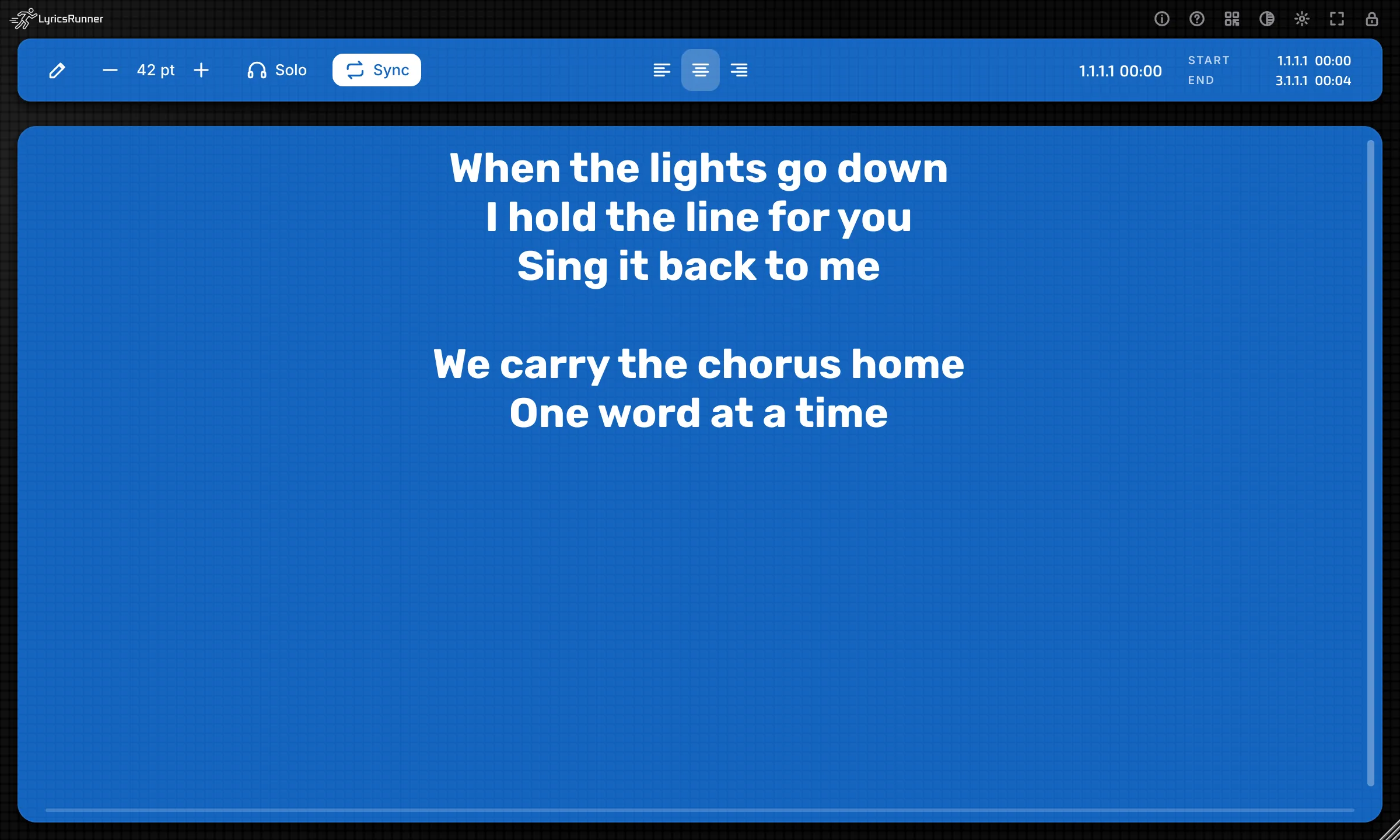
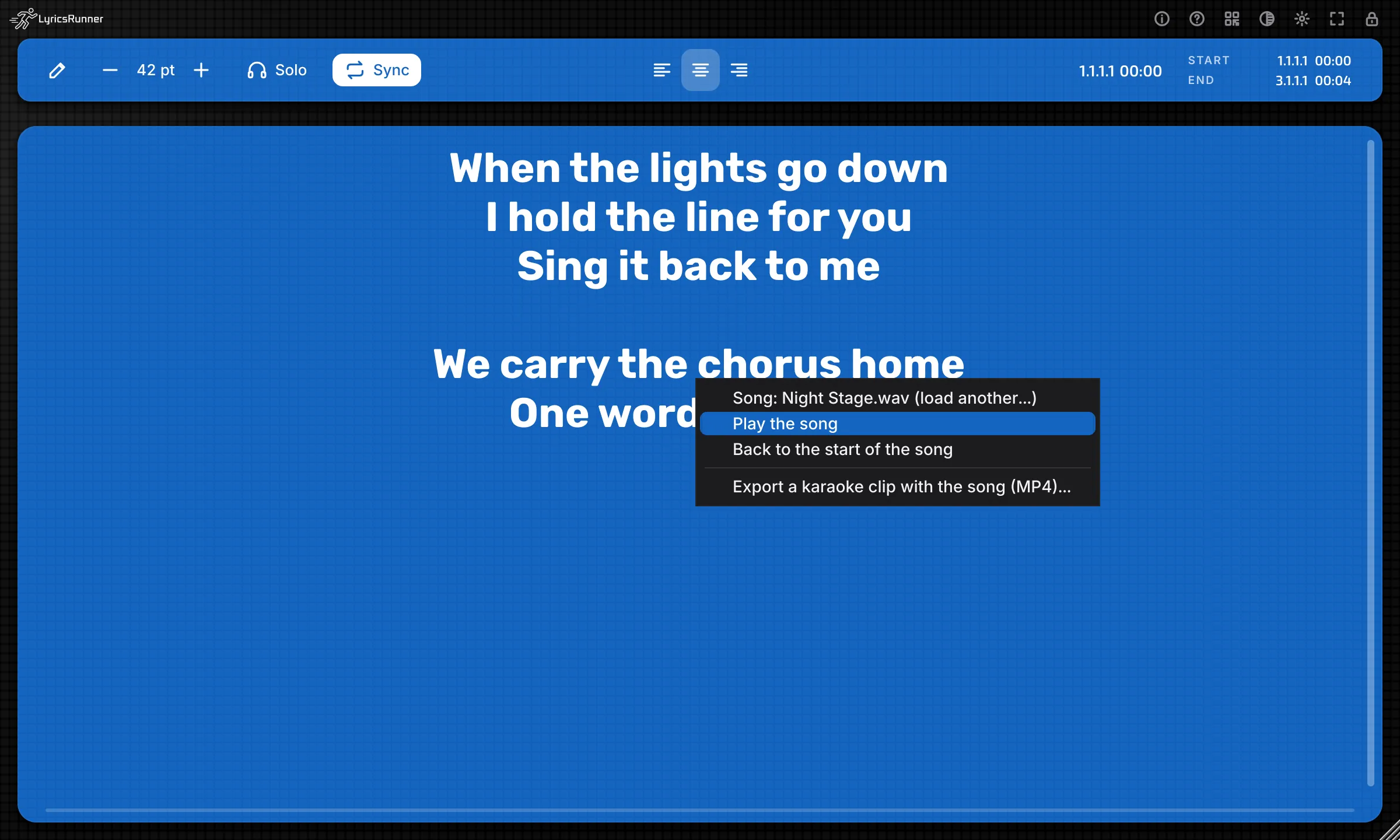
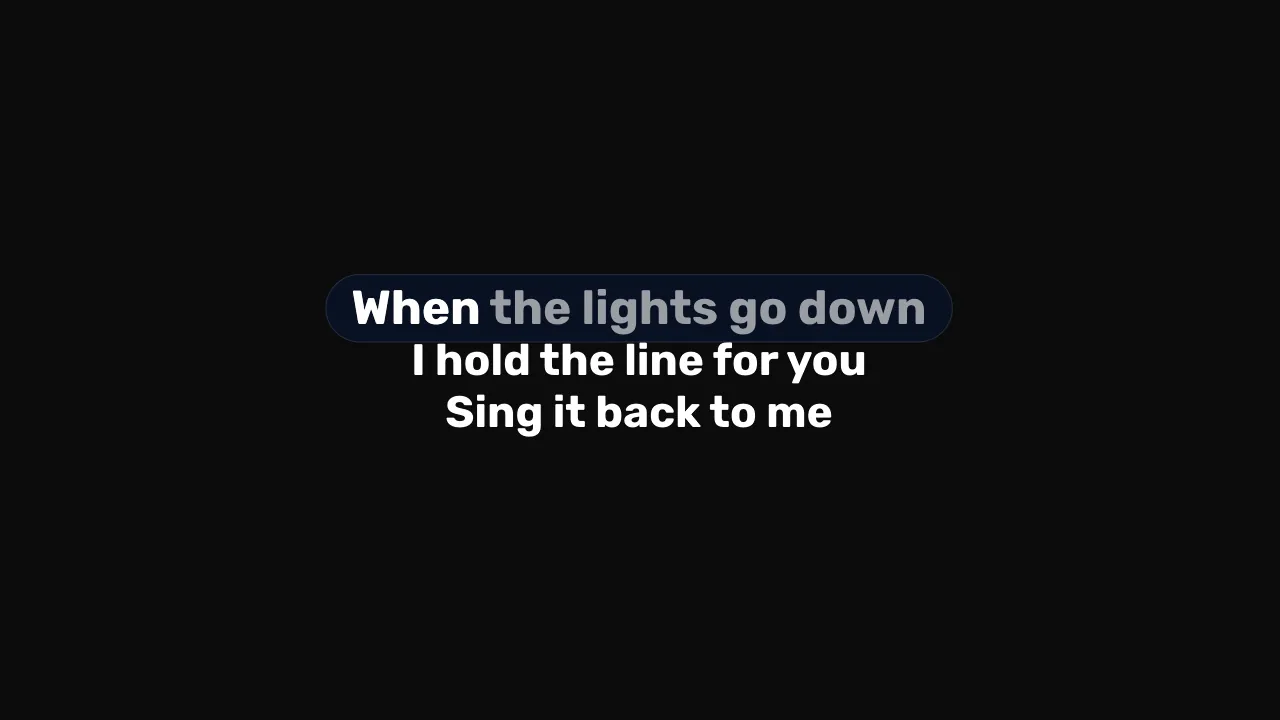
Tip. The standalone app is the quick way to rehearse on a laptop with no session open, and the way to leave a singer with an MP4. Do the detailed timing in the DAW when the song lives in a real session.
Record a clip from the DAW
Inside a DAW, Karaoke clip (MP4) offers:
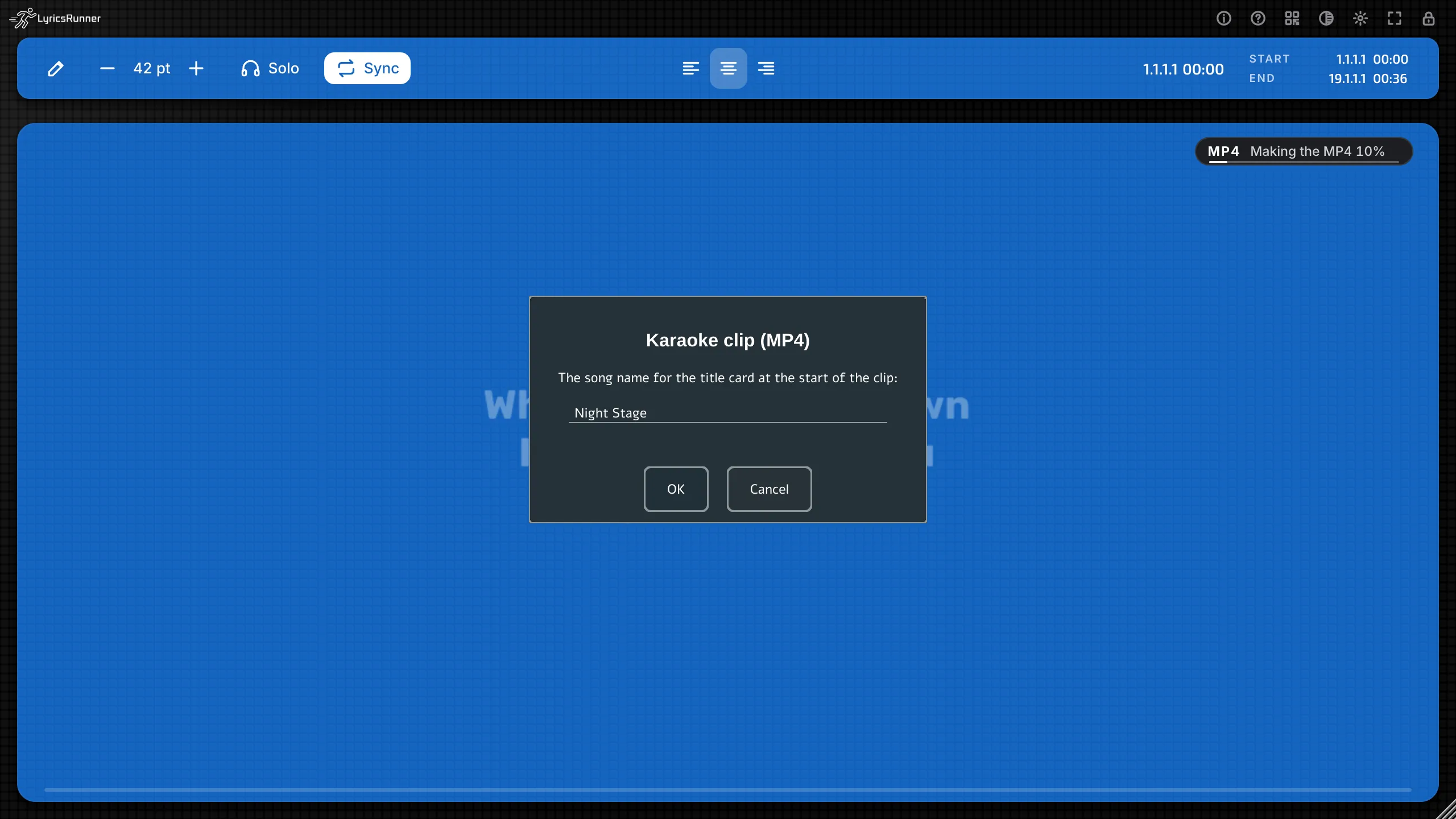
- Record a karaoke clip (MP4)... Asks for the song name for the title card, then records while you play.
- Stop recording and save the MP4...
- Cancel the clip recording
- Cancel the MP4 export, if a file is being written.
The video opens with a title card, then the lyric. If karaoke mode is on, the clip uses that style. If it is off, the clip uses Word by word. Effects you have ticked are in the picture. A status pill shows the progress. If this computer cannot write an MP4, the pill says why.
The song name you type is the same Song title used by the grand finale.
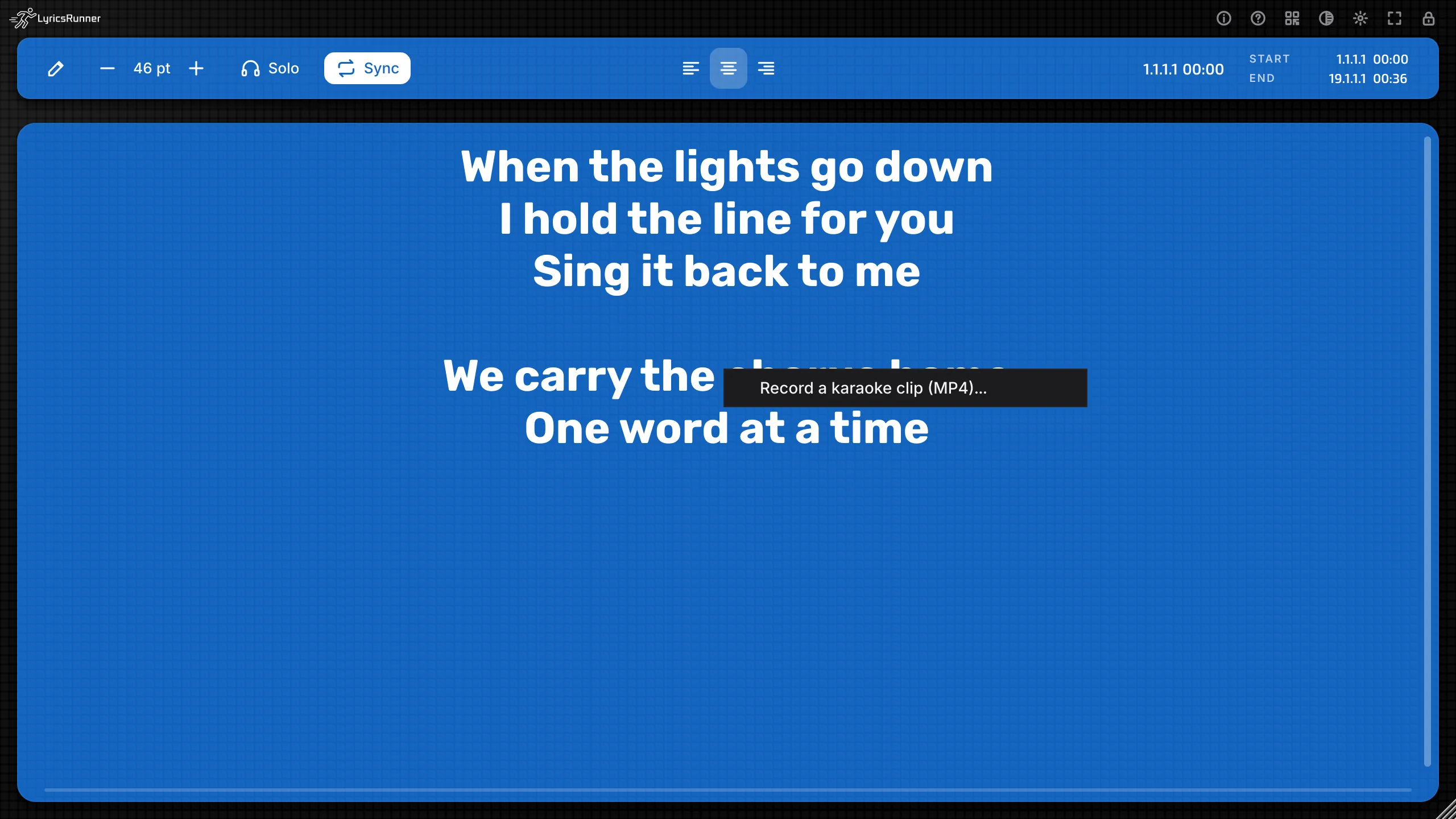
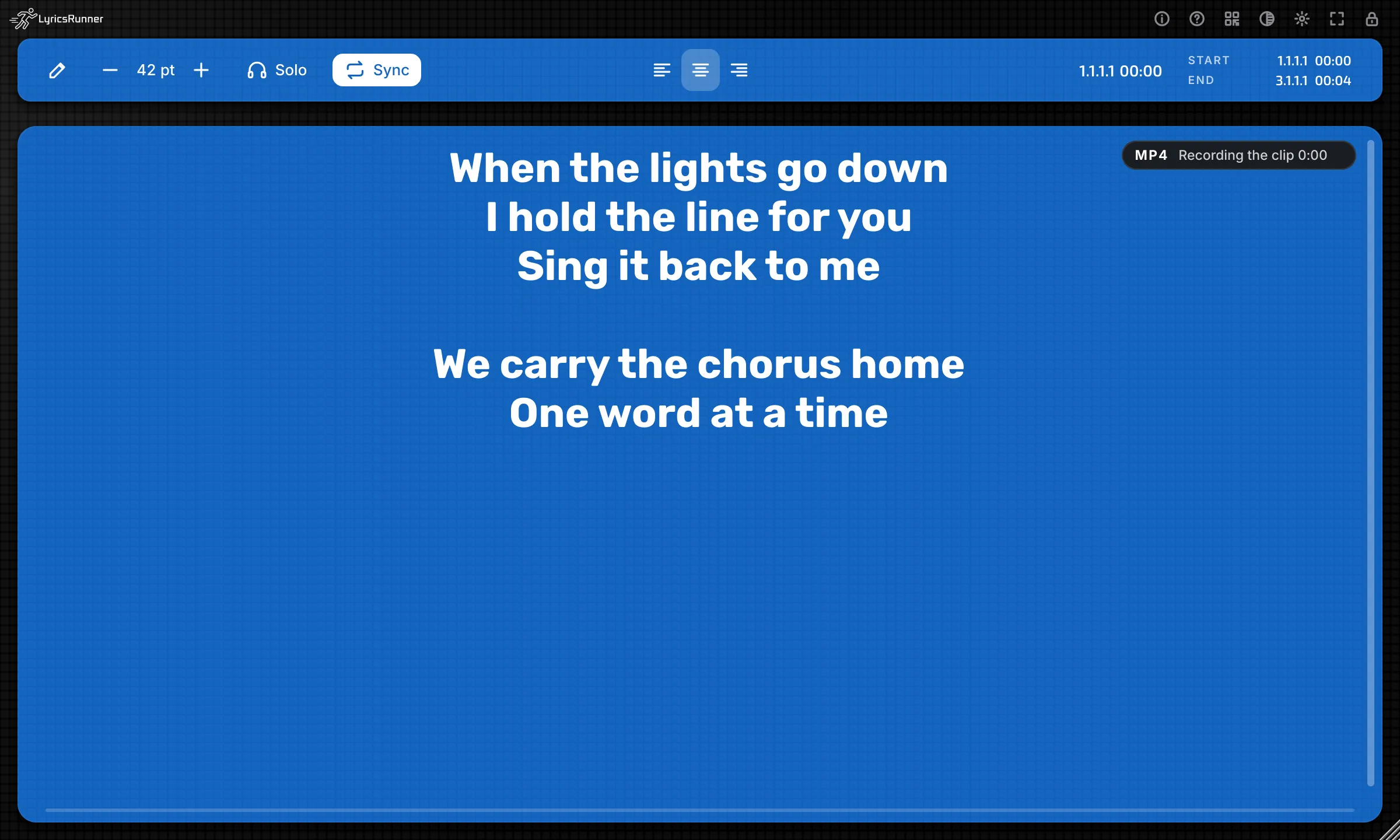
Tip. Rehearse the clip in karaoke mode first, with the style you want on the video. Then record in one pass while the DAW plays the song. Cancel is there if a phone rings in the middle.
Bringing songs in and out
Karaoke MIDI
Import timed lyrics from a karaoke MIDI file (.mid, .kar)... reads the words from a karaoke MIDI file and places them at the cursor, with their times. You can also drop the MIDI file onto the window. The lines already in the song stay, and move down to make room.
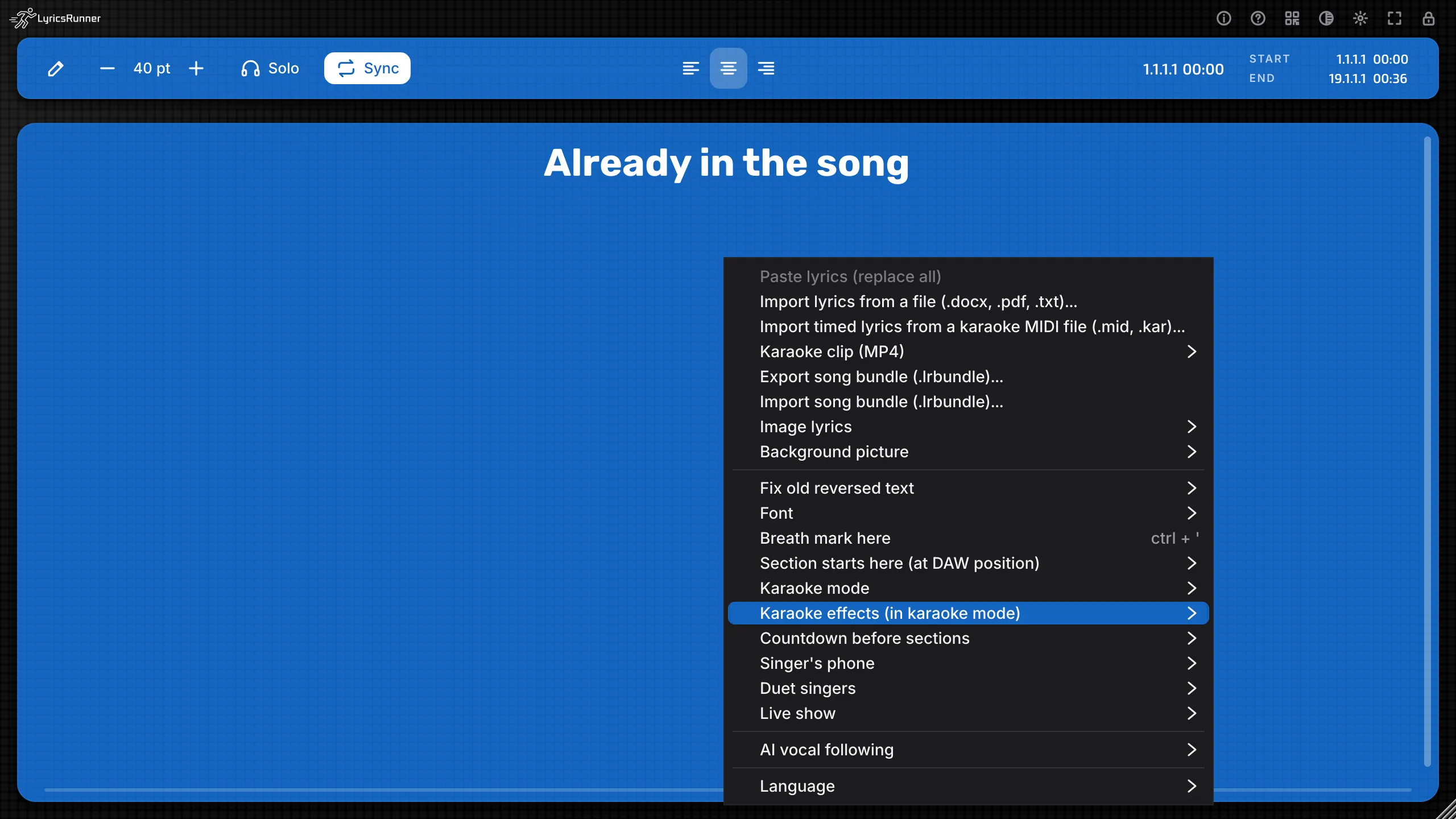
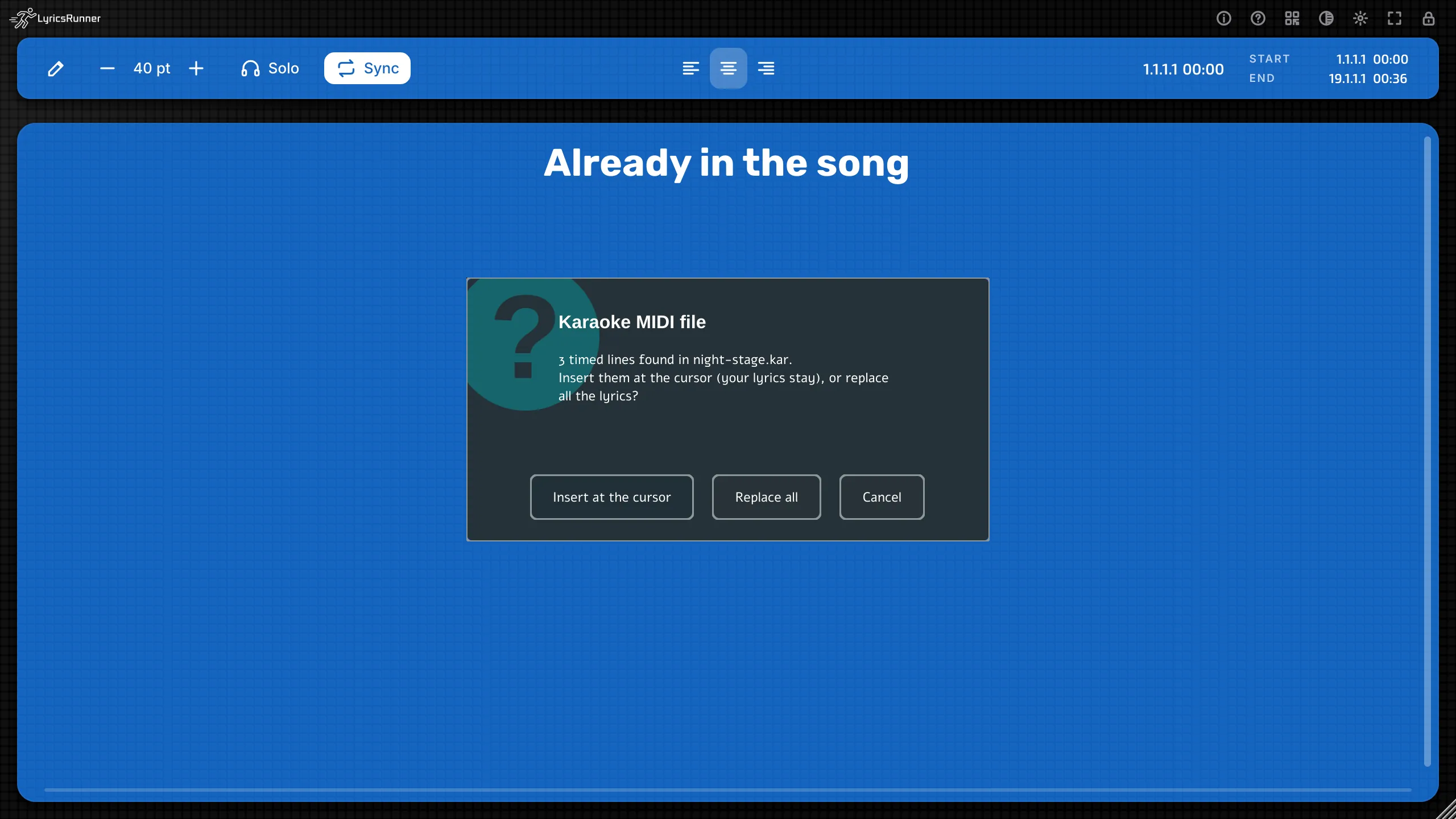
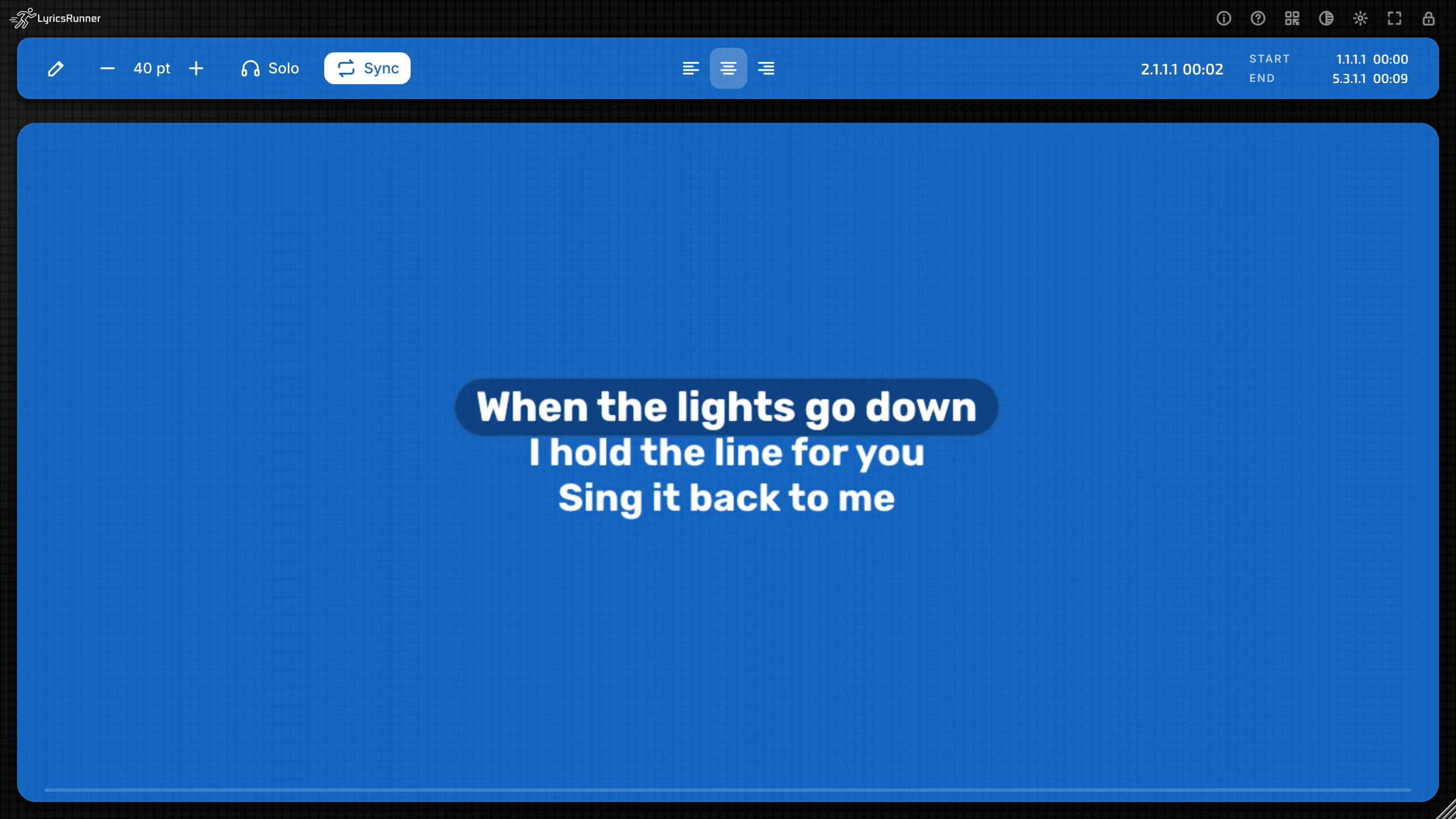
Tip. This is the fastest start when you already have a .kar file. Then fix the line breaks by hand so each line is a phrase you can sing.
Song bundles
A bundle is a file of the song, ending in .lrbundle. It carries the words and the setup. It does not carry your licence.
- Export song bundle (.lrbundle)... Saves a file you can send.
- Import song bundle (.lrbundle)... Asks you to choose:
- Merge. Takes the song (lyrics, times, sections, image, singers) and keeps your settings.
- Replace. Takes everything in the bundle, settings too.
- Cancel.
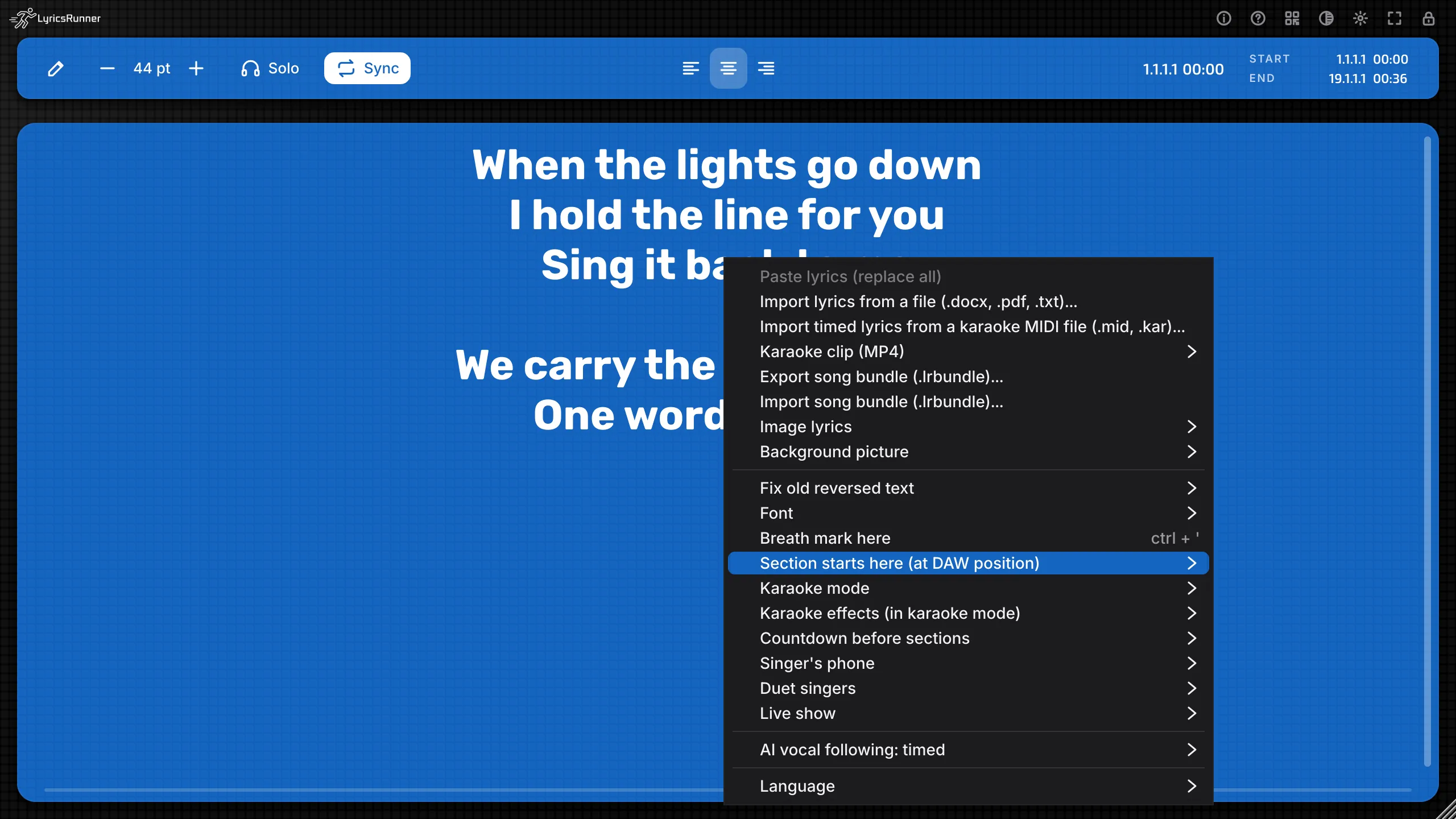
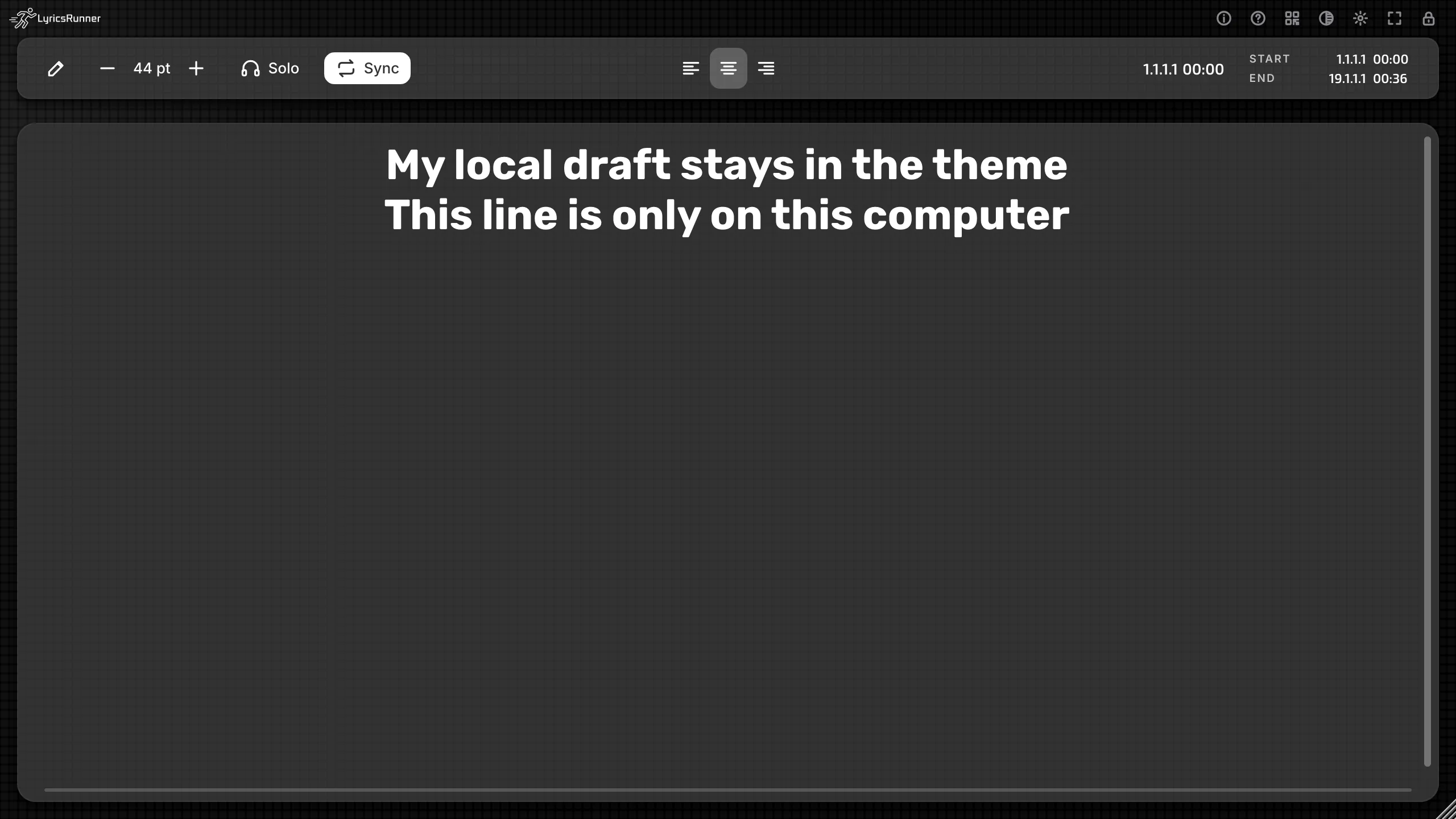
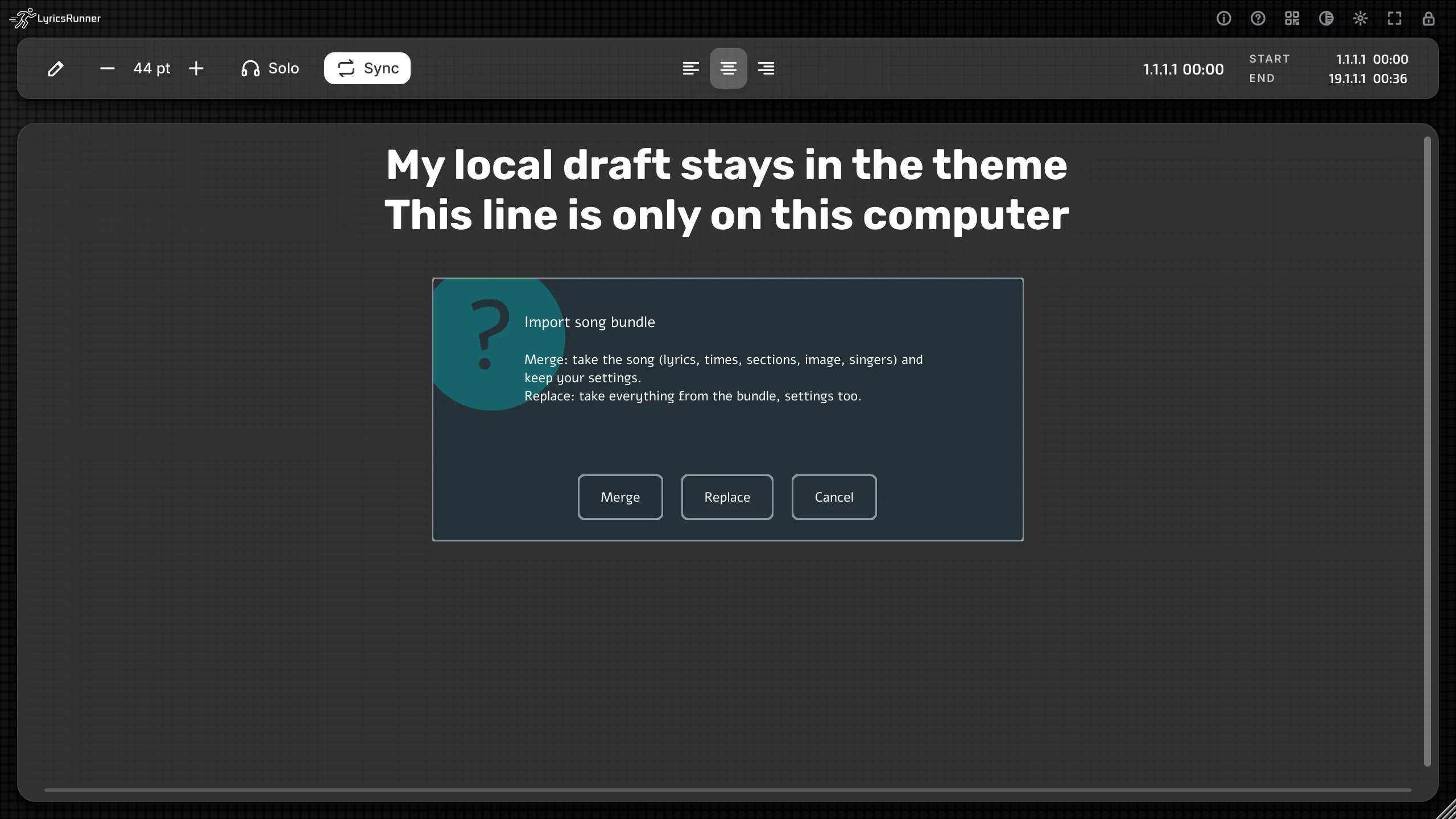
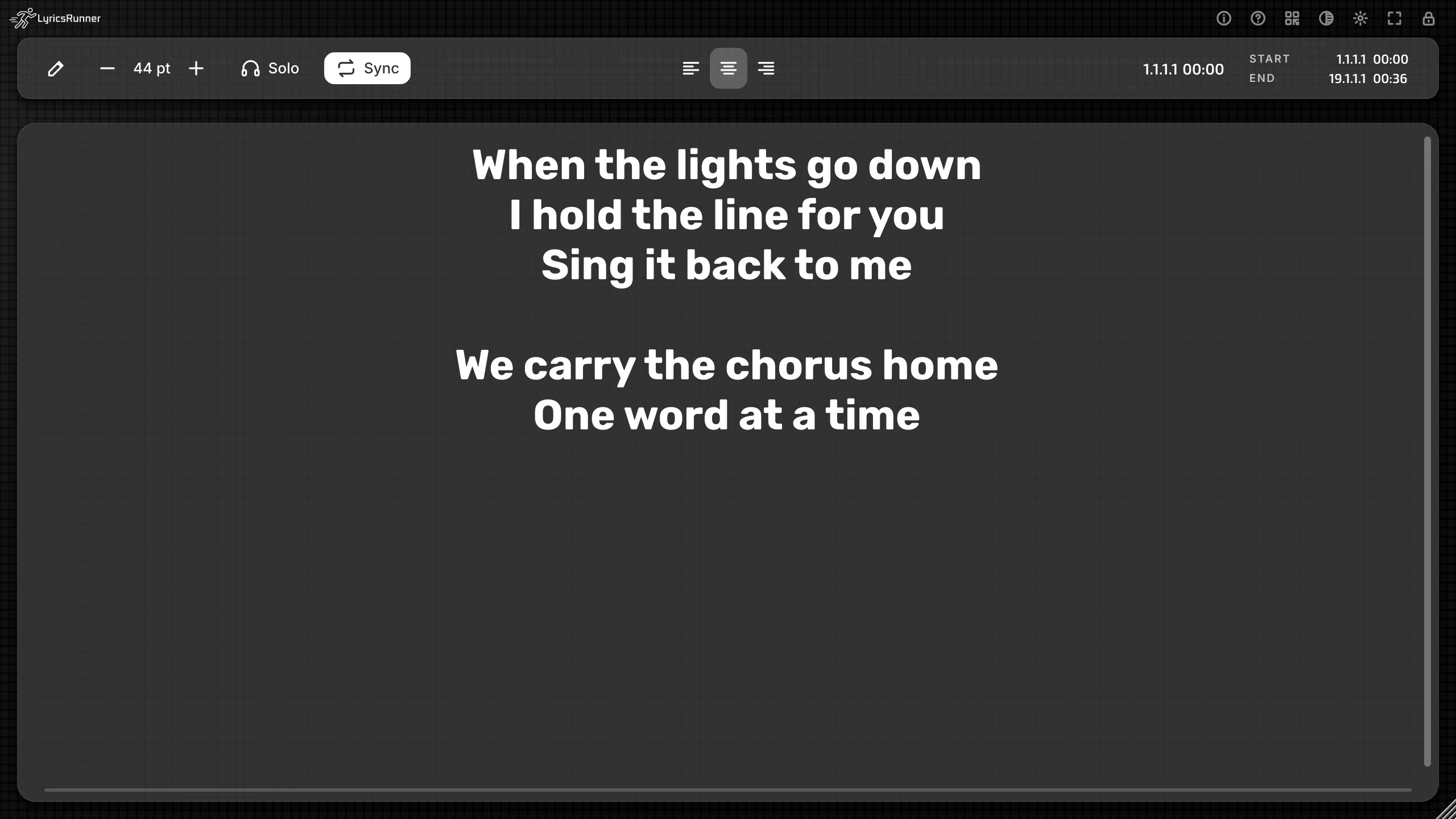
Tip. Use Merge when you are bringing a friend's lyric into your show file and you want to keep your theme. Use Replace when you are opening their song exactly as they saved it.
Old lyrics from LyricsRunner 1
Version 1 sometimes stored Hebrew backwards. Fix old reversed text repairs that.
- Reversed with the reverse-my-text website (each line). For words that were run through that website, line by line. The tick shows it is on. Choose it again and the text goes back.
- Pasted into LyricsRunner 1 (whole text reversed). For a paste that version 1 flipped end to end, lines included. Choosing it turns the other whole-song fix off.
- Pasted into LyricsRunner 1: fix the selected text only. For one passage. Select the passage first. Doing it again restores that passage.
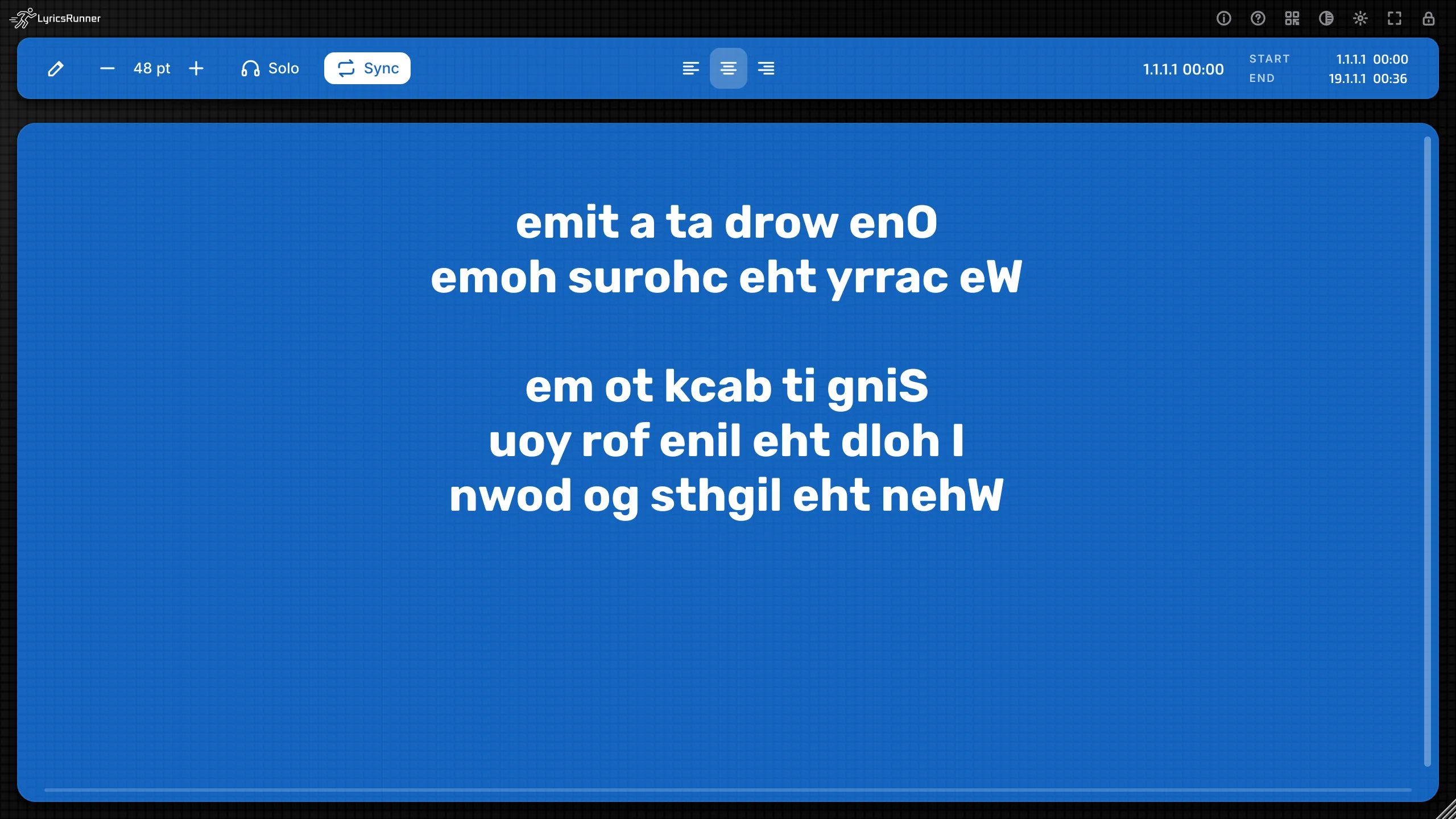
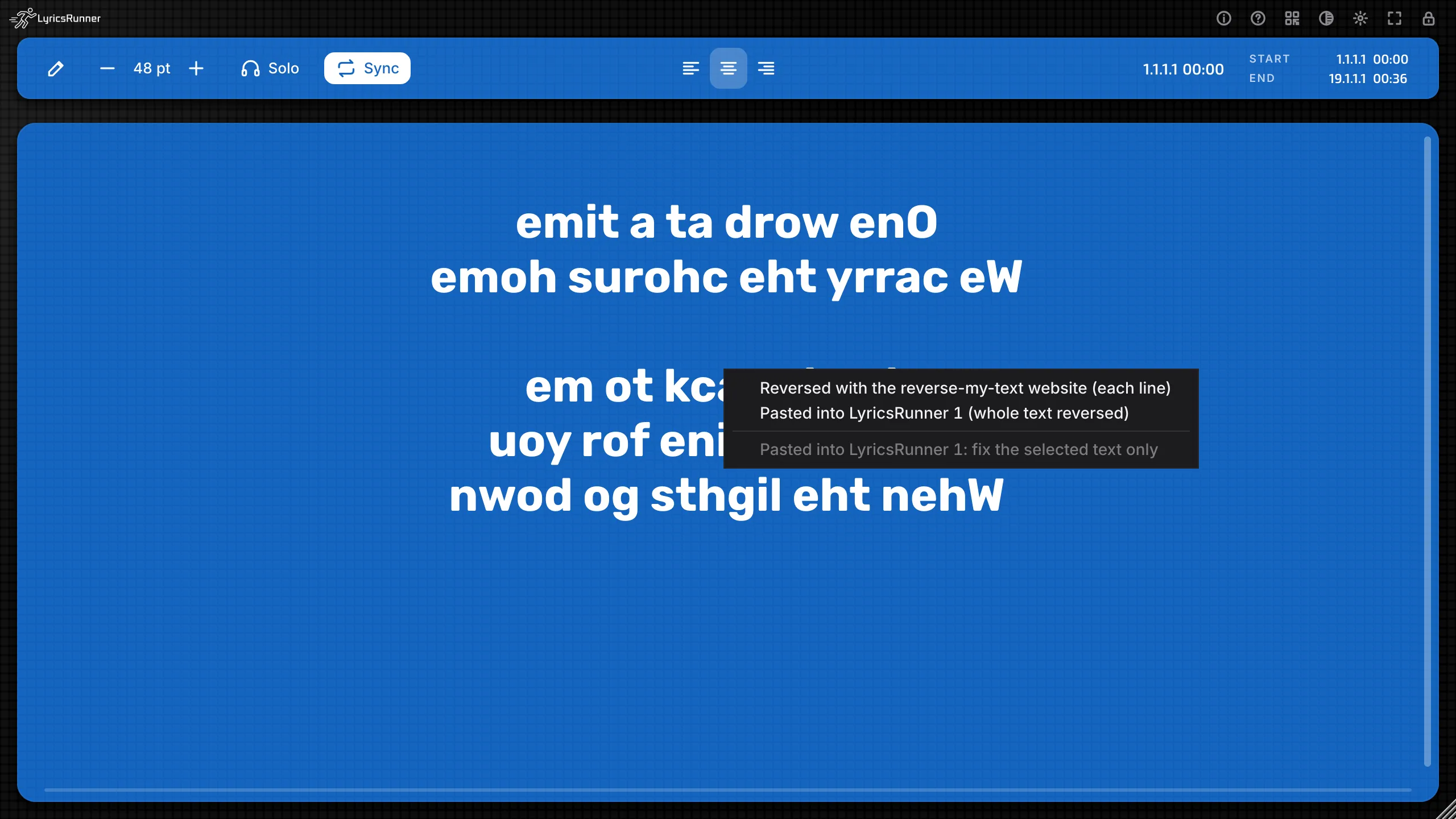
Tip. Try one fix, look at one line, and stop if the letters are right. The whole-song choices undo themselves if you choose them again. If only one verse is backwards, select that verse and use the selected-text fix.
Language, the lock, and full screen
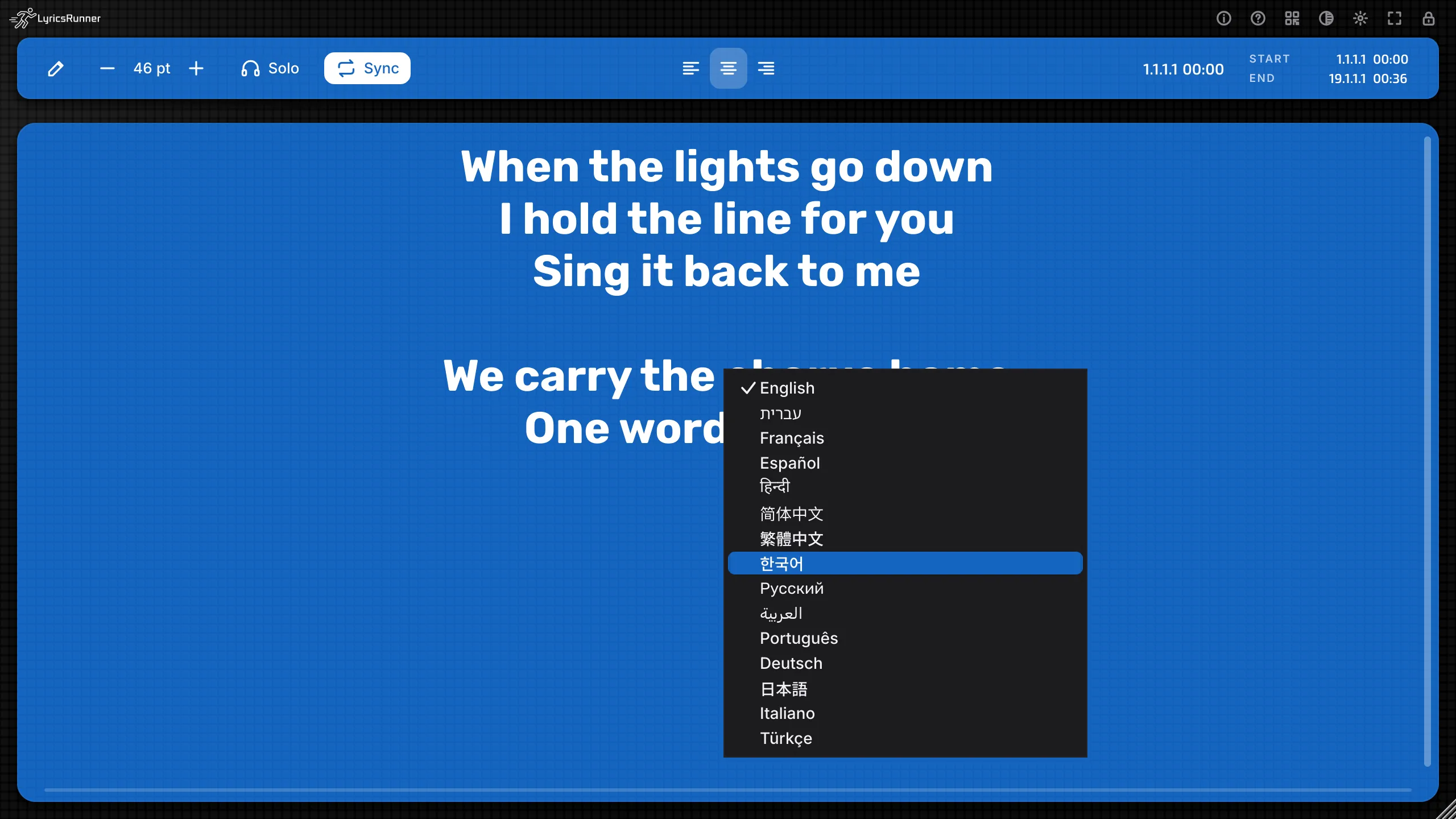
Language
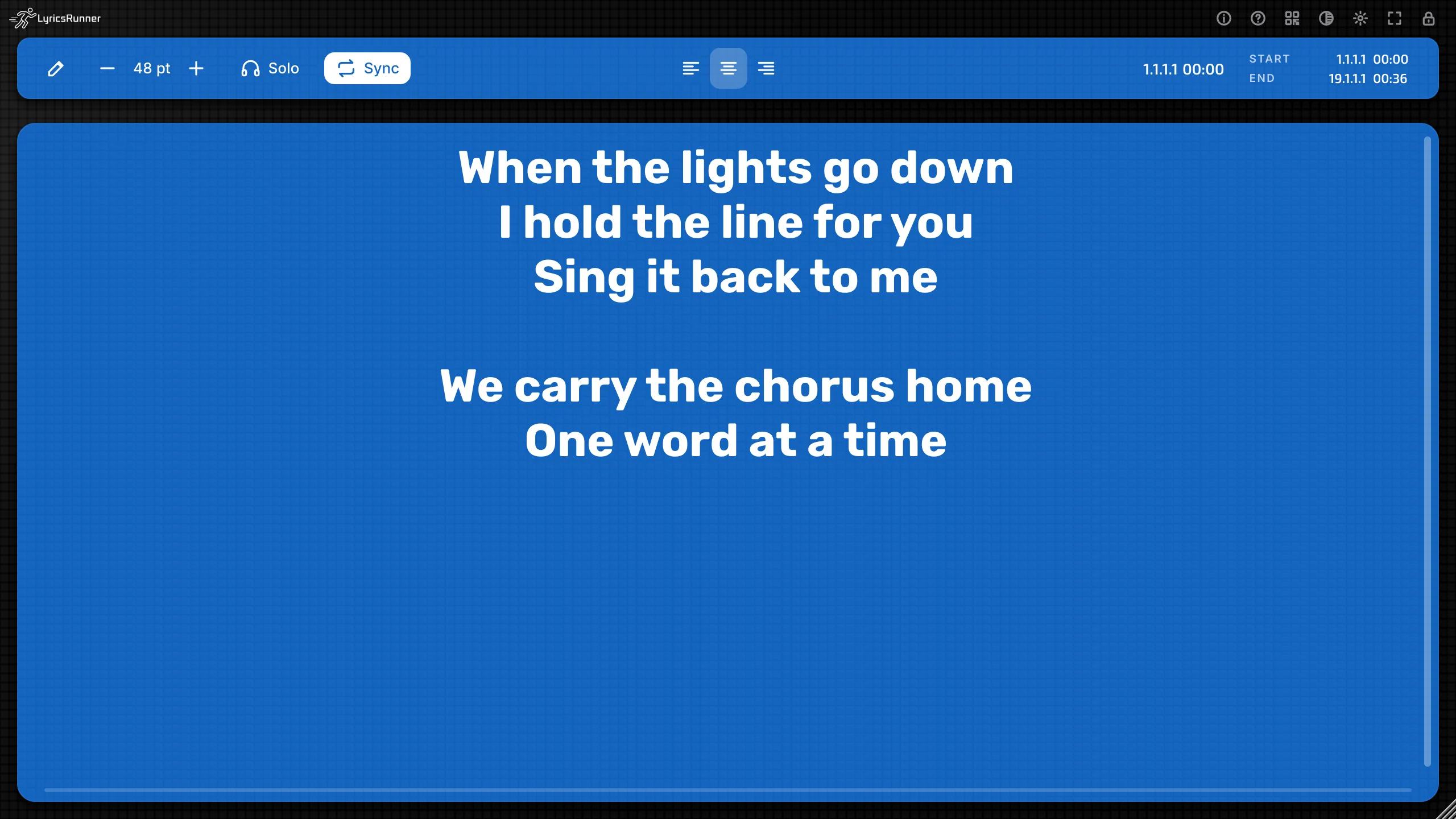
Language is at the bottom of the gear menu. The choices are English, עברית, Français, Español, हिन्दी, 简体中文, 繁體中文, 한국어, Русский, العربية, Português, Deutsch, 日本語, Italiano, and Türkçe.
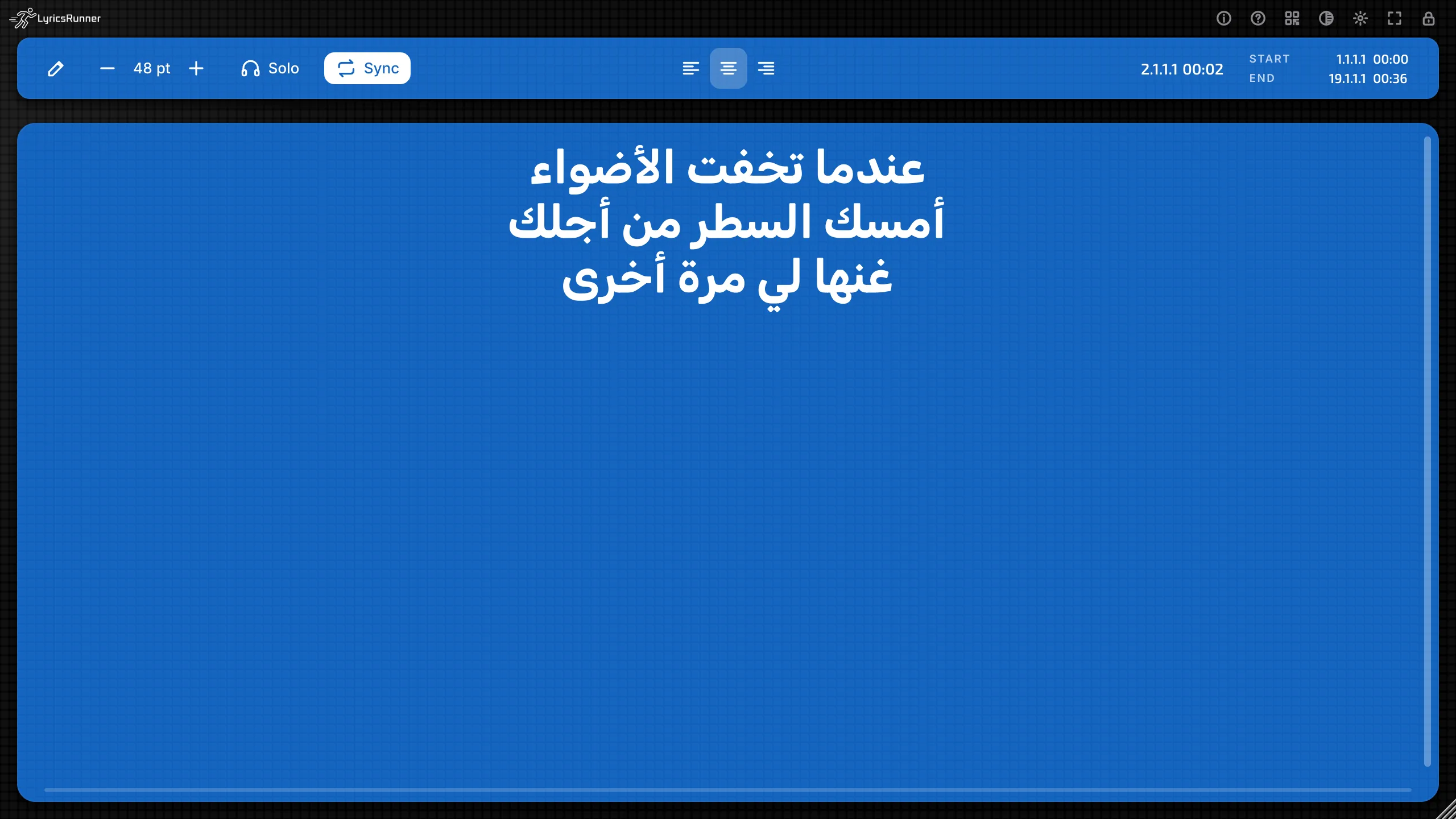
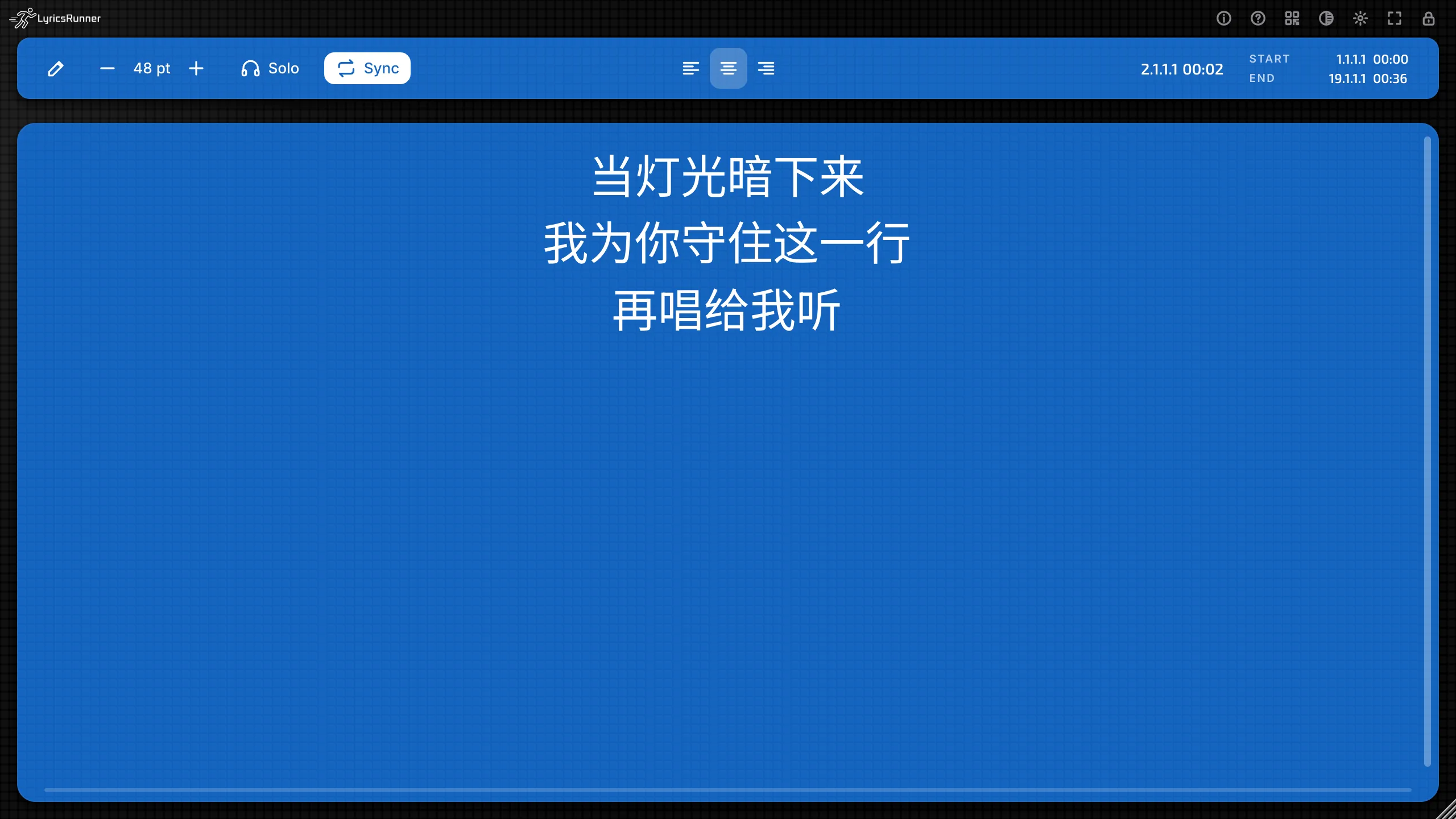
The menus, the buttons, and the phone page follow the language. Your lyrics stay exactly as you typed them. Hebrew and Arabic also flip the layout of the menus, so the text starts on the right.
The choice is for this computer. Every LyricsRunner 2 window follows it, in every project.
Tip. Set the language once, on the machine the singer will look at. You do not set it per song.
Full screen
The full-screen icon fills the display. Esc leaves it. The tooltip changes to "Leave full screen (Esc to leave)".
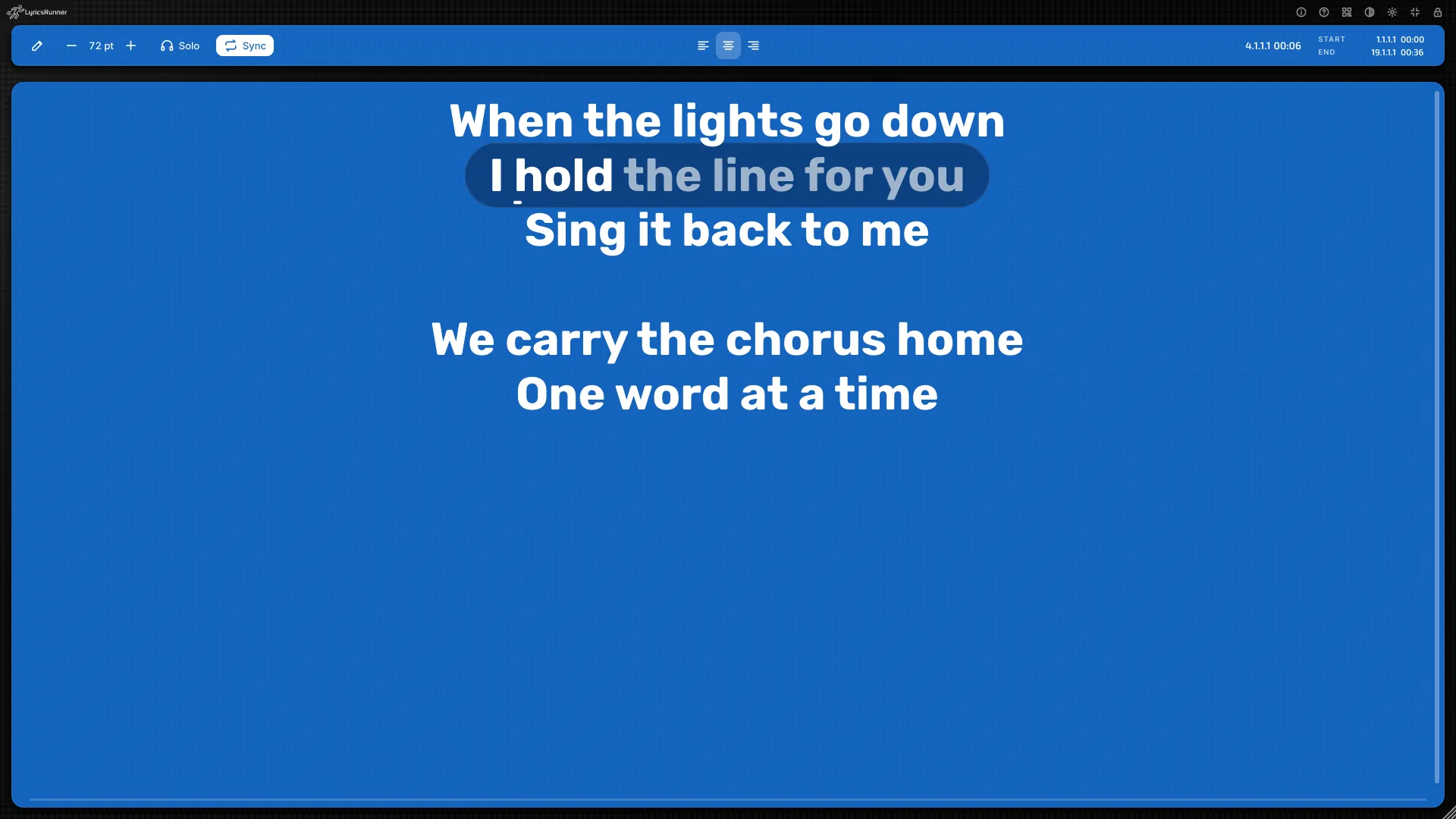
Tip. Full screen is the projector view. Build the song in a normal window, then go full screen for the run-through.
The lock
The lock icon, or Live show then Lock the screen, covers the window. Playback, karaoke, the countdown, and the phone keep going.
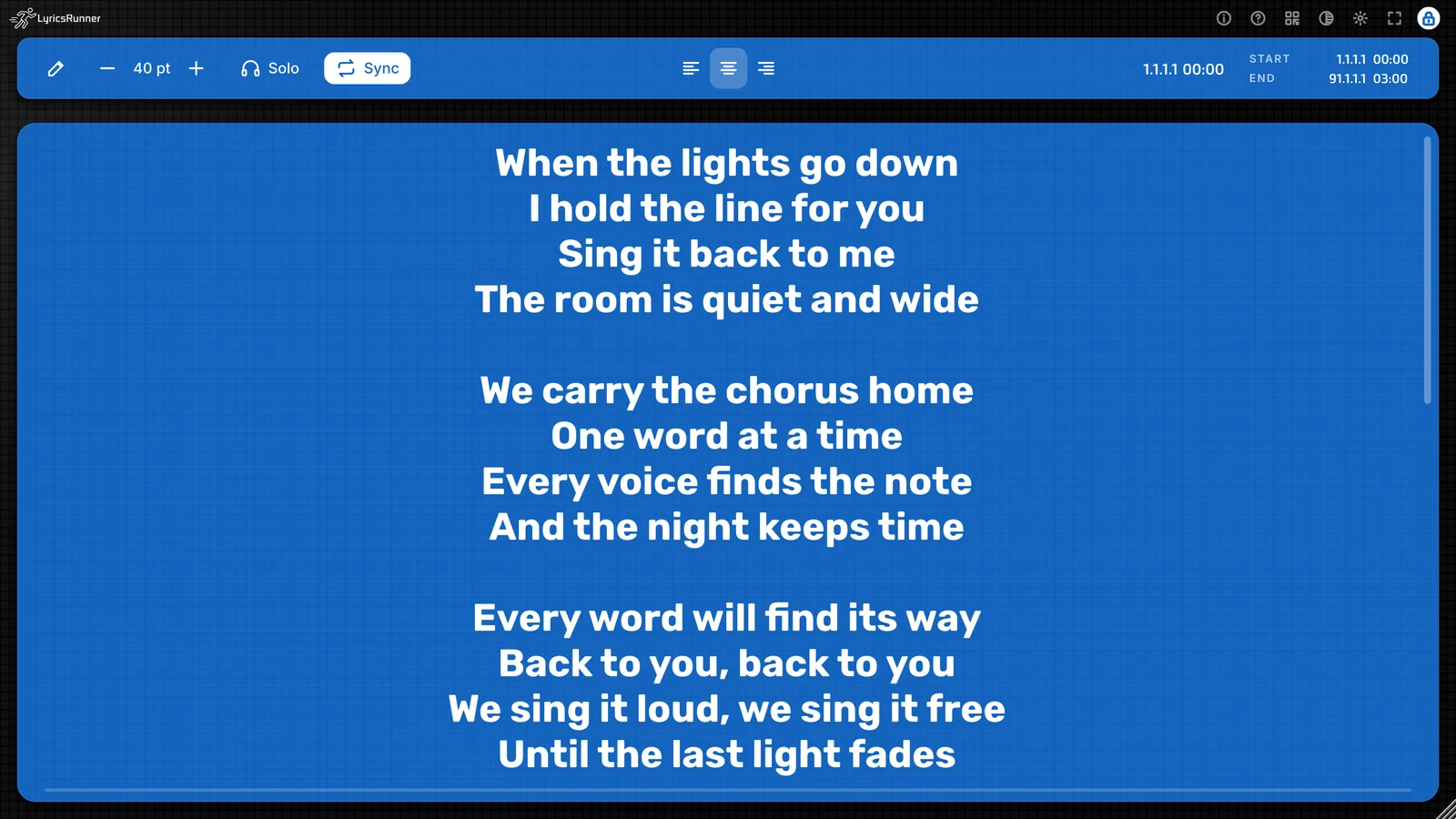
The lock icon fills in, so you can see the screen is locked without a message telling you to hold a button. Click the lock icon again to unlock. You do not hold it.
Full screen and the theme button still work while the lock is on. Esc still leaves full screen. The other controls wait until you unlock.
The lock is saved with this plug-in in the project. A window you locked opens locked. Another track keeps its own lock.
Tip. Lock after the last edit, with Sync on and the phone already scanned. Click the lock in the encore if you need to fix a line.
Print lyrics
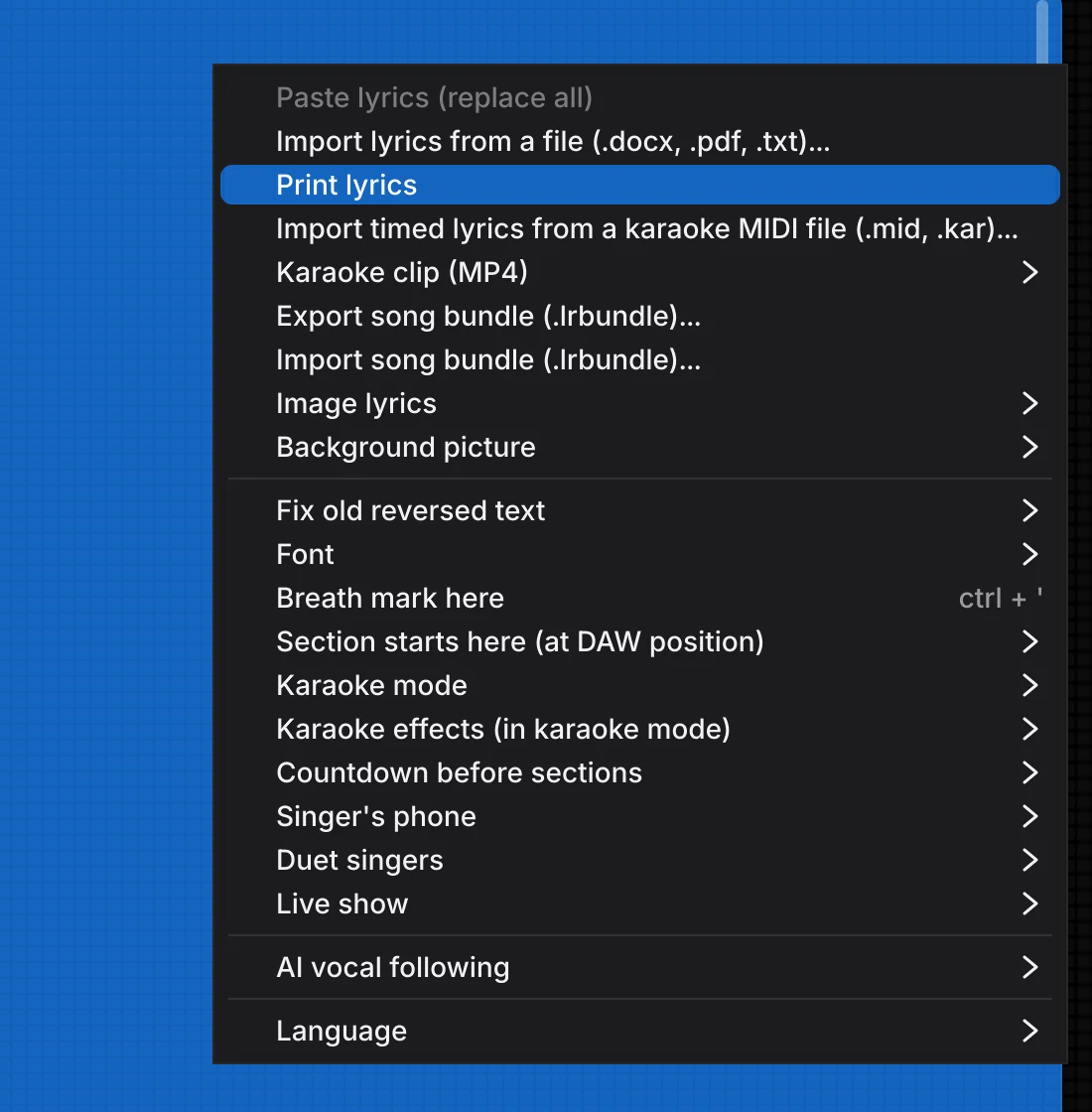
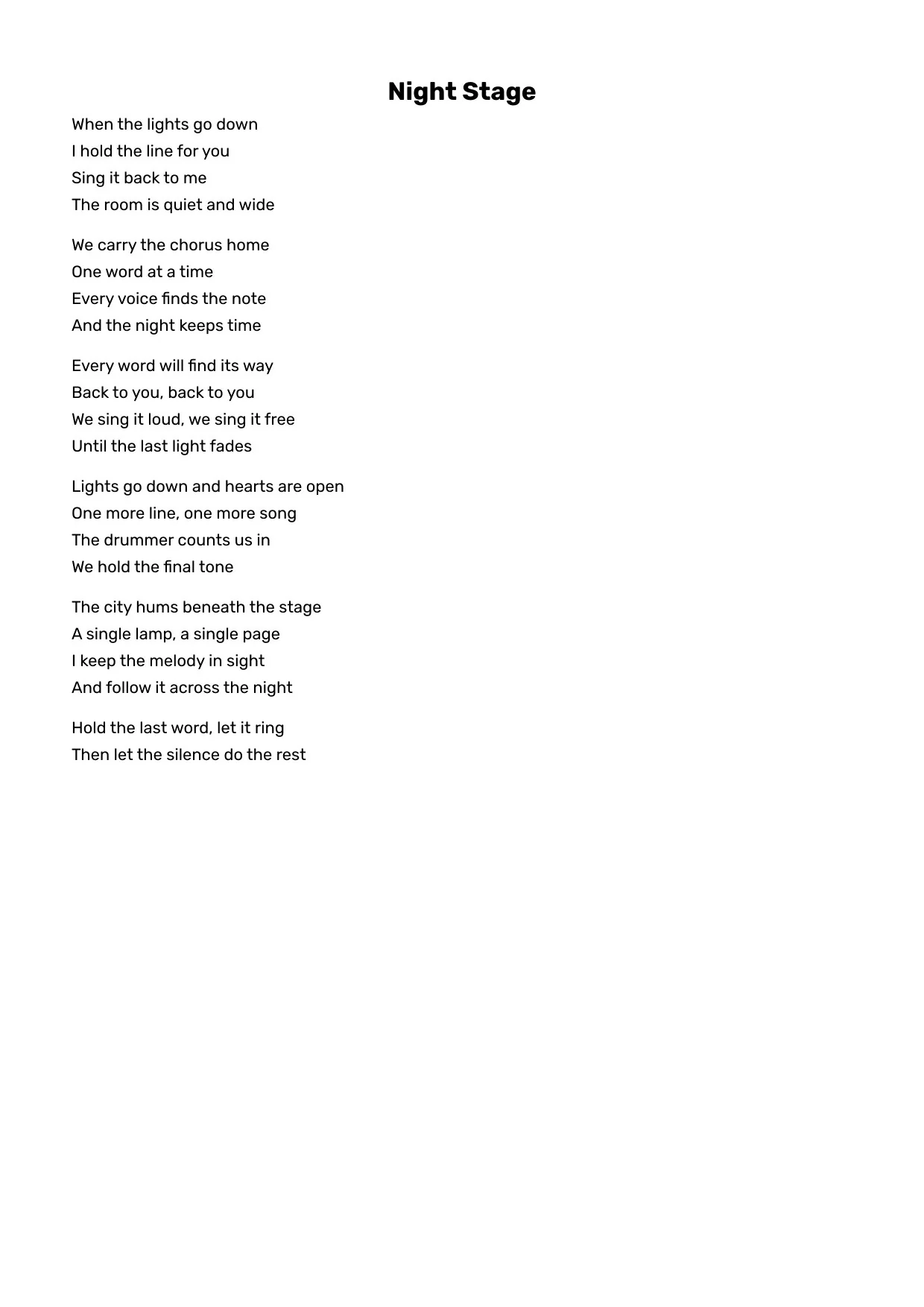
In the gear (sun) menu or the right-click menu, Print lyrics prints the song on screen: the title, then the lines, with blank lines kept. On Mac and Windows this opens the system print dialog.
A new version
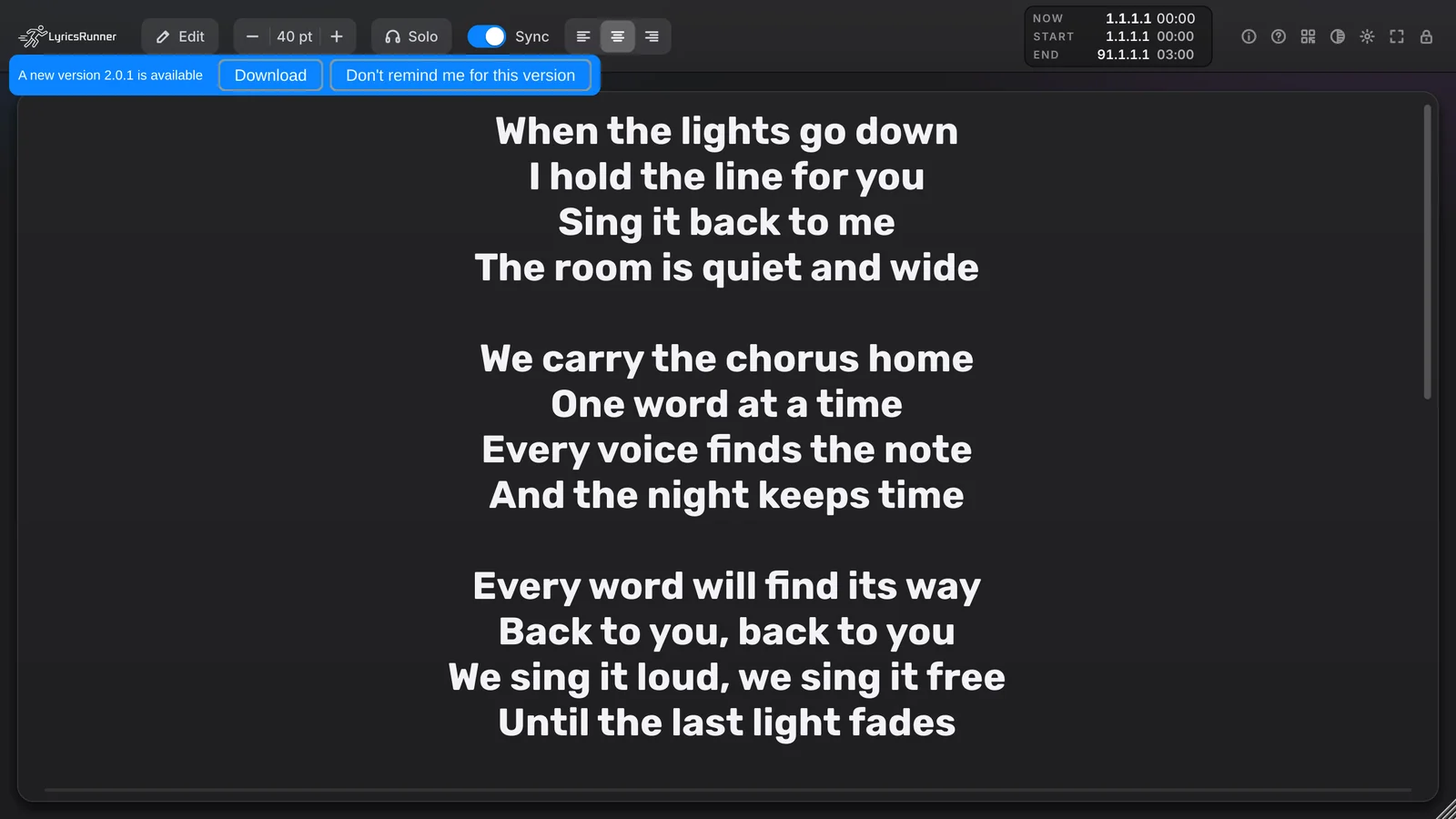
When a project opens, or when you add LyricsRunner 2, the plug-in asks once a day whether a newer version is on lyricsrunnervst.com. If there is, a small bar says "A new version is available", with Download and Don't remind me for this version. Download opens the official page in your browser. The plug-in does not replace itself while the DAW has it open. Offline, nothing is shown.
About, the trial, and your licence
About
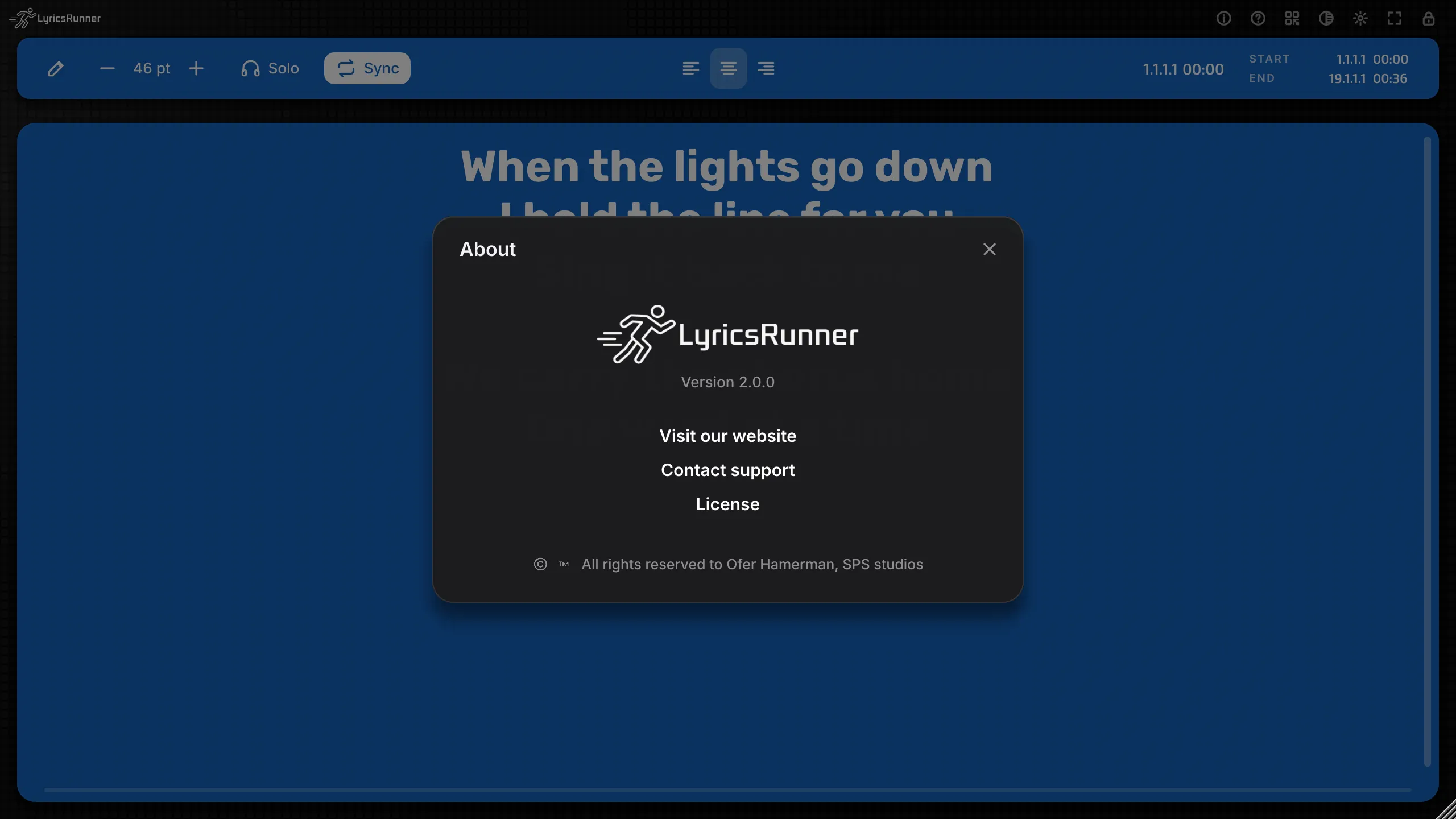
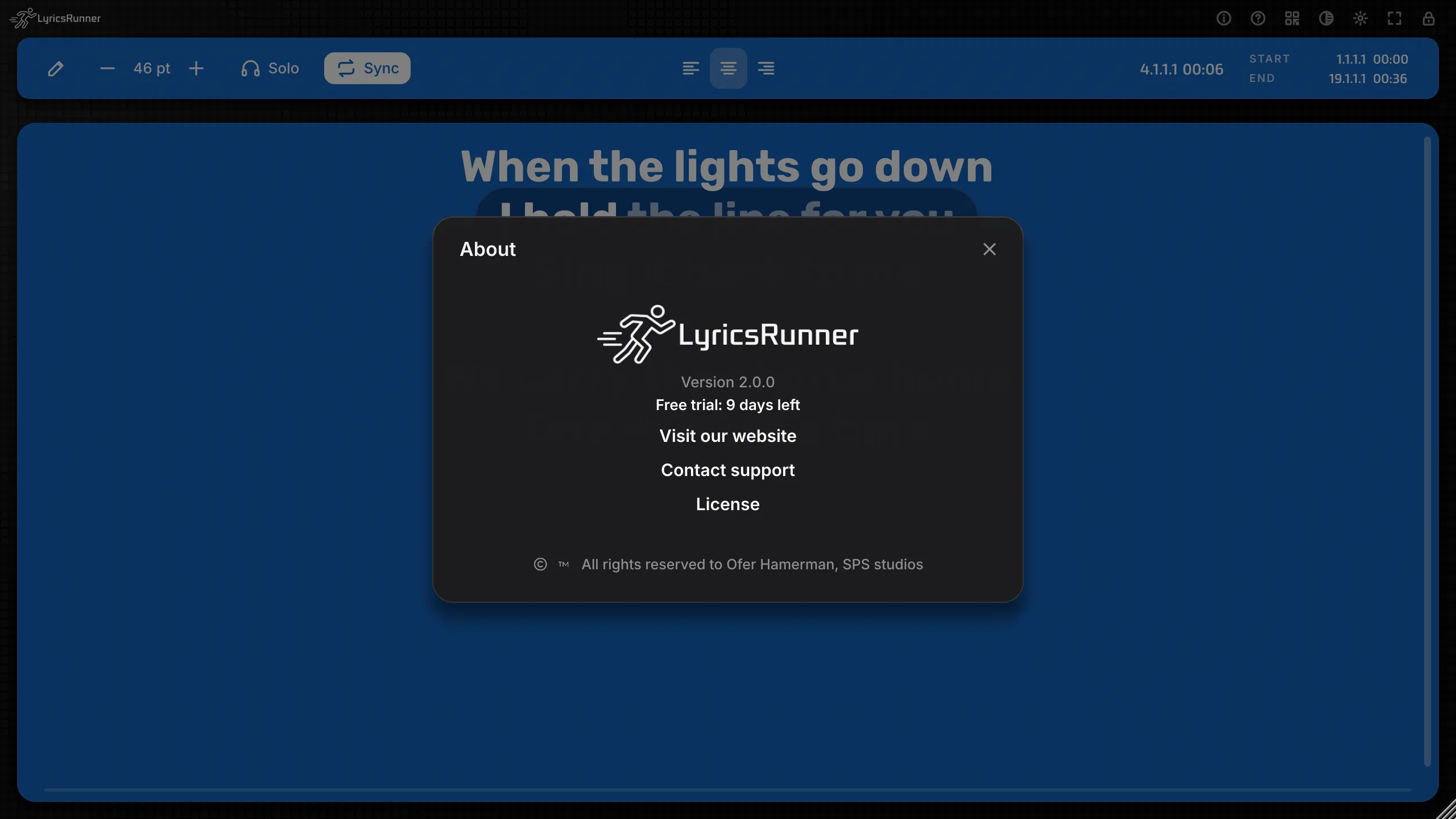
The i button opens About.
- The version.
- A trial line, while you are on the trial: how many days are left, or that the trial has ended.
- Visit our website. lyricsrunnervst.com
- Contact support. lyricsrunnervst.com/contact-us
- License.
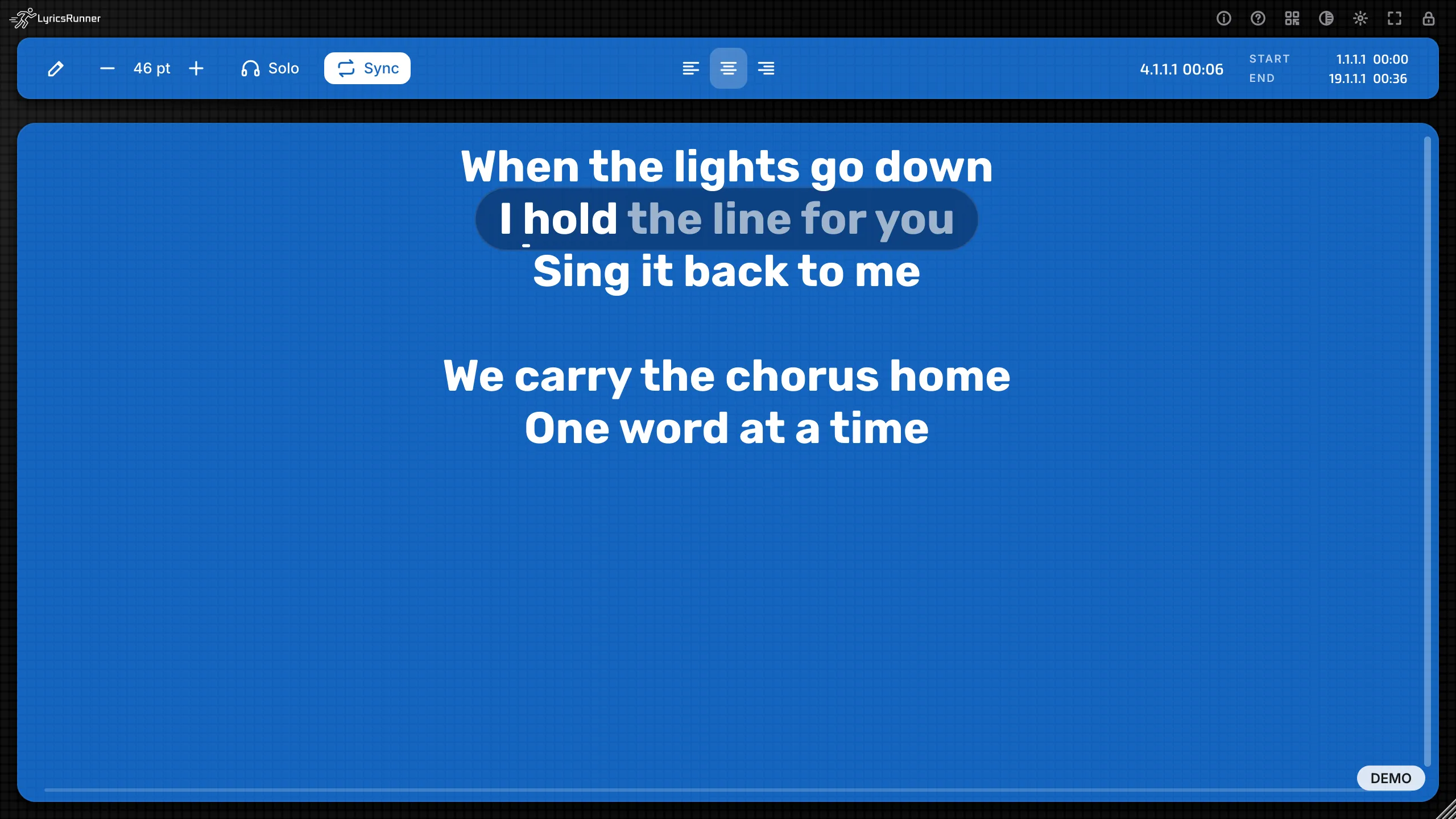
A small DEMO label sits on the window during the free trial. It is there so a recording of the screen is honest. It leaves when the licence is active.
The trial
The first time LyricsRunner 2 opens on a computer with no licence, a 14-day trial starts, with every feature. About shows the days left. On the last day it says the trial is on its last day.
The trial belongs to the computer. A new project does not start it again.
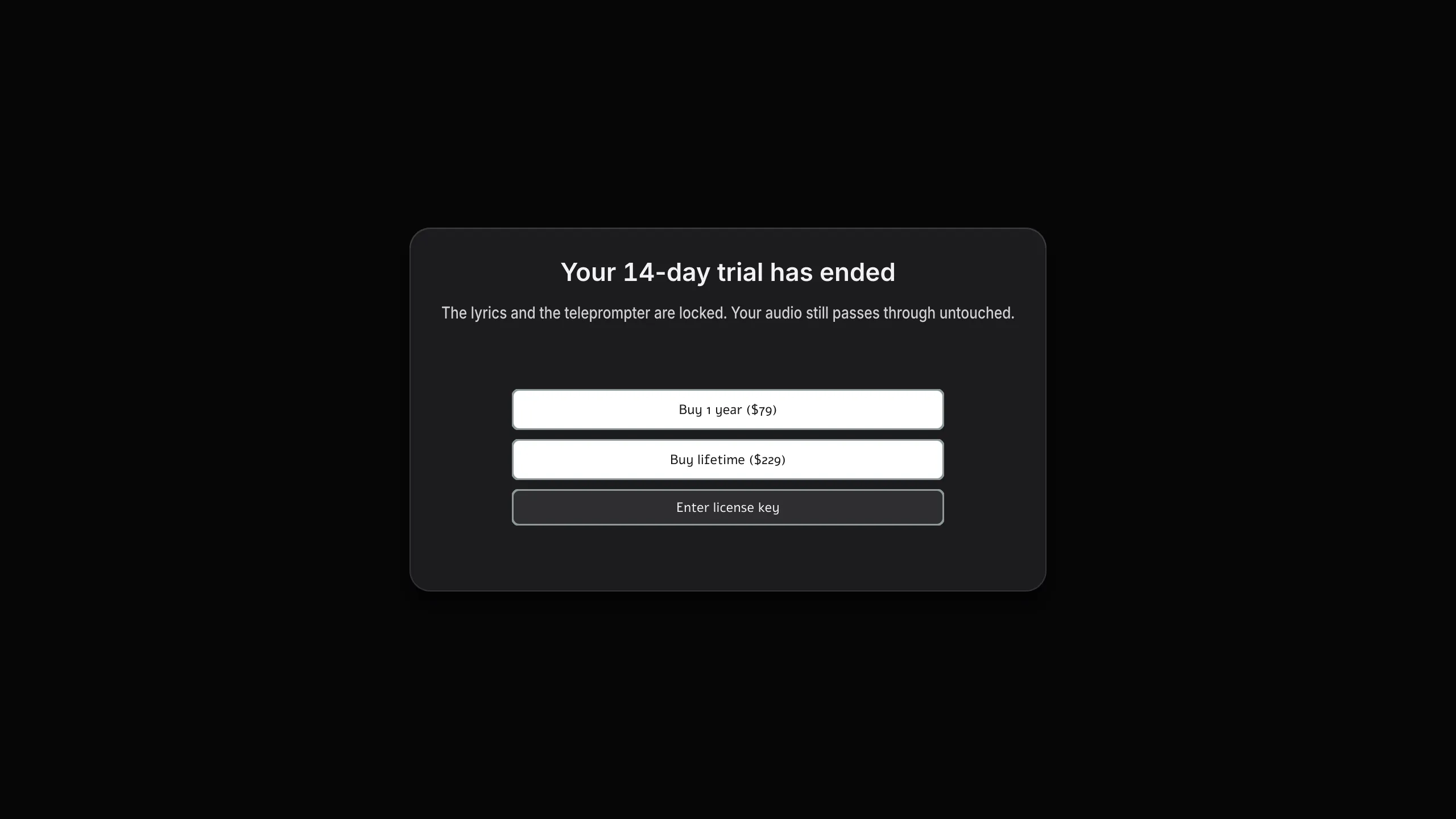
When the 14 days are over, a screen covers the lyrics and asks you to buy LyricsRunner 2 or to enter your licence key. The audio path is left alone. Enter the key from that screen, or from About, then License.
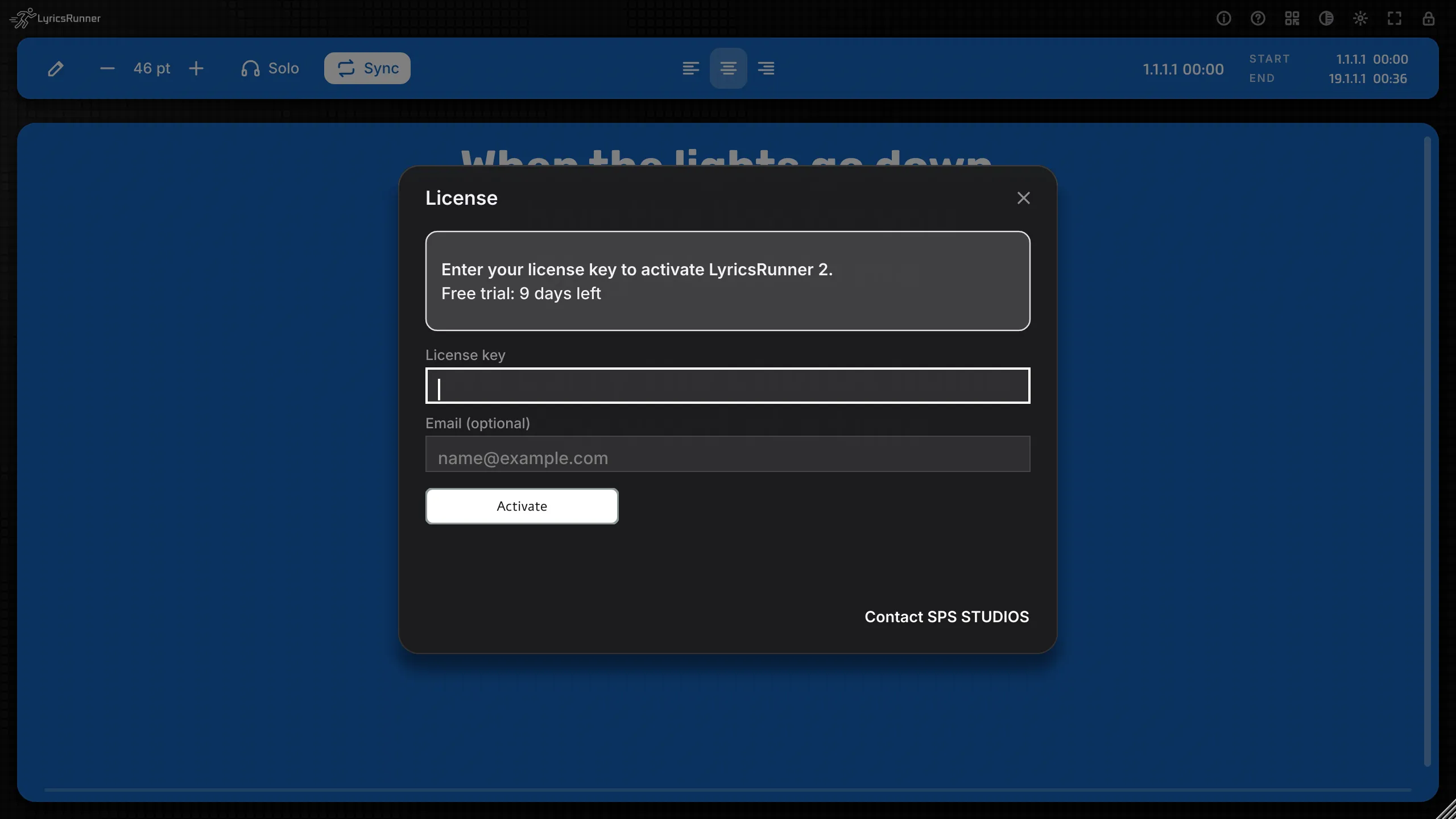
License
About, then License.
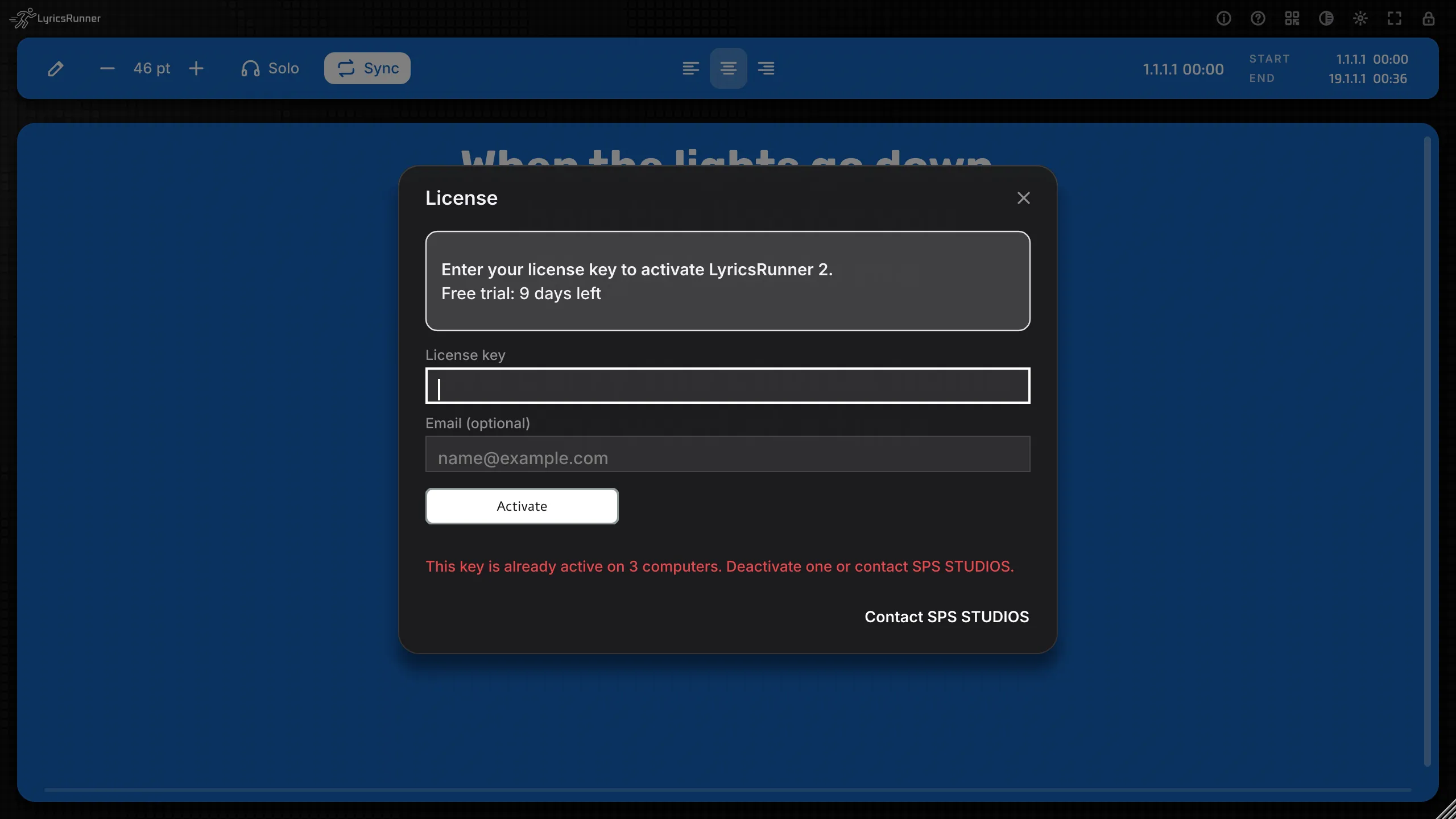
Paste the licence key from your email, add the email address, and click Activate. The internet is needed for that step. The window says when it is contacting the server, and it says when the licence is active on this computer.
One key works on up to 3 computers. Deactivate this computer frees a seat. That takes effect the next time the plug-in loads.
After a successful check, the licence keeps working offline for 14 days. If those days pass with no connection, go online and load the plug-in again. The window explains the status in plain language, and Contact SPS STUDIOS is on the same screen.
Tip. Activate on show day morning, on the venue Wi-Fi, so the offline days are fresh. Deactivate a studio machine you have retired, so the seat is free for the road laptop.
Troubleshooting and FAQ
The words race, or they crawl.
Set Start where the singing begins and End where it ends. A long intro inside Start and End makes the words move too early. A Solo gap, or a blank line, spends a little of the time on a rest, which is what you want in a solo.
The time boxes are yellow and I cannot type.
Sync is off. Turn Sync on. Yellow means the boxes are resting.
NOW does not move.
Press play in the DAW, and leave Sync on. In the standalone app, load a song and press Play the song. NOW only moves while the transport moves.
I cannot find LyricsRunner 2 in the DAW.
Restart the DAW, or rescan plug-ins. On a Mac, use the Open Anyway steps above if the system blocked the installer. On Windows, use More info, then Run anyway, if SmartScreen stopped the installer.
Pro Tools does not list it.
LyricsRunner 2 has no AAX version, so it does not load in Pro Tools directly. Load the VST3 inside a free VST host plug-in such as Plugin Buddy or Waves StudioRack.
My old session still opens LyricsRunner 1.
That is how the two versions live together. Version 2 does not take over version 1 sessions. Copy the words across, or export a bundle from a version 2 song when you want to move a song between version 2 projects. If Hebrew from version 1 looks reversed, use Fix old reversed text.
The Hebrew letters are backwards.
Open Fix old reversed text. If the words came from the reverse-my-text website, choose the each-line fix. If they were pasted into LyricsRunner 1, choose the whole-text fix, or select one passage and fix only that. Choosing a whole-song fix again puts the text back.
The AI says nothing was heard.
The vocal has to be on this track. Play the song with the vocal, then analyze. A backing-only bus gives the AI nothing to follow.
The AI says it could not recognise these lyrics.
The words on the screen need to be the words that were sung. Check the line breaks, play a clearer pass, and choose Analyze vocal again. If you would rather not use the AI, choose Clear AI timing and use Start, End, and sections.
The AI menu tells me to download the model.
Choose Download AI model. It is about 57 MB, once per computer. You need the internet for the download.
The phone page is blank.
The singer's phone over Wi-Fi currently works with a Mac and an iPhone. Use the same Wi-Fi, not a guest network. Turn VPN off on the iPhone. Allow incoming connections when the Mac asks. Scan the QR again if you turned the page off and on, because the link is new.
Does the phone work from a Windows PC?
Windows support is coming. Today, use a Mac and an iPhone on the same Wi-Fi.
The audience saw my stage notes.
Stage notes go to the plug-in window and to the singer's phone. They stay off the audience page. Share the audience QR, and keep the singer QR for the singer.
I clicked New song here and no new row appeared.
That second is already a boundary. A second click on the same second does not add another song. Move the playhead and click once. If the screen is locked, click the lock first. Show mode has to be on, and the button lives at the top of the Setlist column.
I turned Show mode off and the set vanished.
The column hides while Show mode is off. Tick Live show, then Show mode, again. The songs are still in the project. Save the DAW project so they are still there tomorrow.
Can each song have its own theme?
The theme and the background picture belong to the plug-in window. Every song in Show mode shares them. A second LyricsRunner 2 has its own look, if one song needs a different picture.
The times in Show mode will not take a fraction of a second.
Show mode uses whole seconds. Type 03:12, or click New song here and let it round the playhead. Then nudge the clock in the row if you want the other second.
Two singers need two phones.
Each LyricsRunner 2 has its own QR. Use two plug-ins if they need different words. In one Show mode, one QR follows the whole set, which is what you want for a single singer on a long night.
Full screen will not leave.
Press Esc. Esc still leaves full screen even while the screen is locked. The other keys wait until you click the lock to unlock.
The window says DEMO.
You are in the 14-day trial. The i button shows the days left. Activate your licence and the label goes.
The trial screen is up and the lyrics are covered.
The 14 days are over on this computer. Enter your licence key, or use the buy buttons on that screen. About, then License, is the same key and the same Activate button.
A song bundle will not open.
The message says the bundle is damaged. Ask for the file again. When it does open, choose Merge to keep your theme, or Replace to take the file as it was saved.
The MP4 never finishes.
Read the status pill. It names the problem. In the app, load the song before you export. In the DAW, record while the song plays, then choose Stop recording and save the MP4. Cancel and start again if the pass was interrupted.
Where do I ask a person?
The i button, then Contact support, or the contact link on the License screen. The website is lyricsrunnervst.com.
Have a good show. Set the times, mark the chorus, scan the phone, then lock the screen and sing.